

7 Best Two Factor Authentication Apps for iPhone (2026)
Your crypto sits behind your exchange login. Your email guards your wallet recovery. If someone cracks either password, the only thing standing between them and your funds is a six-digit code on your phone. That's why choosing the best two factor authentication app for iPhone isn't a minor decision, it's a critical layer in your overall security setup.
At FinTech Dynasty, we talk a lot about hardware wallets and self-custody, but none of that matters if an attacker hijacks your accounts before you even move your assets offline. SMS-based 2FA has proven unreliable thanks to SIM-swap attacks, and Apple's built-in code generator, while decent, lacks the advanced features that dedicated authenticator apps now offer. The differences between these apps, encrypted backups, phishing resistance, biometric locks, actually matter when real money is on the line.
We tested and compared seven authenticator apps on iOS to help you pick the right one. This list covers free and paid options, breaks down each app's security model, and flags the tradeoffs you should know about. Whether you're locking down a Coinbase account or hardening every login you own, this guide gives you a clear, honest starting point.
1. 2FAS Authenticator
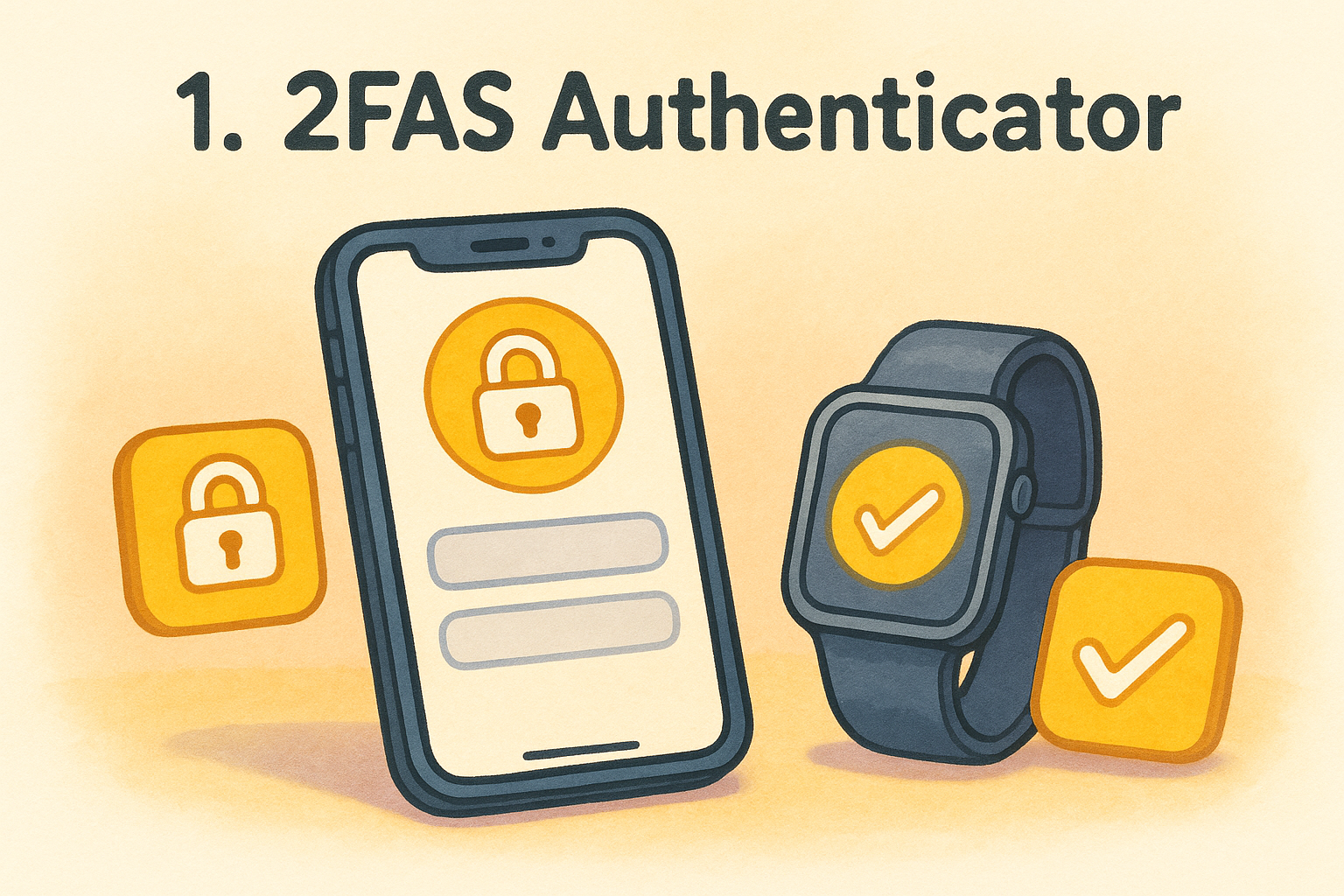
2FAS Authenticator is a free, open-source app that has built a serious reputation among privacy-focused users. It handles TOTP and HOTP codes, scans QR codes in seconds, and keeps your account list organized with service icons and custom groupings. If you want the best two factor authentication app for iPhone without paying a subscription or handing your data to a corporate backend, 2FAS deserves the top spot on this list.
What you get on iPhone
The iOS app gives you TOTP and HOTP support, a home screen widget for fast code access, and a lock screen widget so you never need to fully open the app. You can search your accounts by name, which saves real time once your list grows past a dozen entries. The app also supports Apple Watch, pushing your codes to your wrist if that fits your workflow better.
One feature that separates 2FAS from simpler options is its browser extension compatibility. Pair the app with the 2FAS extension in your Mac browser, and instead of typing a code manually, you approve the request with a single tap on your iPhone. That reduces friction without weakening the security benefit of keeping codes on a separate device.
Security and privacy notes
2FAS stores your data locally on your device by default. The company collects no personal information, requires no account registration, and has no server-side access to your codes. The entire codebase is publicly available on GitHub, meaning independent security researchers can audit exactly what the app does rather than trusting a privacy policy document.
Open-source code doesn't guarantee zero vulnerabilities, but it does mean the security community can inspect, challenge, and improve the app in the open.
The app supports Face ID and Touch ID locking. Anyone who picks up your phone cannot open 2FAS without your biometrics or your device PIN.
Backup, sync, and migration
Your backup goes to iCloud, encrypted, and tied to your Apple ID. You can also export a local backup as an encrypted JSON file and store it wherever you choose, on an external drive, a separate cloud account, or a USB. That flexibility is important if you ever switch platforms, since 2FAS runs on both iOS and Android and imports its own backup format across both.
Multi-device syncing on iOS works through iCloud automatically once you enable it. No third-party server handles that process, which keeps your account data out of 2FAS's infrastructure entirely.
Best fit for
2FAS is the right pick if you want a no-cost, independently verifiable authenticator that does not require an account or trust a vendor's backend. It works especially well for crypto holders who are serious about minimizing their attack surface without adding complexity. The browser extension pairing is genuinely useful if you use a Mac day to day alongside your iPhone.
Pricing
2FAS is completely free. There is no paid tier, no advertising, and no premium features hidden behind a paywall. The project runs on community contributions and is backed by a nonprofit foundation, so you get the full feature set at zero cost.
2. Apple Passwords
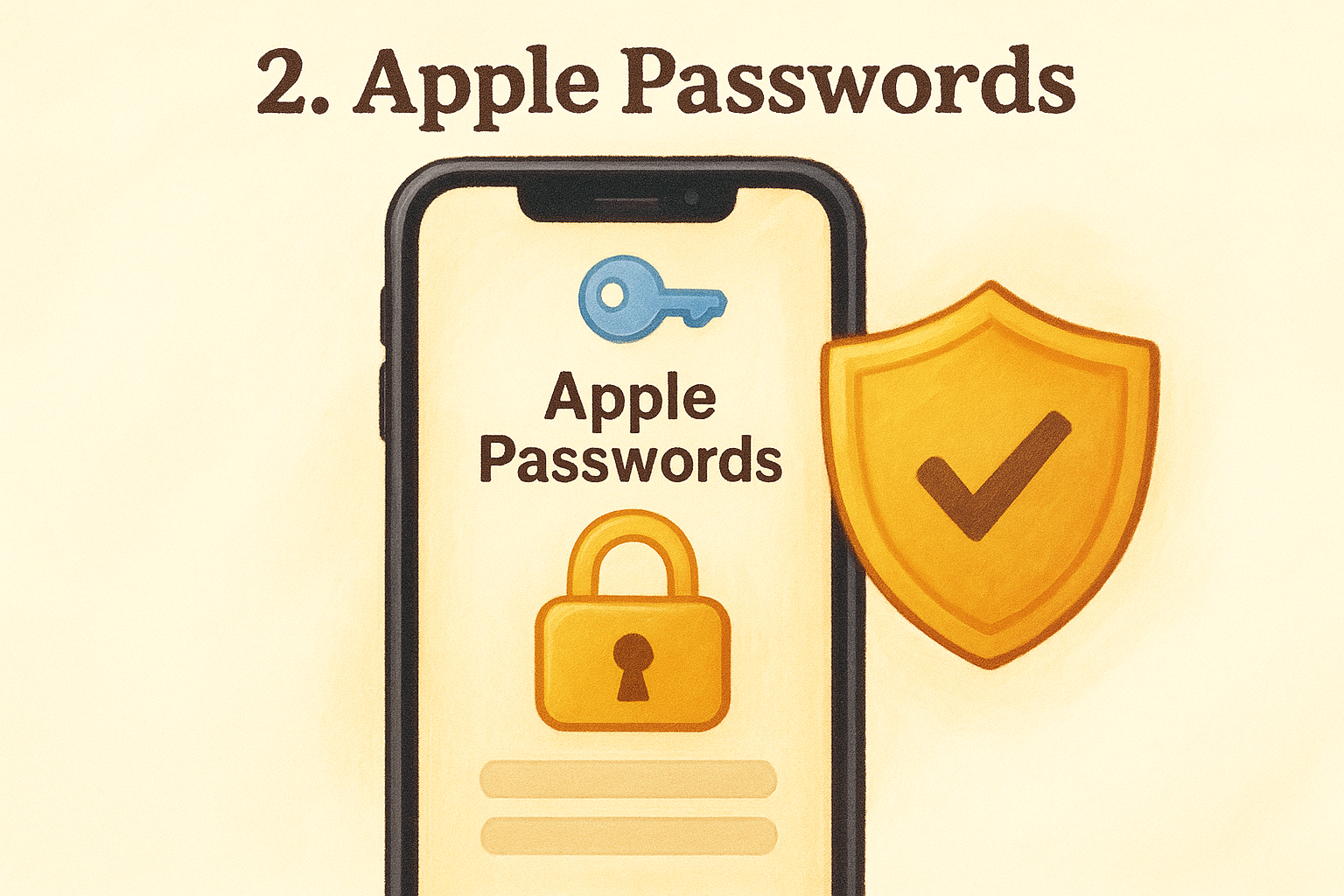
Apple Passwords is the built-in authenticator Apple introduced as a standalone app in iOS 18, having previously buried the feature inside Settings. If you already live inside the Apple ecosystem, this option offers a zero-friction setup without installing anything extra. It won't top the list as the best two factor authentication app for iPhone if you need advanced controls or cross-platform flexibility, but it handles the basics well and connects tightly with tools you already use every day.
What you get on iPhone
Apple Passwords generates TOTP codes for any service that supports authenticator apps and connects directly to iCloud Keychain, so your usernames, passwords, and 2FA codes sit in one place. When you log into a site through Safari, the app autofills both your credentials and your verification code in a single step.
That autofill integration removes the friction of switching between apps mid-login. If your workflow stays primarily within Safari on iPhone, that convenience is hard to match with any standalone authenticator.
Security and privacy notes
Apple protects your data with end-to-end encryption through iCloud Keychain, and your codes stay tied to your Apple ID so no one outside your trusted devices can read them. The app also locks behind Face ID or Touch ID by default, blocking unauthorized access from the lock screen.
Storing your passwords and 2FA codes inside the same app means a single compromised Apple ID could expose both security layers simultaneously.
Combining credentials and codes in one place does create a concentrated point of failure, which is worth factoring in if your Apple ID security isn't already locked down with a strong password and recovery key.
Backup, sync, and migration
Your data syncs automatically across every device signed into your Apple ID through iCloud. No manual steps are required, and the sync happens in the background without any configuration.
The downside is that no direct export option exists inside the app. If you switch to Android or a non-Apple device later, you'll need to re-scan every QR code individually to move your accounts to a new authenticator.
Best fit for
Apple Passwords suits users who are fully committed to Apple hardware and want the simplest possible setup with no extra apps to manage. It works well for protecting everyday accounts like email and social platforms.
If you use Windows, Android, or any non-Apple device alongside your iPhone, the lack of cross-platform support will become a real limitation quickly.
Pricing
Apple Passwords is completely free and ships with iOS 18 and later. No subscription, no separate purchase, and no premium tier exists.
- Included with: iOS 18+, macOS Sequoia, iPadOS 18
- Cost: $0
3. Google Authenticator
Google Authenticator is the app that introduced most people to TOTP-based 2FA, and its simplicity still makes it one of the most widely recognized names in the category. The iOS app has improved significantly since Google added cloud backup in 2023, but it still lags behind the best two factor authentication app for iPhone options when you need advanced security controls or cross-platform flexibility. If your main priority is fast setup and a familiar interface, it works, but there are real tradeoffs to understand before committing.
What you get on iPhone
The app handles TOTP code generation with a clean, minimal interface that most users can navigate without any learning curve. You scan a QR code, and your account appears immediately. Google also added group organization, so you can sort accounts into folders rather than scrolling through one long list. There's no Apple Watch support and no browser extension pairing, so you'll always be switching apps during login to copy a code manually.
Security and privacy notes
Google Authenticator does not lock behind Face ID or Touch ID by default, which means anyone who picks up your unlocked iPhone can open the app and read your codes without any barrier. You can enable a screen lock through the app settings, but it's not enforced automatically.
An authenticator app without a mandatory biometric lock is a meaningful gap in your security model, especially if your phone ever leaves your hands.
Your accounts sync to your Google account once you enable cloud backup, which is convenient but means Google's infrastructure holds a copy of your TOTP secrets. For most general accounts that's an acceptable tradeoff, but for high-value crypto exchange accounts, that's worth reconsidering.
Backup, sync, and migration
Backup ties directly to your Google account and syncs across every device where you're signed in. Migrating to a new iPhone is straightforward as long as you stay within Google's ecosystem. Switching to a different authenticator app, however, requires re-scanning each account manually since no direct export feature exists.
Best fit for
Google Authenticator suits users who are already deep in the Google ecosystem and want something simple with no setup overhead. It works fine for protecting standard accounts like Gmail or social logins, but it's not the strongest option for protecting crypto exchange accounts where you need biometric enforcement and more control over where your data lives.
Pricing
Google Authenticator is free. There is no paid version, no subscription, and no premium features locked behind a paywall.
- Cost: $0
- Requires: iOS 16 or later
4. Microsoft Authenticator
Microsoft Authenticator started as a companion app for Microsoft accounts and corporate Azure Active Directory sign-ins, but it also generates TOTP codes for any service that supports standard authenticator apps. It's one of the most downloaded authenticator apps on iOS, though whether it qualifies as the best two factor authentication app for iPhone for your situation depends heavily on how embedded you already are in the Microsoft ecosystem.
What you get on iPhone
The app handles TOTP code generation alongside its primary function of approving Microsoft account sign-ins through push notifications. For personal Microsoft accounts, you tap "Approve" on a notification instead of copying a six-digit code manually, which speeds up the login process. For non-Microsoft accounts, you get standard TOTP display with service icons and a reasonably clean interface. There is no Apple Watch support or browser extension pairing, so switching apps to copy a code manually is still part of your workflow for third-party logins.
Security and privacy notes
Microsoft Authenticator enforces a biometric lock through Face ID or Touch ID, which means your codes stay protected even if your phone is sitting unlocked on a desk. Your account data syncs to your Microsoft account in the cloud, which means Microsoft holds a copy of your TOTP secrets on their infrastructure alongside your credentials.
Storing your authenticator backup inside a major vendor's cloud ties your recovery options directly to the security of that vendor account.
Backup, sync, and migration
Backup and restore tie to your Microsoft account, and recovering your accounts on a new iPhone takes only a few steps if you stay in that ecosystem. Non-Microsoft TOTP accounts are included in the encrypted cloud backup, so you won't lose your full account list if you upgrade your device. Moving away from the app to a different authenticator requires re-scanning every account individually, since no direct export function exists.
Best fit for
Microsoft Authenticator fits users who operate in a Microsoft-heavy work environment, such as corporate Office 365 or Azure setups where push-approval login is already the standard workflow. It handles personal TOTP accounts adequately alongside that primary role, but it adds little for users with no Microsoft accounts to manage.
Pricing
Microsoft Authenticator is completely free with no paid tier or premium features.
- Cost: $0
- Requires: iOS 16 or later
5. Duo Mobile
Duo Mobile is built primarily for enterprise and institutional environments, developed by Cisco to handle corporate authentication workflows. It supports TOTP code generation for standard third-party accounts alongside its push-approval system, but its roots as an IT department tool shape the experience in ways that matter if you're evaluating the best two factor authentication app for iPhone for personal crypto or general account security.
What you get on iPhone
Duo Mobile generates TOTP codes for any site that supports standard authenticator apps and handles push-approval notifications for organizations that have deployed Cisco's Duo infrastructure. The interface is clean and functional, showing your accounts in a simple list with service icons. If you're authenticating into a workplace system that runs on Duo, the app handles the entire login in one tap through push approval rather than requiring you to copy a code manually.
There is no Apple Watch support and no browser extension pairing, so you will always switch apps to retrieve a code when logging into personal accounts outside the Duo ecosystem.
Security and privacy notes
The app enforces a biometric lock through Face ID or Touch ID, which keeps your codes protected if your phone reaches the wrong hands. Your TOTP secrets for third-party accounts are stored on Cisco's cloud infrastructure when you enable the backup feature, meaning a major enterprise vendor holds a copy of your authentication data.
Enterprise-grade infrastructure does not automatically mean better privacy for personal accounts, especially when your backup lives on servers you cannot audit independently.
Backup, sync, and migration
Duo Mobile ties its backup and restore process to a registered Duo account through Cisco's platform. Recovering your accounts on a new iPhone works smoothly inside that system. Moving away from Duo to a different authenticator means you will need to re-scan every QR code individually, since no direct export function exists within the app.
Best fit for
Duo Mobile suits users whose employer or institution has already deployed Duo across their systems and who want one app handling both workplace authentication and personal TOTP accounts. It adds little for users who have no enterprise Duo account to manage.
Pricing
Duo Mobile is free to download and use for personal TOTP accounts with no paid tier required.
- Cost: $0
- Requires: iOS 16 or later
6. Ente Auth
Ente Auth is a fully open-source authenticator that combines TOTP code generation with end-to-end encrypted cloud backup. It was built by the same team behind Ente Photos, and the focus on cryptographic privacy runs through both products. If you are searching for the best two factor authentication app for iPhone that offers verifiable security without routing your data through a major tech vendor's infrastructure, Ente Auth is worth a close look.
What you get on iPhone
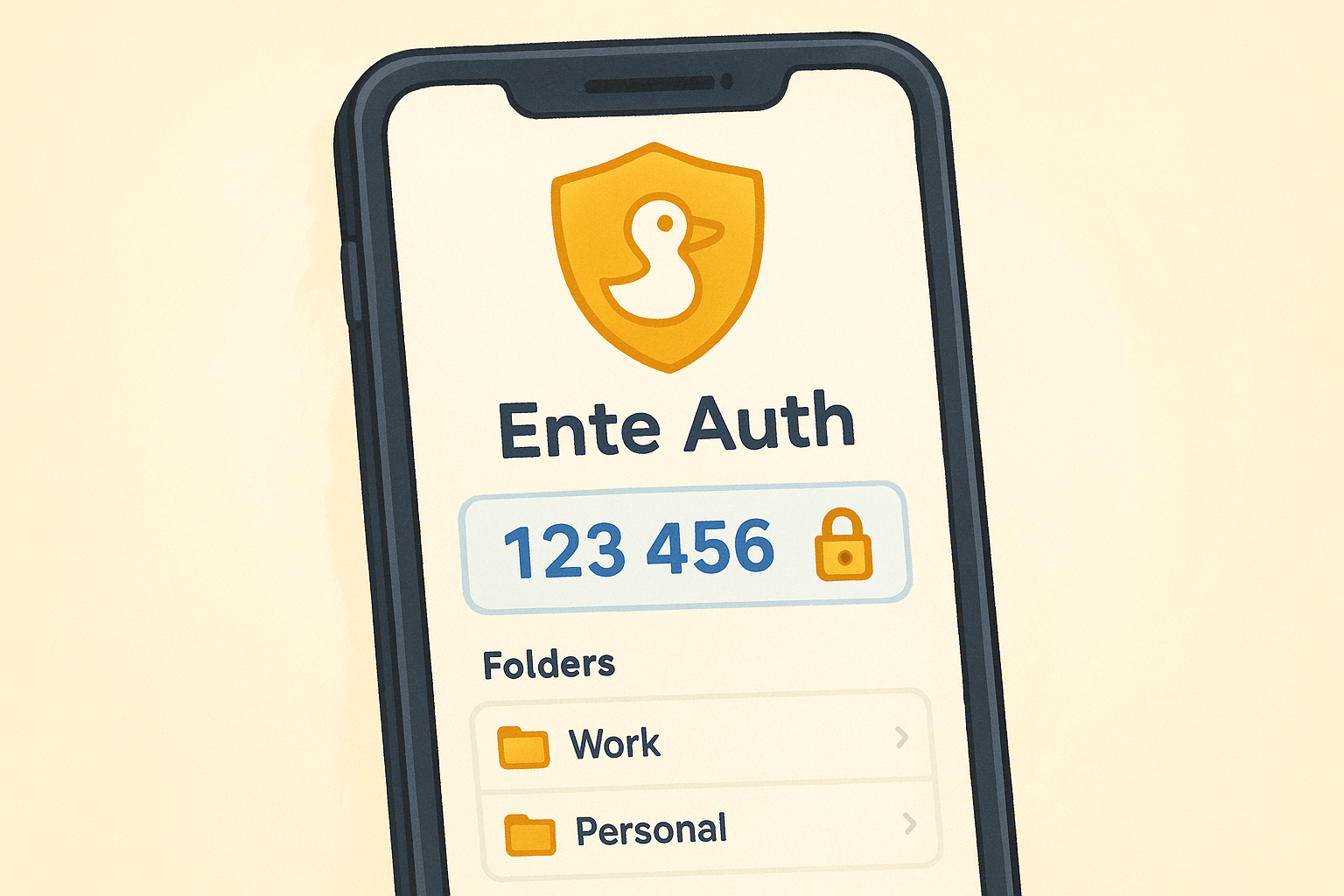
The iOS app handles TOTP code generation with a clean interface, account search, and service icons for easy identification. You can organize accounts into custom folders and pin frequently used entries to the top of your list for faster access. Ente Auth also runs on Android, web browsers, Linux, macOS, and Windows, making it one of the stronger cross-platform options in this list.
Security and privacy notes
Ente Auth encrypts your TOTP secrets before they leave your device, using keys derived from your password. The server stores only ciphertext and has no access to anything readable. The codebase is publicly available on GitHub and has undergone independent third-party security audits, so you are not relying solely on the company's claims about how your data is handled.
End-to-end encryption means a breach of Ente's servers would still leave your authentication secrets unreadable to any attacker.
The app also enforces a biometric lock through Face ID, adding a direct access barrier on the device itself alongside the encryption protecting your cloud backup.
Backup, sync, and migration
Your encrypted backup syncs to Ente's cloud servers automatically once you register a free account. You can also export your accounts as a plain-text or encrypted file at any time, giving you a portable backup that works with most other authenticator apps if you decide to switch later.
Best fit for
Ente Auth suits users who want open-source, audited software with encrypted cloud sync but prefer not to tie their authenticator to Apple, Google, or Microsoft infrastructure. It is a particularly strong fit for crypto holders managing accounts across multiple devices who want backup without trusting a major vendor's backend.
Pricing
Ente Auth is free for personal use with cloud backup included. A paid Ente subscription adds extra storage across Ente's other products but is not required to use the authenticator at full functionality.
- Cost: $0 for authenticator use
- Requires: iOS 15 or later
7. Bitwarden
Bitwarden started as an open-source password manager, but its authenticator feature makes it a legitimate contender when you're looking for the best two factor authentication app for iPhone that consolidates your security tools into one place. Like Apple Passwords, it stores both your credentials and your TOTP codes together, but unlike Apple's offering, it works across every major platform without tying you to a single ecosystem.
What you get on iPhone
The Bitwarden iOS app generates TOTP codes directly inside your vault entries, linking each code to the matching login credential. When you open a saved account, your username, password, and verification code are all visible in the same record. Bitwarden also supports autofill through iOS, so Safari and third-party apps can pull your credentials and codes without requiring you to switch apps manually. The interface is functional rather than flashy, but it covers everything a serious user needs.
Security and privacy notes
Bitwarden encrypts your vault with AES-256 encryption before anything leaves your device, and the decryption key never touches Bitwarden's servers. The full codebase is publicly available on GitHub and has passed independent third-party security audits, giving you something verifiable beyond a terms of service document.
Combining your password vault and your TOTP codes in one app simplifies your workflow but concentrates two security layers behind a single master password, so that password needs to be genuinely strong.
The app enforces a biometric lock through Face ID, preventing anyone from accessing your vault without your biometrics or your master password.
Backup, sync, and migration
Your vault syncs to Bitwarden's encrypted cloud servers automatically across all your devices. You can also export your vault as an encrypted or plain-text file at any time, giving you a portable backup independent of Bitwarden's infrastructure if you ever need it.
Best fit for
Bitwarden suits users who already rely on a password manager and want to consolidate their TOTP codes into the same tool. It works particularly well for users operating across multiple operating systems who need consistent access from iPhone, Android, Windows, and macOS simultaneously.
Pricing
Bitwarden offers a free tier that covers unlimited vault storage and cross-device sync. TOTP code generation requires the Premium plan at $10 per year, which is one of the most affordable paid tiers in this category.
- Free tier: Unlimited vault, cross-device sync, no TOTP support
- Premium: $10/year, includes TOTP generation
- Requires: iOS 16 or later
Next steps
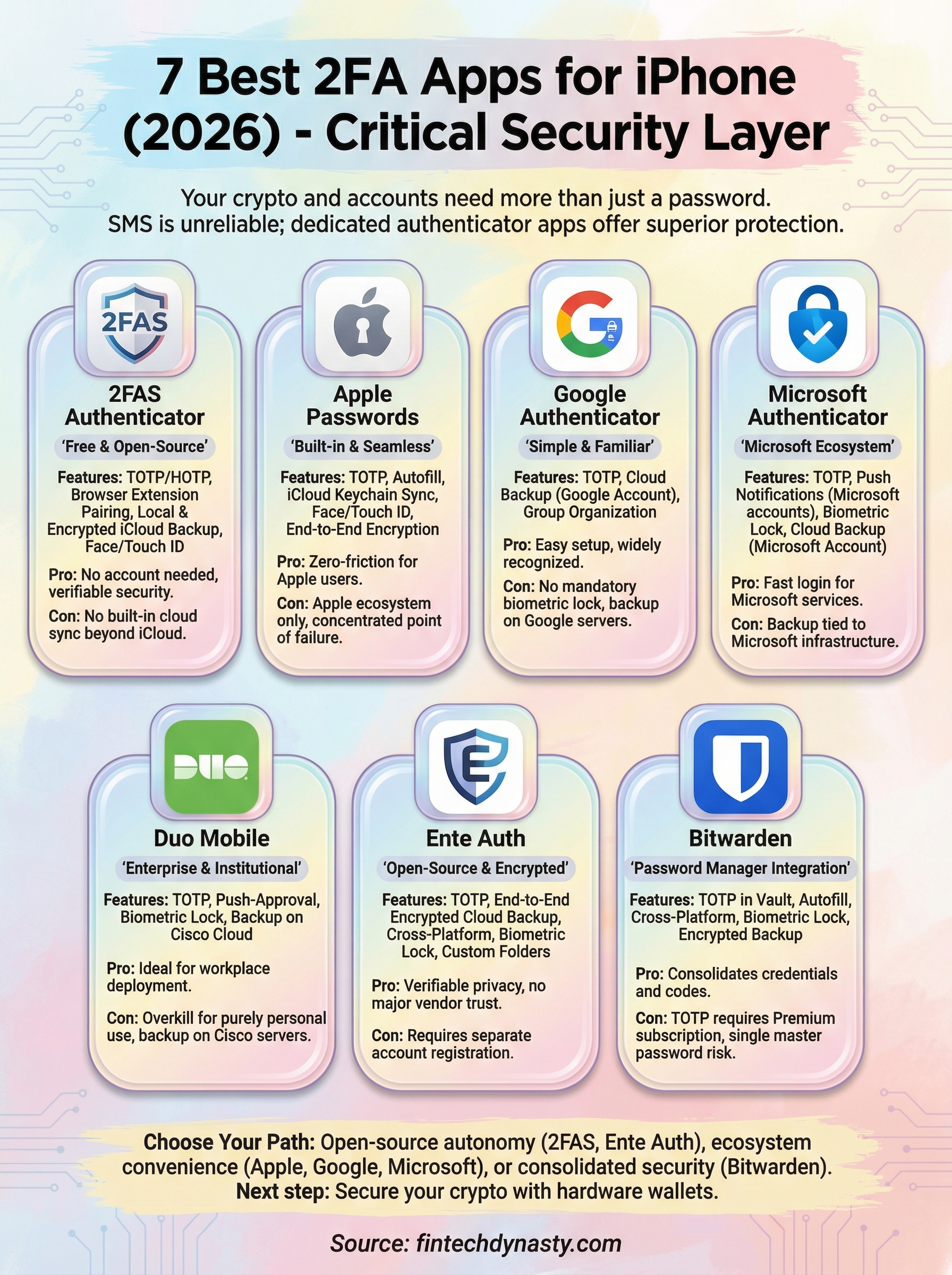
Picking the best two factor authentication app for iPhone comes down to your priorities. If you want open-source, zero-cost protection with no vendor dependencies, 2FAS or Ente Auth are the strongest choices. If you work inside Microsoft or Google's ecosystem and want something that just works with your existing accounts, those respective apps handle the basics without any friction. Bitwarden makes sense if you're already using a password manager and want TOTP codes in the same place.
Securing your logins is one layer. The next step is making sure the crypto assets behind those logins actually move off exchanges and into cold storage where no server breach can reach them. That's where hardware wallets and self-custody come in. If you're ready to go deeper on protecting your digital wealth, the FinTech Dynasty crypto security course walks you through the full process from wallet selection to seed phrase storage.