

Two Factor Authentication For Small Business: Setup Guide
A single compromised password can drain a business bank account, expose customer data, or lock you out of critical systems overnight. Two factor authentication for small business isn't just a nice-to-have anymore, it's a baseline security measure that stands between your operations and a growing wave of credential-based attacks. Yet many small business owners either skip it entirely or implement it poorly, leaving gaps that attackers actively exploit.
At FinTech Dynasty, we focus on helping people secure their digital assets through independent research and practical education. While our core expertise is in cryptocurrency self-custody and cold storage, the security principles behind protecting a hardware wallet and protecting a business account overlap more than most people realize. Private key management, authentication layers, and access control all stem from the same foundation: making sure only the right person gets in. That mindset applies whether you're safeguarding Bitcoin or your company's payroll platform and client database.
This guide walks you through why 2FA matters for small businesses, how to choose the right solution for your team, and step-by-step instructions to roll it out across your existing tools. No jargon-heavy theory, just clear decisions and practical steps you can act on this week. By the end, you'll have a working plan to add a real layer of protection to every account your business depends on.
What 2FA is and why small businesses need it
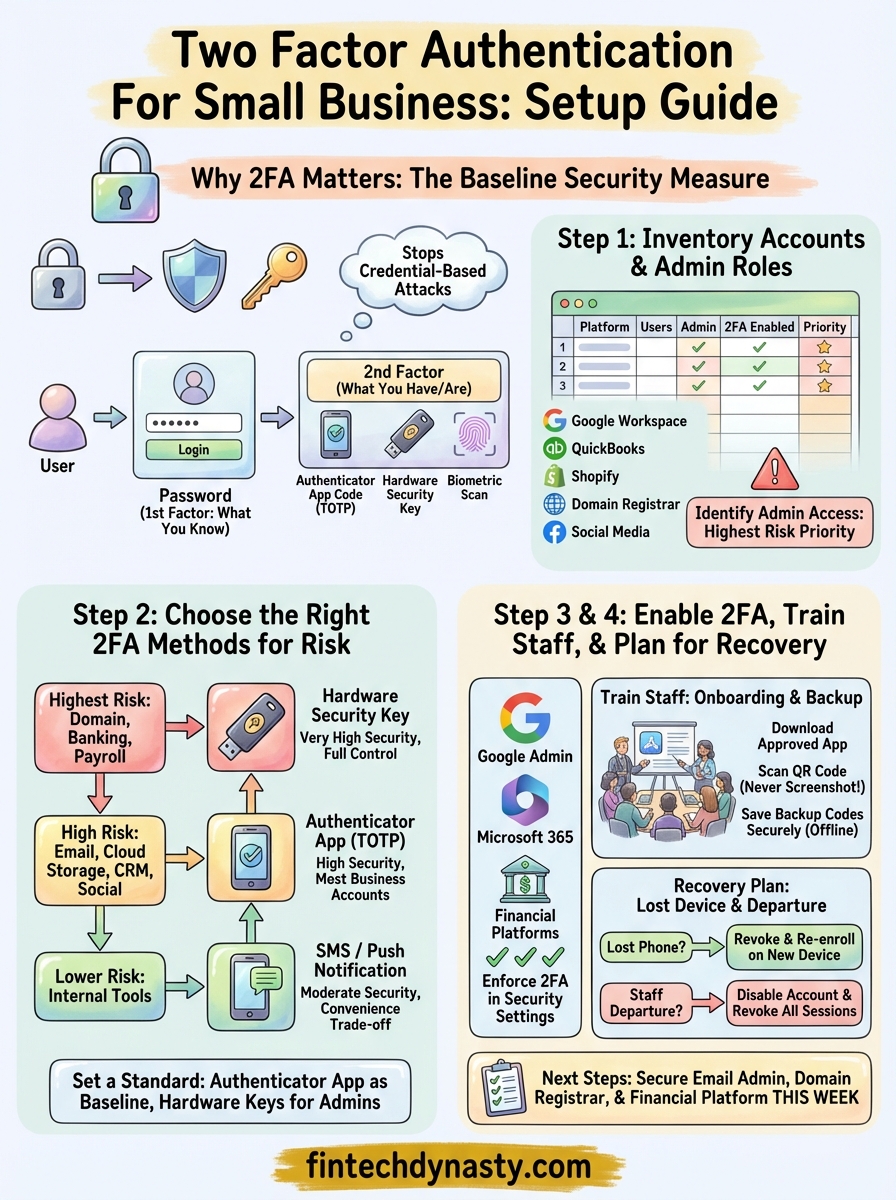
Two-factor authentication (2FA) requires a user to verify their identity with two separate pieces of evidence before gaining access to an account. The first factor is something you know, typically a password. The second factor is something you have or are: a one-time code from an authenticator app, a physical hardware key, or a biometric scan. Even if a thief steals your password through a phishing attack or a data breach, they still cannot get in without that second verification step.
How 2FA works in practice
When you log in to a platform with 2FA enabled, you enter your password as usual, and then the system prompts you for a second factor. The most common form is a time-based one-time password (TOTP), which is a six-digit code that refreshes every 30 seconds inside an app like Google Authenticator or Microsoft Authenticator. Other methods include SMS text codes, hardware security keys, and push notifications that ask you to approve or deny the login attempt.
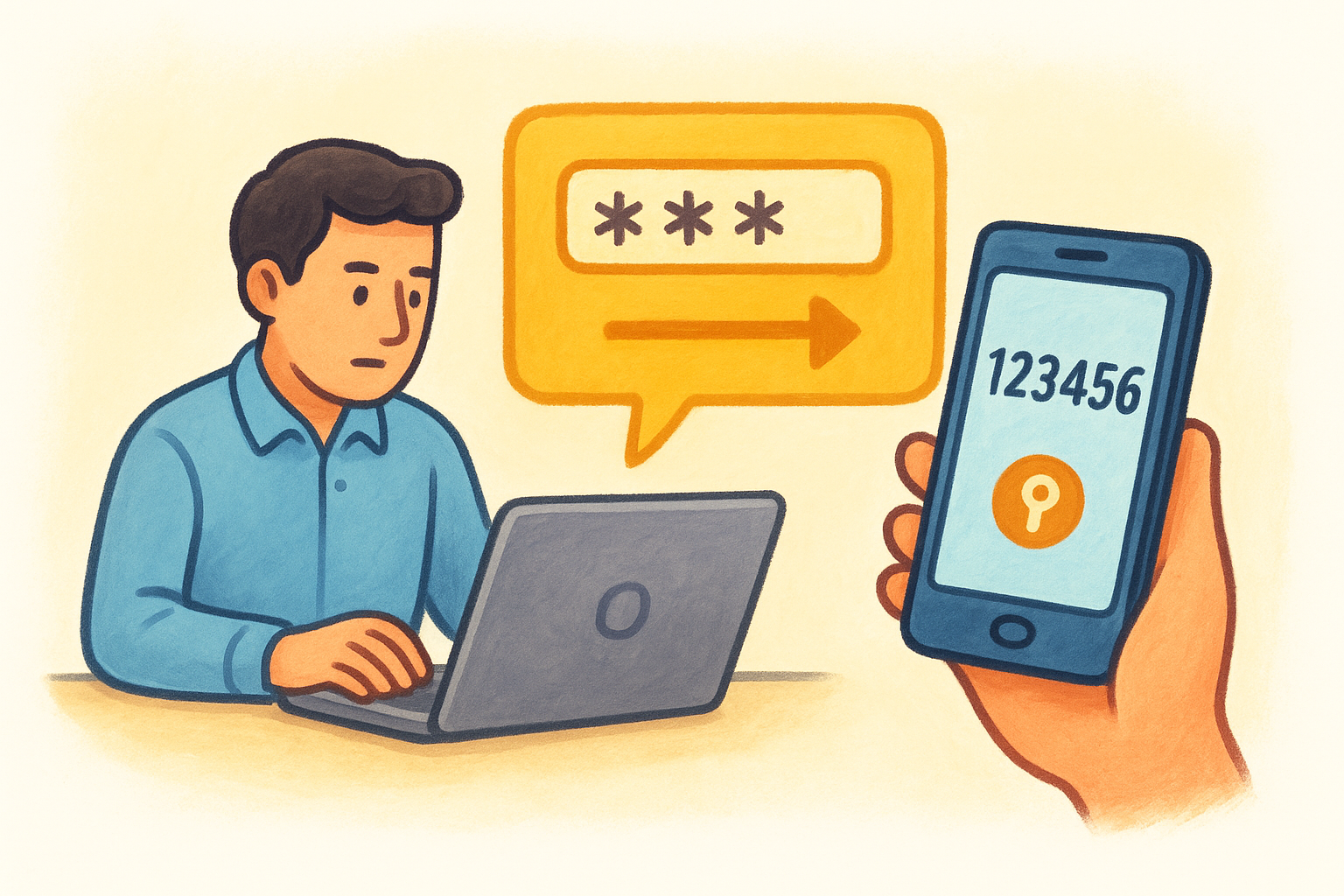
Authenticator apps are significantly more secure than SMS codes because phone numbers can be hijacked through SIM-swapping, where an attacker convinces your carrier to transfer your number to their device.
Each method carries a different security level and convenience trade-off, which is why the right choice depends on the sensitivity of the account. Here is a quick breakdown of the main options:
| 2FA method | Security level | Best used for |
|---|---|---|
| Authenticator app (TOTP) | High | Most business accounts |
| Hardware security key | Very high | Admin and financial accounts |
| SMS one-time code | Moderate | Low-risk or legacy systems |
| Push notification approval | High | Accounts with a mobile workforce |
| Biometric (device-level) | High | Device logins and VPN access |
Why attackers target small businesses
Small businesses are not too small to target. Attackers often prefer them because they hold valuable data, process real money, and typically have far fewer security resources than large enterprises. Credential-stuffing tools run automated login attempts against thousands of sites simultaneously, and your accounting software, email platform, and payment processor are exactly the kind of high-value targets that show up in those attack lists.
Implementing two factor authentication for small business environments directly cuts off the most common attack path. Stolen passwords become worthless on their own, which removes the risk from the majority of phishing attempts and breached credential databases that circulate across the internet every day.
The real cost of skipping 2FA
The financial damage from a single account takeover can be severe. Attackers who break into a business email account can reroute invoices, impersonate executives, and approve fraudulent wire transfers before anyone notices. Beyond direct financial loss, a breach can trigger regulatory fines if customer data is exposed, and the time spent recovering access and rebuilding trust is often measured in weeks, not hours.
Adding 2FA to your core business accounts costs nothing but a few minutes of setup per platform. The protection it delivers is immediate and concrete, and it is one of the few security measures where the effort-to-impact ratio is almost impossible to beat.
Step 1. Inventory accounts, apps, and admin roles
Before you enable a single 2FA setting, you need to know exactly what you're protecting. Most small businesses underestimate how many accounts and apps their team accesses every day, and the ones that get overlooked are often the ones that cause the most damage when compromised. Start with a full inventory before you touch any settings.
Map every account your business uses
Walk through every platform your team logs into and write it down. Think across categories: email, cloud storage, accounting software, payroll systems, e-commerce platforms, CRM tools, domain registrars, and social media accounts. A spreadsheet works fine here. For each account, record the platform name, who has access, and whether 2FA is currently enabled.
The accounts you forget to list are the ones attackers will find first, so take your time and loop in team members who manage tools you may not use directly.
Use this template as your starting point:
| Platform | Users with access | Admin account | 2FA enabled? | Priority |
|---|---|---|---|---|
| Google Workspace | All staff | Owner email | No | High |
| QuickBooks | Owner, bookkeeper | Owner email | No | High |
| Shopify | Owner, marketing | Owner email | No | High |
| Domain registrar | Owner | Owner email | No | Critical |
| Social media | Marketing | Shared login | No | Medium |
Fill out a row for every account your business depends on, including ones that feel minor. A compromised social media account can expose customer data or damage your reputation just as fast as a breached financial platform.
Identify who holds admin access
Once you have your list, flag every account where someone holds admin-level permissions, meaning they can change settings, add users, or access billing. These accounts carry the highest risk because an attacker who gets in can lock everyone else out and take full control. For rolling out two factor authentication for small business accounts effectively, admin accounts should be your first priority, not an afterthought.
Check whether any admin accounts use shared credentials or personal email addresses that fall outside your business domain. Both are security gaps that need to be resolved before or alongside enabling 2FA.
Step 2. Choose the right 2FA methods for each risk
Now that you have your full account inventory, the next task is matching the right 2FA method to each account's actual risk level. Not every account needs the same level of protection, and choosing a method that is too cumbersome for low-risk tools will cause your team to push back. The goal is to make security fit the risk so that adoption stays high and gaps stay closed.
Match the method to the account's risk level
Your highest-risk accounts need the strongest methods. Use this framework to assign the right approach across your inventory:
| Account type | Recommended 2FA method | Why |
|---|---|---|
| Domain registrar, DNS | Hardware security key | Full control of your online identity |
| Business banking, payroll | Hardware key or authenticator app | Direct financial exposure |
| Email (admin accounts) | Authenticator app or hardware key | Gateway to every password reset |
| Cloud storage, CRM | Authenticator app (TOTP) | Sensitive data, moderate risk |
| Social media | Authenticator app | Reputational risk, shared access |
| Low-risk internal tools | SMS or push notification | Convenience is acceptable at lower risk |
Start by upgrading every admin and financial account to either a hardware security key or an authenticator app. SMS codes are acceptable as a fallback on low-risk tools, but they should not be the primary method for anything that touches money or customer data.
Authenticator apps like Google Authenticator or Microsoft Authenticator generate codes directly on the device, so they work without cell service and cannot be intercepted through SIM-swapping.
Set a standard your team will actually follow
Implementing two factor authentication for small business accounts works best when you pick one or two approved methods and apply them consistently. If each employee uses a different app, managing recovery becomes a real problem. Pick an authenticator app as your baseline standard for all staff accounts, and reserve hardware keys for the owner and any administrator-level roles.
Document that standard in a short written policy that covers:
- Which 2FA method is required for each account category
- Which authenticator app your business has approved
- How employees should store backup codes after setup
Step 3. Enable 2FA on your most-used platforms
With your inventory complete and your method choices locked in, you're ready to start enabling 2FA across your actual accounts. Work through your platforms in priority order, starting with the accounts that carry the highest risk. The instructions below cover the platforms most small businesses use every day.
Google Workspace
Google Workspace is often the central hub for small business operations since it controls email, file storage, and frequently serves as the login identity for dozens of other tools. Sign in to the Google Admin console at admin.google.com, then follow these steps to enforce 2FA for your entire organization:
- Navigate to Security > Authentication > 2-step verification
- Set enrollment to "On (Mandatory)" for all users in your domain
- Choose Google Authenticator or a hardware key as the allowed method
- Set a grace period of 3 to 5 days so staff can enroll before the policy activates
Enforcing 2FA at the admin level means even if an employee skips setup voluntarily, the system will require it on their next sign-in regardless.
Microsoft 365
If your business runs on Microsoft 365, multi-factor authentication is managed through the Microsoft Entra admin center. The fastest path for most small teams is to go to Identity > Users > All users and select Per-user MFA from the top menu. Follow these steps to enable it through the standard admin center:
- Sign in at admin.microsoft.com
- Go to Users > Active users
- Select "Multi-factor authentication" from the top menu
- Choose the users you want to update and select "Enable"
- Instruct users to complete setup on their next login
Financial and payment platforms
For accounting software and payment processors, the 2FA setting almost always lives under Security or Account Settings. In QuickBooks Online, go to your profile icon, select Intuit Account, then navigate to Sign-in and Security to turn on two-step verification.
Enabling two factor authentication for small business payment tools like Shopify follows the same pattern. Go to Settings > Users and permissions, then locate the security section and enforce 2FA for all staff accounts before their next login session.
Step 4. Train staff and plan for recovery
Enabling 2FA on every account means nothing if your team doesn't understand how to use it correctly. Untrained staff skip steps, save backup codes insecurely, and panic when a device goes missing, which creates exactly the kind of vulnerability that 2FA is supposed to eliminate. Before you consider the rollout complete, make sure every person with access to a business account knows the basics and knows what to do if something goes wrong.
Run a short onboarding session
A 20-minute walkthrough is enough to cover everything your team needs. You don't need a formal training program, but you do need to get everyone in the same room, even virtually, to walk through how to install the authenticator app, how to scan a QR code during setup, and where backup codes must be stored. Walk through one real account live so people can see the process before doing it on their own.
Cover these points during the session:
- Download the approved authenticator app before the session starts (Google Authenticator or Microsoft Authenticator)
- Never screenshot QR codes or store them in cloud photo libraries
- Save backup codes in a secure, offline location immediately after setup
- Report a lost or stolen device to you immediately, not after the fact
Employees who understand why 2FA matters are far more likely to follow the process correctly than those who see it as an obstacle someone else imposed on them.
Create a recovery plan for lost devices
Every two factor authentication for small business rollout needs a documented recovery process. If an employee loses their phone or leaves the company, you need a clear path to restore access or revoke it without disrupting operations. Build a simple recovery policy that covers both scenarios:
| Situation | Action required | Who handles it |
|---|---|---|
| Lost phone | Revoke 2FA device in admin console, re-enroll on new device | Business owner or IT admin |
| Staff departure | Disable account and revoke all active sessions immediately | Business owner |
| Locked out of admin account | Use pre-stored backup codes to regain access | Business owner only |
Store backup codes for every admin account in a physically secure location, separate from the devices that generate your regular 2FA codes. Treat them with the same care you would give to a physical key to your office.
Next steps
You now have a complete framework for rolling out two factor authentication for small business accounts: a prioritized inventory, method choices matched to each risk level, step-by-step platform instructions, and a recovery plan your team can follow. The hardest part is getting started, so open your inventory today and pick your three highest-risk accounts to secure this week.
Start with your email admin account, your domain registrar, and your primary financial platform. Those three accounts represent your biggest exposure, and locking them down first gives you real, immediate protection before you work through the rest of your list at a steady pace.
Security principles run deeper than authentication alone. If you want to apply that same thinking to protecting your digital assets and cryptocurrency holdings, explore cryptocurrency self-custody and security guides at FinTech Dynasty to take the next step in defending everything you own.