

Microsoft Authenticator Vs Google Authenticator: Which Wins?
Two-factor authentication stands between your crypto accounts and potential attackers. When comparing Microsoft Authenticator vs Google Authenticator, most users assume these apps work identically, but that assumption could leave gaps in your security setup.
Both apps generate time-based one-time passwords (TOTP) that add a critical layer of protection to exchange logins, email accounts, and other sensitive platforms. For anyone serious about self-custody and digital asset protection, the authenticator app you choose matters more than you might expect. At FinTech Dynasty, we focus on the practical security decisions that actually protect your holdings, and your 2FA strategy is one of them.
This comparison breaks down the key differences in security features, backup options, and platform compatibility. You'll see where each app excels, where it falls short, and which one aligns better with your specific needs. No fluff, no hype, just the technical details that help you make a confident choice.
1. FinTech Dynasty quick decision guide for 2FA
The decision between Microsoft Authenticator vs Google Authenticator comes down to how you plan to use it, not which one has more features. Your exchange accounts, wallet interfaces, and email logins all rely on 2FA, and the wrong choice can create unnecessary friction or, worse, leave you unable to recover access after a device loss. This guide focuses on the practical tradeoffs that matter for crypto holders, not generic feature comparisons.
What you actually need from an authenticator app
You need an app that generates TOTP codes reliably, stores multiple accounts without crashing, and gives you a clear recovery path if your phone dies or gets stolen. The app should work across the platforms you actually use, whether that means iOS, Android, or both. For crypto users, the ability to screenshot or document setup keys during initial configuration matters more than cloud syncing, because exchanges and wallets rarely offer account recovery through support tickets.
The crypto-specific risks most people miss
Most users assume 2FA apps protect them equally, but backup strategies differ dramatically between Microsoft and Google implementations. If you enable cloud sync for convenience, you introduce a new attack surface that sophisticated phishing campaigns actively target. Exchange accounts locked by 2FA failures during volatile market conditions have caused real financial losses. Your authenticator app should never become a single point of failure that prevents you from moving assets when you need to.
The difference between a secure 2FA setup and a locked account often comes down to whether you documented your setup keys during initial configuration.
When Microsoft Authenticator makes more sense
You benefit from Microsoft Authenticator when you already use Microsoft 365 or Azure services and want push notifications instead of manual code entry. The app handles password autofill and supports biometric unlock, which speeds up your workflow if you log into accounts frequently. Corporate users who need enterprise-level compliance features will find better documentation and support channels.
When Google Authenticator makes more sense
Google Authenticator fits users who want minimal permissions and a lightweight app that does one thing well. If you avoid cloud backups intentionally and prefer manual account transfers, the simpler interface reduces confusion. Android users who already sync data through Google accounts can enable the cloud backup feature without adding another provider to their security model.
When you should consider a different factor entirely
Hardware security keys like YubiKey or Titan remove the smartphone dependency completely and protect against sophisticated phishing attacks that bypass TOTP codes. Passkeys offer phishing-resistant authentication that major exchanges are starting to support. If you hold significant value in self-custody, layering multiple authentication methods provides better protection than relying on any single authenticator app.
2. Microsoft Authenticator
Microsoft Authenticator handles time-based one-time passwords and push notifications across your accounts, but its feature set extends beyond basic TOTP generation. When weighing microsoft authenticator vs google authenticator, you need to understand how Microsoft's approach to cloud backup and multi-factor authentication affects your crypto security model. The app integrates with Microsoft services by default, which creates convenience for some users and additional complexity for others.
How it works for 2FA and MFA
The app generates six-digit codes that refresh every 30 seconds using the TOTP protocol. You can approve login attempts through push notifications instead of typing codes, and Microsoft's number matching feature forces you to select the correct number displayed on your login screen. This prevents attackers from approving fraudulent requests even if they compromise your phone.
Features that matter day to day
You get password autofill that works across browsers and apps when you enable the feature. Biometric unlock speeds up access to your codes without requiring you to enter your device PIN repeatedly. The app supports multiple account types including work, personal, and third-party services through standard QR code scanning.
Security strengths and tradeoffs
Microsoft encrypts your backup data when you enable cloud sync, but that backup becomes a target for credential stuffing attacks. Push notifications resist basic phishing attempts better than TOTP codes alone. The app requires more permissions than minimal authenticators, which expands your attack surface.
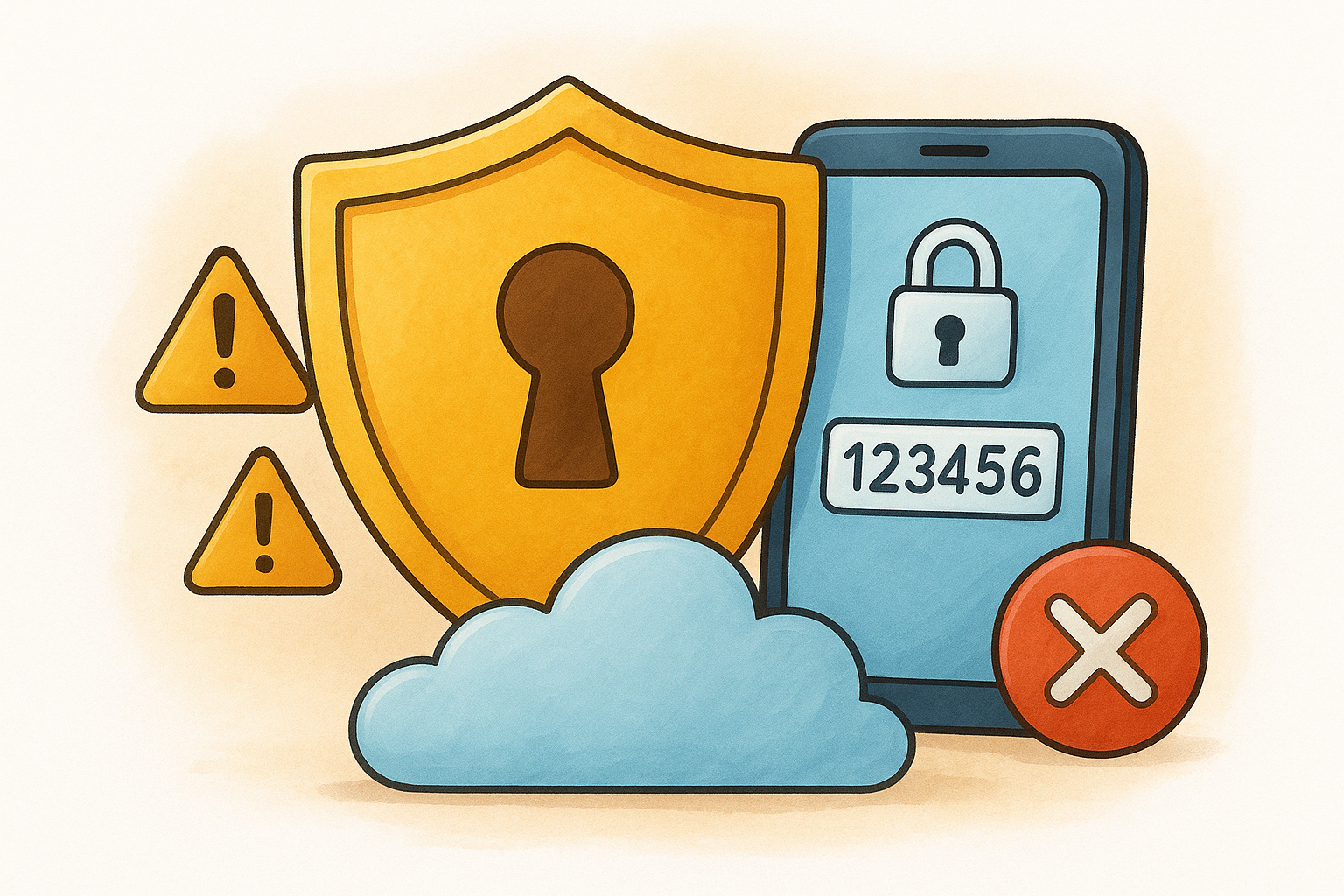
Cloud backups make device transitions easier but create a recovery path that attackers can potentially exploit through account takeover.
Backup, restore, and device loss scenarios
Your codes transfer to new devices automatically when you enable cloud backup through your Microsoft account. Without backup enabled, you lose all your TOTP accounts if your phone breaks. The recovery process requires you to re-scan QR codes individually for each service, which locks you out temporarily if you did not save your setup keys.
Best fit profiles
Microsoft Authenticator serves you best when you already manage accounts through Microsoft 365 or need enterprise compliance features. Corporate users who require audit logs and centralized management benefit from the additional functionality.
3. Google Authenticator
Google Authenticator strips away complexity and focuses exclusively on TOTP code generation without requiring cloud accounts or extensive permissions. When evaluating microsoft authenticator vs google authenticator, you find that Google's app takes the opposite approach by limiting features rather than expanding them. This minimalist design appeals to users who want predictable behavior without background syncing or push notification dependencies.
How it works for 2FA
The app generates six-digit codes that expire every 30 seconds using the standard TOTP algorithm. You scan QR codes during setup or manually enter the secret key that exchanges and wallets provide. Each account appears as a separate entry with the service name and username you configured during initial setup.
What it does well and keeps simple
Google Authenticator requires minimal storage space and runs without persistent internet connectivity. The interface shows all your accounts on one screen without nested menus or account categories. You tap an entry to copy the code, which reduces the steps between opening the app and completing your login.
Apps that do less often create fewer opportunities for misconfiguration or unintended security compromises.
Security strengths and tradeoffs
The app requests fewer device permissions than feature-rich alternatives, which limits potential attack vectors. Google added cloud backup functionality that encrypts your accounts through your Google account, but this remains optional. Without backup enabled, your codes never leave your device.
Transfer and recovery realities
You lose all your accounts if your phone breaks and you did not enable cloud backup or save your setup keys. The transfer process requires you to manually reconfigure each account on your new device by scanning fresh QR codes. Google's cloud backup only works between Android devices or when you use the same Google account on iOS.
Best fit profiles
Google Authenticator fits you best when you want zero dependencies on additional services or prefer manual control over account transfers. Users who already document their setup keys and avoid automatic cloud syncing find this app aligns with their security model.
4. Can you use them interchangeably
Both apps generate TOTP codes using the same underlying algorithm, which means any service that accepts one will technically accept the other. When deciding between microsoft authenticator vs google authenticator, compatibility rarely presents the actual problem. The issue surfaces when you try to move accounts between apps or expect features like push notifications to work identically across platforms.
What TOTP compatibility means in plain English
The time-based algorithm that generates your codes follows an open standard, so exchanges and wallets cannot tell which app created your code. You scan the same QR code with either app and get working codes immediately. This universal compatibility means you can use Microsoft Authenticator for some accounts and Google Authenticator for others without technical conflicts.
When QR codes and setup keys transfer cleanly
Standard TOTP accounts transfer between apps without issues when you have the original QR code or setup key. Your exchange accounts, email providers, and most crypto wallets use this standard format. You scan the code once into your new app and delete it from the old one.
When they do not transfer cleanly
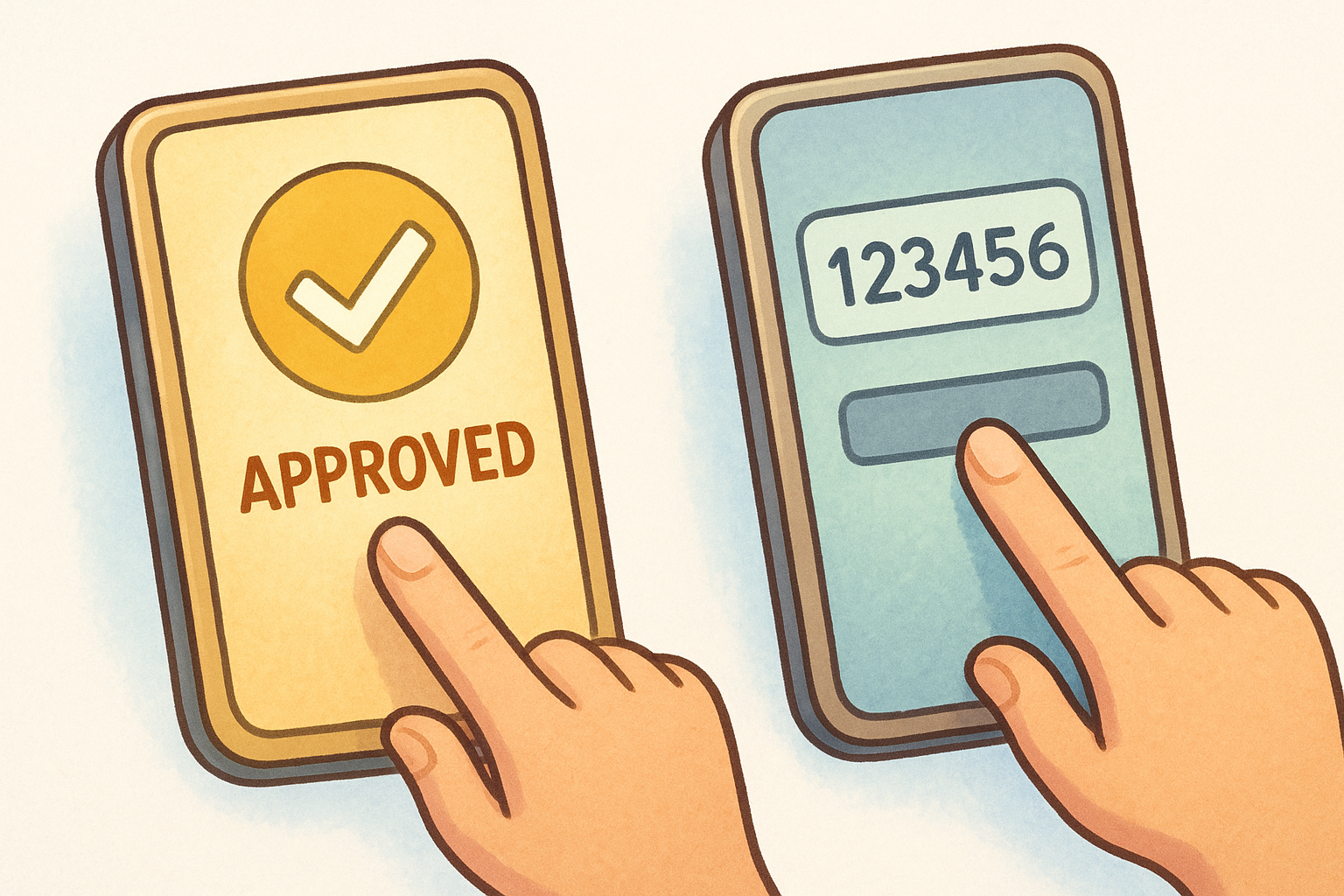
Microsoft's push notifications and number matching features only work through Microsoft Authenticator. Accounts configured for push approvals require you to reconfigure them as standard TOTP entries before Google Authenticator can generate codes.
Push approvals and number matching differences
Push-based approvals bypass code generation entirely by sending approval requests directly to your device. This feature exists only in Microsoft Authenticator and requires the service to support Microsoft's proprietary protocol.
What to do before you switch apps
Document every setup key before you remove accounts from your current app. Test your new app with one low-risk account first. Keep your old app installed until you verify that all your critical accounts generate working codes.
Switching authenticator apps without documenting your setup keys locks you out permanently from accounts that do not offer recovery options.
5. Migration, backups, and recovery steps
Moving between authenticator apps requires careful planning because one mistake locks you out permanently from accounts that lack recovery options. Whether you choose microsoft authenticator vs google authenticator or switch between them later, your migration process determines whether you maintain uninterrupted access to your exchange accounts and wallets during the transition.
The safest way to migrate without getting locked out
Keep both apps installed on your device until you verify every account works in the new app. Start by adding one low-risk account to your new authenticator and confirm the codes function correctly before proceeding. Never disable 2FA on any account until the replacement codes generate successfully.
How to handle exchanges and wallets one by one
Log into each exchange while you still have working codes from your old app. Navigate to the security settings and disable 2FA temporarily, then immediately re-enable it by scanning the new QR code with your target app. Test the new codes before moving to the next account.
Backup strategies that do not create new risks
Document your setup keys in an encrypted password manager or write them on paper stored in a fireproof safe. Photograph QR codes during initial setup but encrypt these images immediately. Cloud backups work only when you trust the provider and accept the additional attack surface.
The most secure backup exists offline in a format that cannot be remotely compromised through credential theft.
Common mistakes that lead to account loss
Users delete their old app before verifying every account transferred successfully. Others enable cloud backup without understanding that their recovery phrase for that cloud account becomes a critical security dependency. Skipping documentation assumes you will never lose your device.
A simple checklist to confirm you are done
Verify you can generate working codes for every critical account, confirm you saved all setup keys in secure storage, and test your backup method by attempting to restore one account on a secondary device. Delete your old app only after you access each account successfully.
Final pick
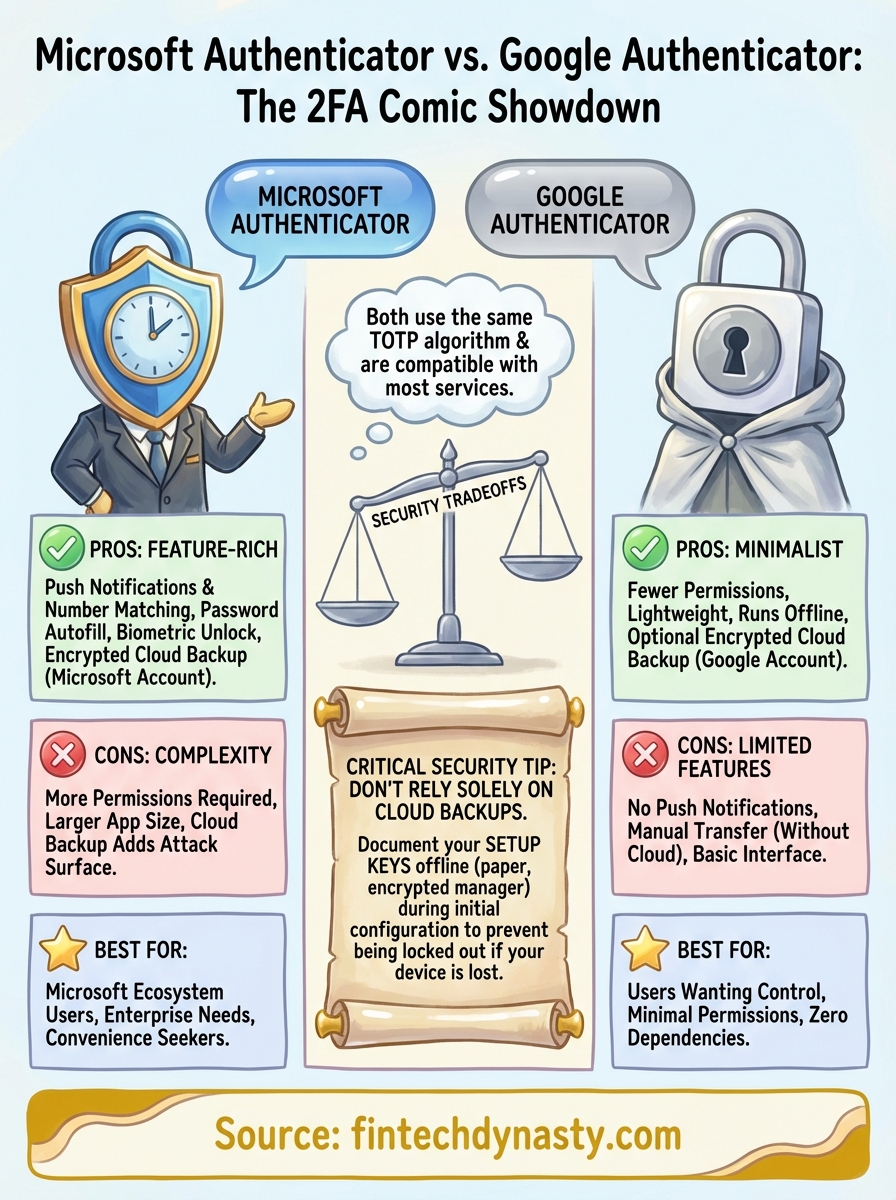
Neither app wins universally because your security priorities and existing infrastructure determine which one serves you better. The microsoft authenticator vs google authenticator debate resolves itself when you match features to your actual usage patterns rather than chasing theoretical advantages.
Microsoft Authenticator delivers more value when you need push notifications and already operate within the Microsoft ecosystem. Google Authenticator fits better when you want minimal permissions and prefer manual control over your backup strategy. Both apps generate reliable TOTP codes that protect your accounts equally well in daily use.
Your authenticator choice matters less than your backup documentation and recovery planning. Most account lockouts happen because users skip the tedious work of saving setup keys during initial configuration. At FinTech Dynasty, we focus on the practical security steps that actually protect your digital assets, starting with proper 2FA implementation and extending through complete self-custody strategies. Choose the app that matches your workflow, then focus your energy on documenting your setup keys before you need them.