

How To Report A Phishing Email In Gmail, Outlook, And More
Phishing emails aren't just annoying, they're dangerous. For anyone holding cryptocurrency or managing digital assets, a single deceptive email can lead to stolen funds and compromised wallets. Knowing how to report a phishing email stops the attack from spreading and helps authorities shut down scammers before they target someone else.
At FinTech Dynasty, we focus on protecting your digital wealth through education and practical security measures. Reporting phishing attempts is a critical part of that defense, right alongside using hardware wallets and safeguarding your seed phrases. Every report you file makes the entire ecosystem safer for legitimate users.
This guide walks you through the exact steps to report phishing emails in Gmail, Outlook, Yahoo, and Apple Mail. You'll also learn how to escalate serious threats to the FTC, FBI's IC3, and anti-phishing organizations, giving you a complete toolkit to fight back against email-based scams.
Before you report: confirm it's phishing
Not every suspicious email is actually a phishing attempt. Legitimate companies send security alerts, password reset confirmations, and account notifications that can look alarming at first glance. Before you report, you need to verify the email is actually malicious rather than a genuine communication from a service you use. Taking two minutes to confirm saves security teams time and ensures real threats get prioritized.
Red flags in the sender address
Check the actual email address, not just the display name. Scammers often use names like "Coinbase Security" or "Microsoft Support" while the real address reveals a completely unrelated domain. Hover over the sender's name in your email client to see the full address without clicking anything.
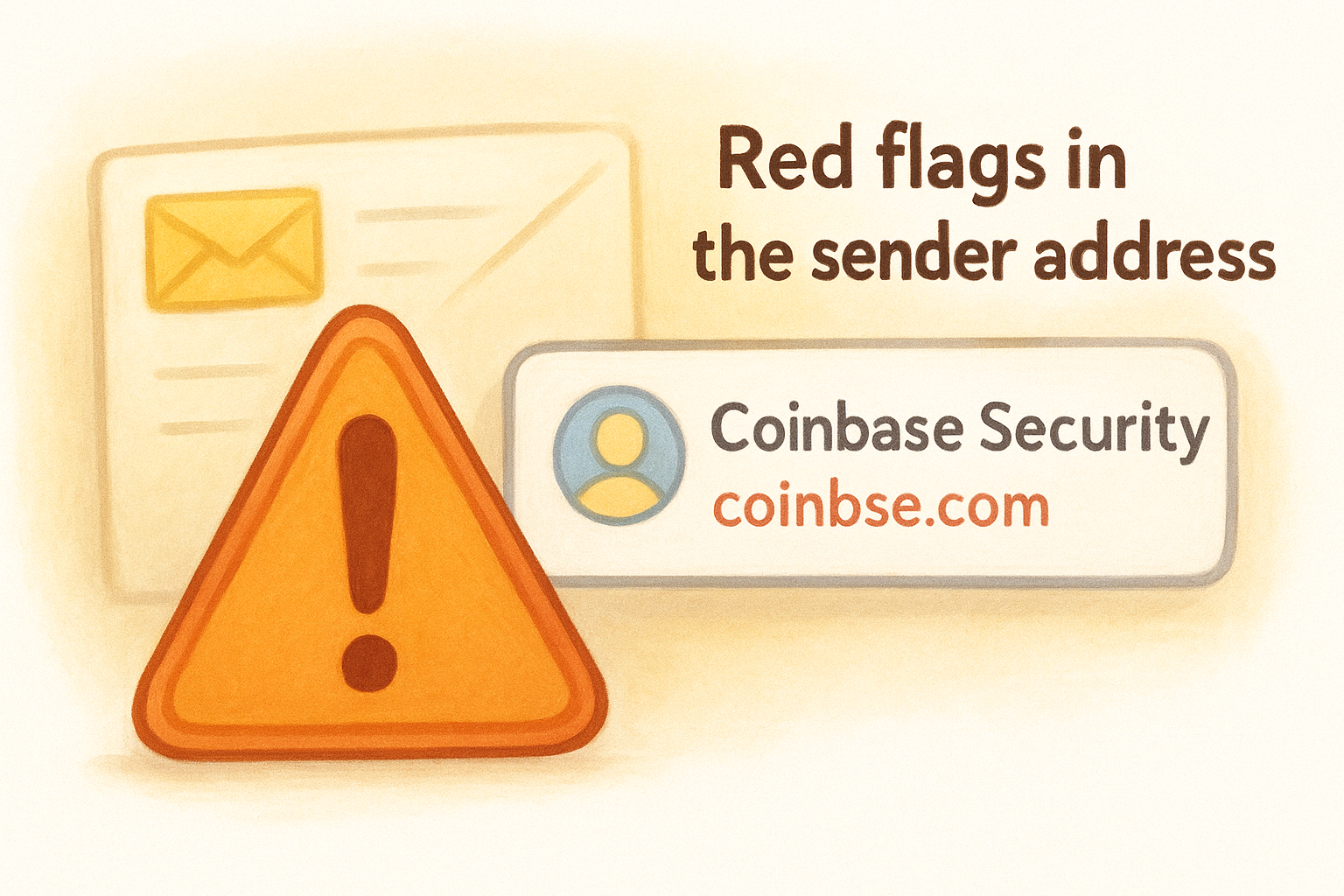
Legitimate companies always send from their official domain, like @coinbase.com or @microsoft.com, never from free email services or misspelled variations.
Watch for these common sender tricks:
- Misspelled domains: coinbse.com instead of coinbase.com
- Extra characters: support@coinbase-security.com or help@microsoftsupport.net
- Free email services: warnings from @gmail.com or @outlook.com claiming to be banks
- Random letter strings: noreply@xk7j3m.info pretending to be PayPal
Suspicious links and attachments
Real phishing emails always try to steal information or install malware through links or file downloads. Hover your mouse over any link without clicking to see where it actually leads. If the destination URL doesn't match the claimed company or looks like random characters, you've found a phishing attempt.
Attachments with extensions like .exe, .zip, or .scr are immediate red flags unless you specifically requested them. Even seemingly safe files like .pdf or .docx can contain hidden malware when they come from unknown senders.
Urgent threats and pressure tactics
Phishing emails rely on creating panic to bypass your judgment. Messages claiming your account will be closed "within 24 hours" or that you've been "charged $999" for something you didn't buy are designed to make you click before thinking. Legitimate companies give you reasonable timeframes and multiple ways to verify suspicious activity through their official website or app, never through email links alone.
Step 1. Secure your accounts and preserve evidence
Before you report anything, you need to protect yourself from immediate damage and gather the evidence that investigators will use to track down scammers. Taking these actions within the first few minutes after discovering a phishing attempt can prevent account takeovers and make your report far more effective. This step matters whether you clicked something in the email or simply recognized it as suspicious.
Change passwords immediately if you clicked anything
If you clicked a link, downloaded an attachment, or entered credentials anywhere in the phishing email, change your passwords right now. Start with the account the phishing email targeted, then move to any other accounts that share the same password. Use a different device if possible, since malware from the phishing attempt might be logging your keystrokes on your current computer or phone.
Enable two-factor authentication on every affected account immediately after changing passwords. Cryptocurrency exchanges, email providers, and financial services all support 2FA through apps like Google Authenticator or hardware keys. This adds a critical barrier between attackers and your accounts even if they captured your new password.
Changing passwords on the same compromised device gives scammers everything they need to maintain access, so use your phone if you clicked something on your computer, or vice versa.
Save the complete email with headers
Keep the original phishing email intact in your inbox rather than deleting it. Authorities and email providers use hidden technical data in email headers to trace the actual source of phishing campaigns. You'll need this information when you file reports with the FTC and your email provider.
Forward the phishing email to yourself as an attachment to preserve all metadata. Most email clients let you do this by selecting "Forward as Attachment" from the menu instead of the regular forward button.
Step 2. Report phishing in Gmail and Google Workspace
Gmail provides built-in reporting tools that send suspicious emails directly to Google's security team for analysis. These reports help Google improve spam filters for all users and can trigger immediate investigations into large-scale phishing campaigns. The process takes less than 30 seconds and works the same way on desktop and mobile devices.
Using the built-in report button
Open the phishing email without clicking any links or downloading attachments. Look for the three-dot menu in the top-right corner of the message (on desktop) or at the top of the screen (on mobile). Click this menu and select "Report phishing" from the dropdown options.
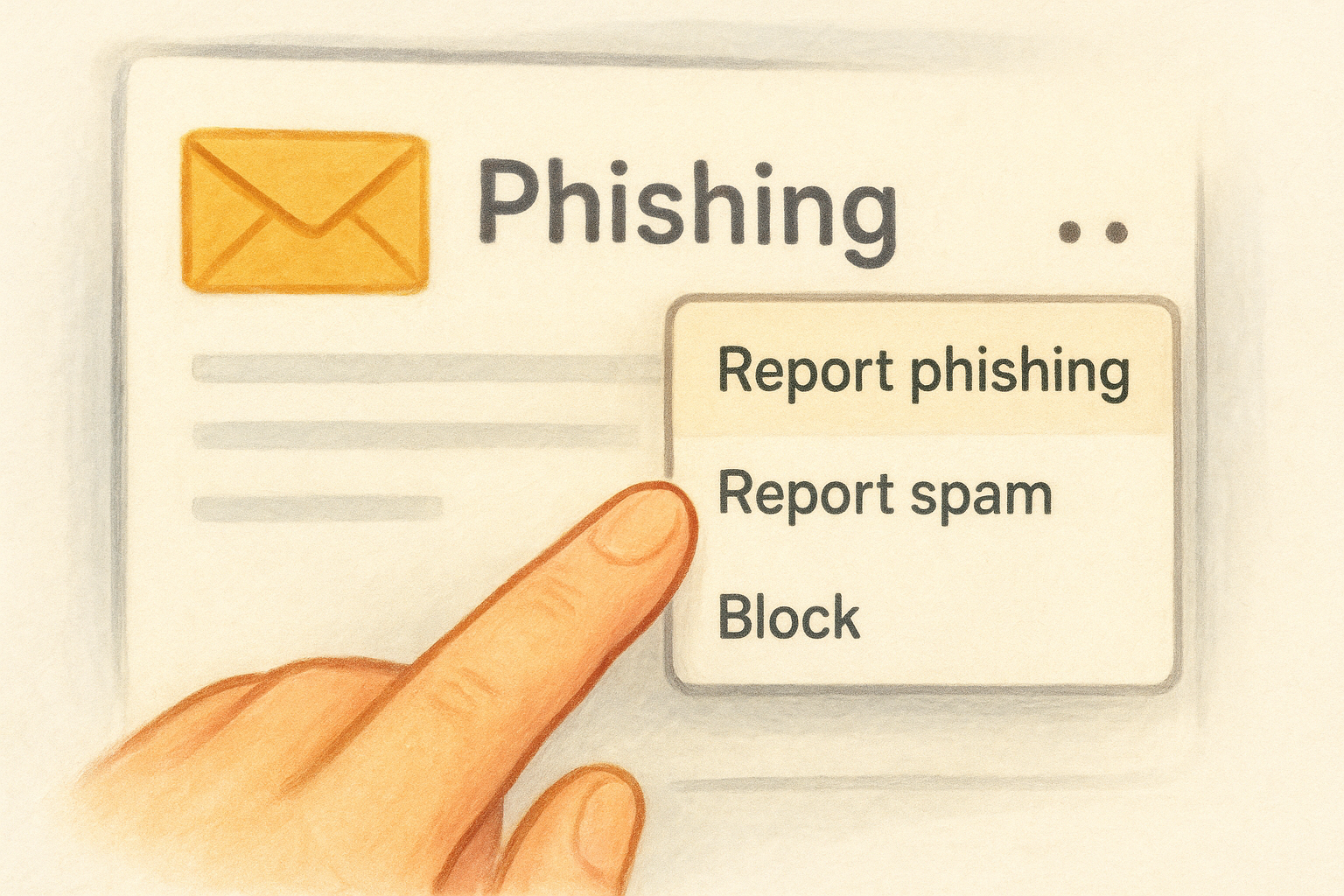
Gmail automatically moves the message to your spam folder and forwards all technical details to Google's security team. You'll see a confirmation banner at the top of your inbox confirming the report went through. Google analyzes the sender's patterns, link destinations, and email headers to identify other messages from the same source.
Reporting in Gmail doesn't just protect you, it updates Google's filters to block the same phishing attempt from reaching millions of other users.
Reporting through Google Workspace admin console
Business users with Google Workspace accounts can escalate reports through their admin dashboard for faster response times. Administrators log into admin.google.com, navigate to Security > User reported spam, and can submit detailed reports with additional context about targeted employees or sensitive data exposure. This creates a direct line to Google's enterprise security team rather than the standard consumer reporting queue.
Step 3. Report phishing in Outlook and Microsoft 365
Microsoft Outlook includes dedicated reporting features that feed directly into their threat intelligence systems. When you report phishing in Outlook, Microsoft analyzes the message across millions of enterprise and consumer accounts to identify patterns and block future attacks. The process works identically whether you're using the desktop application, web version, or mobile app.
Using the Report Message button
Open the suspicious email in your Outlook inbox without clicking any embedded links. Look for the Report Message button in your toolbar (desktop) or the three-dot menu (mobile). Click it and select "Phishing" from the dropdown options that appear.
Outlook immediately moves the message to your Junk Email folder and sends a copy to Microsoft's security team. You'll receive a confirmation that your report was submitted successfully. This simple action helps Microsoft update their Exchange Online Protection filters to catch similar messages before they reach other users.
Reporting through Outlook's built-in tools provides Microsoft with complete email headers and attachment metadata that manual forwarding might strip away.
Advanced reporting for Microsoft 365 administrators
Business accounts with Microsoft 365 can access enhanced reporting capabilities through the Security & Compliance Center. Administrators navigate to Threat management > Review > User submissions to see all phishing reports from their organization and can escalate critical threats directly to Microsoft's incident response team for immediate investigation.
Email administrators can also install the Report Message add-in from Microsoft's official store to give employees a consistent way to report suspicious messages across all Outlook platforms.
Step 4. Report phishing on iPhone, Apple Mail, and more
Apple's Mail app handles phishing reports differently than Gmail or Outlook because Apple doesn't operate a central email service like those platforms. Instead, you forward suspicious messages to your actual email provider (like your ISP or workplace) and separately report them to Apple's security team when the phishing attempt targets Apple services. This two-step process ensures both your email provider and Apple receive the information they need to block future attacks.
Reporting in Apple Mail on iPhone and iPad
Open the phishing email in your Mail app without tapping any links or attachments. Tap the flag icon at the bottom of the screen, then select "Move to Junk" to immediately filter the message. Next, forward the email as an attachment by tapping the reply arrow, selecting your email address, and choosing "Forward as Attachment" from the share menu.
Send this forwarded message to reportphishing@apple.com if the phishing attempt specifically impersonates Apple services, iCloud, or the App Store. Your email provider likely has their own abuse address, typically abuse@yourdomain.com, where you should also send a copy.
Reporting phishing on iPhone protects other iOS users because Apple uses these reports to update Safari's fraud detection across all devices.
Reporting in Apple Mail on Mac
Select the phishing email in your Mail inbox without opening it. Click Message in the top menu bar and choose "Forward as Attachment" to preserve all technical headers. Address this forwarded message to both reportphishing@apple.com and your email provider's abuse department.
Apple investigates reports targeting their ecosystem and payment systems but forwards other phishing attempts to the appropriate authorities based on the content analysis.
Step 5. Report to the FTC, FBI IC3, and APWG
Government agencies and industry organizations use phishing reports to track criminal networks and shut down malicious infrastructure. When you escalate beyond your email provider, you're giving investigators the evidence they need to pursue legal action against scammers. These reports become part of national databases that law enforcement uses to identify patterns and coordinate takedowns across multiple jurisdictions.
Filing with the Federal Trade Commission
Visit ReportFraud.ftc.gov and select "Phishing" as your complaint category. The FTC form asks for the sender's email address, subject line, and any websites you were directed to visit. Include details about what information the scammer requested, whether you clicked links, and if you suffered any financial loss. The FTC shares your report with over 3,000 law enforcement agencies and uses aggregated data to identify large-scale fraud operations.
Your FTC report contributes to criminal investigations even if you didn't lose money, because the pattern data helps prosecutors build cases against organized phishing rings.
Submitting to FBI's Internet Crime Complaint Center
Navigate to ic3.gov and click "File a Complaint" to access the FBI's reporting system. IC3 requires more detailed information than the FTC, including estimated financial damages, timeline of events, and all communication records with the scammer. Cryptocurrency-related phishing should specifically mention wallet addresses and blockchain transactions if applicable.
Reporting to the Anti-Phishing Working Group
Forward the complete phishing email as an attachment to reportphishing@apwg.org. APWG analyzes technical patterns across millions of reports to identify new phishing techniques and coordinates with internet service providers to take down fraudulent websites. Include the phrase "phishing report" in your subject line for proper routing.
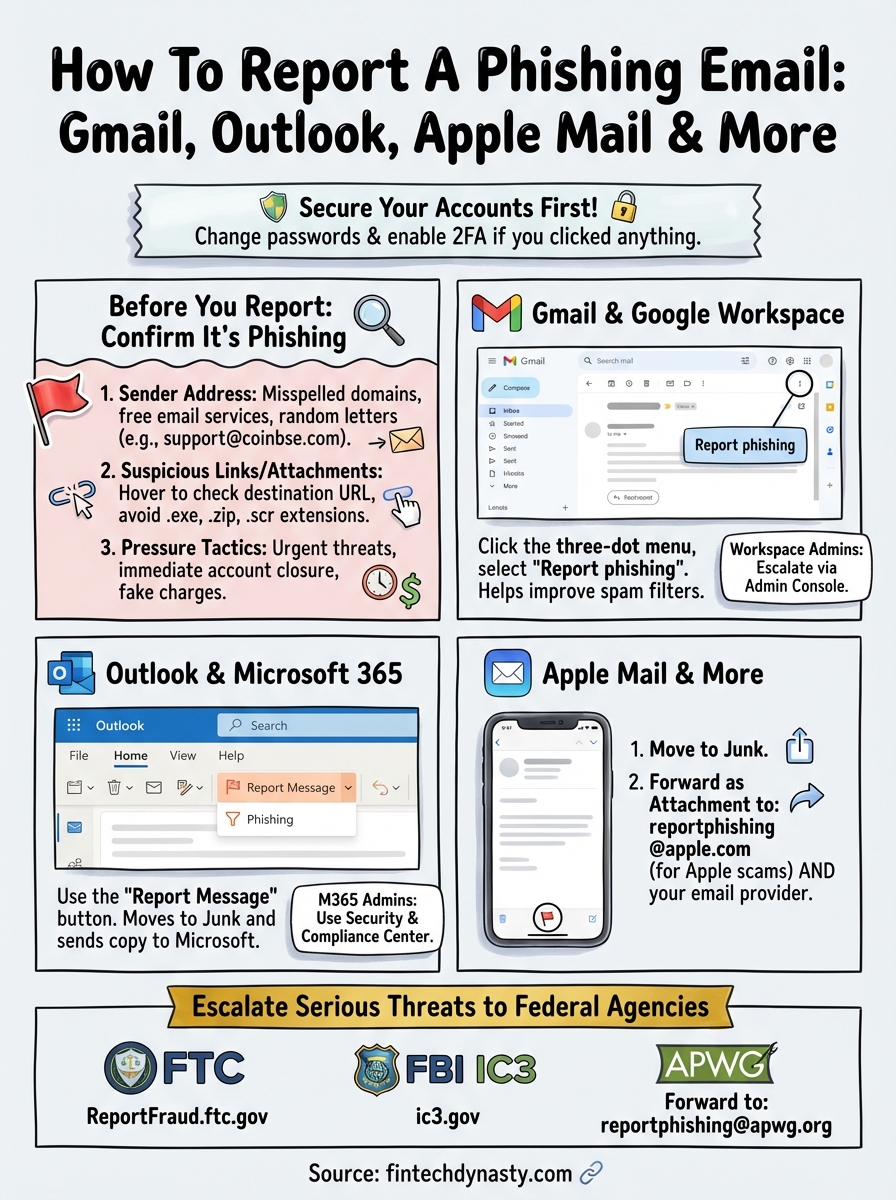
Quick wrap-up
You now know how to report a phishing email across all major platforms and escalate serious threats to federal agencies. Reporting takes less than two minutes but protects thousands of other users from falling victim to the same scam. Every report you file feeds into security systems that improve fraud detection and help law enforcement build cases against criminal operations.
Remember to secure your accounts first before spending time on reports, especially if you clicked any links or downloaded attachments. Changing passwords and enabling two-factor authentication stops immediate damage while your reports work to prevent future attacks. Your email provider, the FTC, and organizations like APWG all need these reports to track phishing patterns and shut down malicious infrastructure.
Beyond reporting phishing attempts, protecting your cryptocurrency requires hardware wallet security and proper seed phrase management. Learn more about defending your digital assets at FinTech Dynasty, where we provide independent research and practical guides for taking full control of your crypto security.