

Google Transparency Report Safe Browsing: Site Status Guide
Before you connect a hardware wallet to a new platform or enter any sensitive information on a crypto-related website, you need to verify that site isn't compromised. Phishing pages and malware-infected domains are constant threats, and they often mimic legitimate services with near-perfect accuracy. The Google Transparency Report Safe Browsing tool gives you a free, straightforward way to check whether a specific URL has been flagged for malicious activity before you interact with it.
Google's Safe Browsing technology scans billions of URLs and warns users about sites hosting malware, phishing schemes, or unwanted software. For anyone serious about self-custody and protecting digital assets, this diagnostic tool serves as a critical first checkpoint. It won't replace proper security practices like verifying official links and using hardware wallets, but it adds another layer of verification to your process, one that takes less than ten seconds to complete.
This guide walks you through how to access Google's Site Status tool, interpret the results you receive, and understand the broader Safe Browsing system that powers it. You'll also learn its limitations and when you might need additional verification methods.
What Google Safe Browsing checks for
Google's Safe Browsing system runs continuous automated scans across the web, examining billions of URLs to detect patterns and behaviors associated with security threats. When you look up a site through the google transparency report safe browsing interface, you're querying a database that updates multiple times per hour with newly discovered threats. The system doesn't manually review every page; instead, it uses machine learning algorithms trained on known attack signatures and behavioral patterns.
Three primary threat categories
Safe Browsing classifies dangerous sites into three main types. Malware distribution includes pages that attempt to install harmful software on your device without your explicit consent. These sites often exploit browser vulnerabilities or trick you into downloading infected files disguised as legitimate software updates. Phishing operations mimic trusted services to steal login credentials, private keys, or payment information through fake forms and deceptive interfaces.
The third category covers unwanted software behavior, which includes programs that modify browser settings, inject ads, or track your activity beyond what you agreed to during installation. This classification matters in the crypto space because some browser extensions marketed as wallet managers or portfolio trackers fall into this group. They may not be overtly malicious, but they collect more data than disclosed or change security settings without proper warning.
Google flags sites based on observed behavior, not speculation, which means a clean result indicates no current threats but doesn't guarantee future safety.
Each category receives a distinct warning type when detected. Understanding these classifications helps you assess the specific risk a flagged site presents before you decide whether to proceed or abandon the connection entirely.
Why the Site Status tool matters
You need to verify site safety before entering any credentials or connecting wallet software because crypto transactions are irreversible by design. Once attackers access your private keys through a compromised website, you cannot recover those assets through customer service or chargebacks. The google transparency report safe browsing tool provides a zero-cost verification layer that takes seconds to complete but can prevent permanent loss of your holdings.
Protection before connection
Most phishing attacks targeting crypto users rely on urgency and trust exploitation. Scammers send emails claiming security issues with your exchange account or create fake airdrop pages that appear legitimate at first glance. Running a quick Site Status check before you click any link gives you objective third-party validation instead of relying solely on visual inspection of the domain name or page design.
A flagged result from Google's system means thousands of other users have already interacted with that threat, and automated systems have confirmed the danger through multiple detection methods.
Standard security practices like checking SSL certificates or examining URLs for typos remain important, but they won't catch every sophisticated attack. The Transparency Report adds independent verification from a system that monitors billions of sites continuously, catching threats your manual inspection might miss.
How to use the Transparency Report site checker
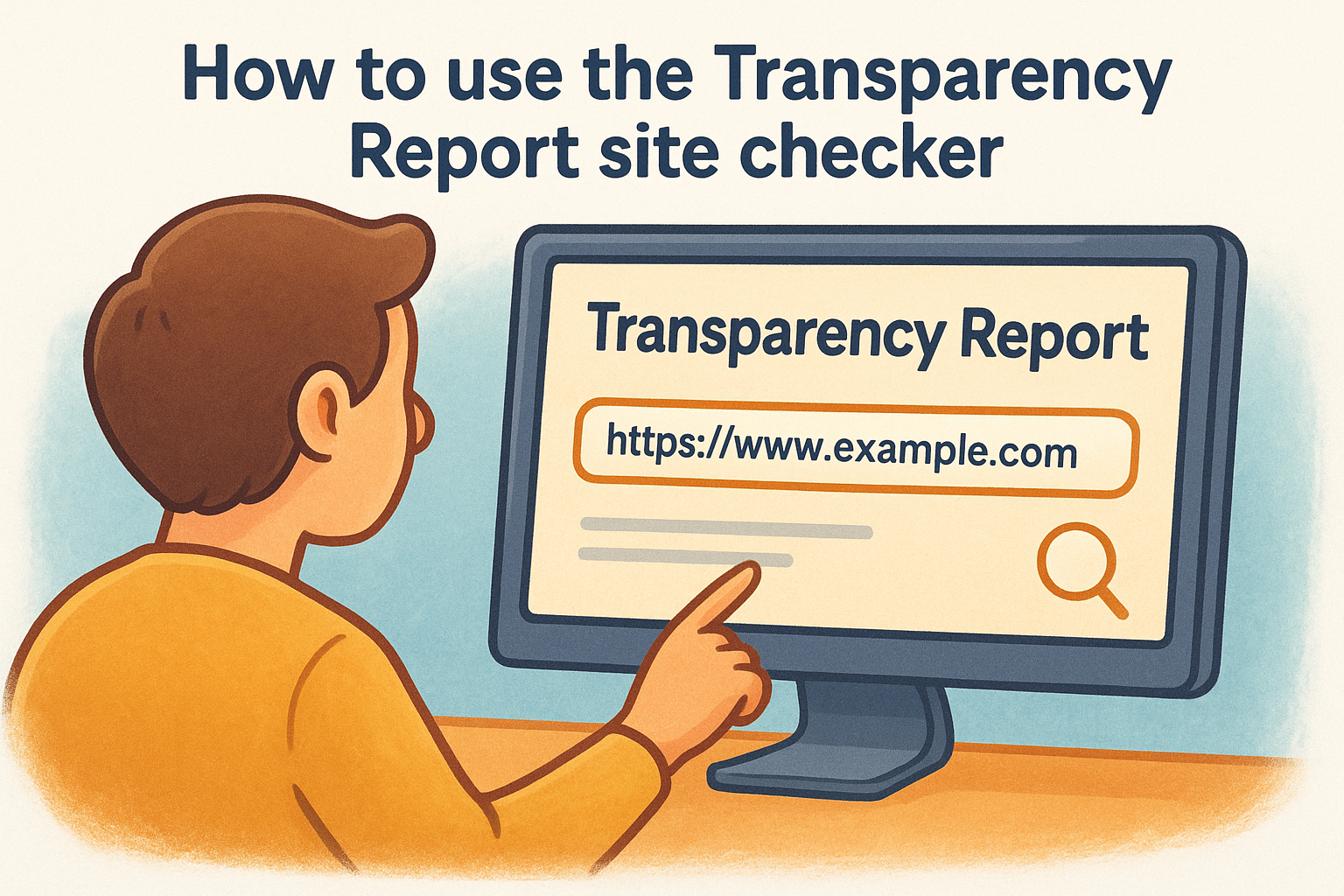
You access the tool by visiting the official Google Transparency Report website and navigating to the Safe Browsing section under the security category. The interface requires no account creation or login credentials, making it immediately accessible from any browser on any device. You can bookmark this specific page for faster future access when you need to verify suspicious links.
Entering the URL correctly
Type or paste the complete website address into the search field, including the protocol prefix (https:// or http://). The google transparency report safe browsing tool checks the exact URL you provide, so variations in capitalization or trailing slashes can affect results in rare cases. You should verify the full path if you're checking a specific page rather than just the domain root.
The system returns results within two to three seconds, pulling from Google's continuously updated threat database that processes new findings every hour.
Understanding the query process
The tool searches both the specific URL you entered and analyzes patterns associated with the broader domain. Results display the most recent scan date and indicate whether any threats were detected during that assessment period. You can run multiple checks consecutively without restrictions, making it practical to verify several related domains before proceeding with any connections.
How to read results and what to do next
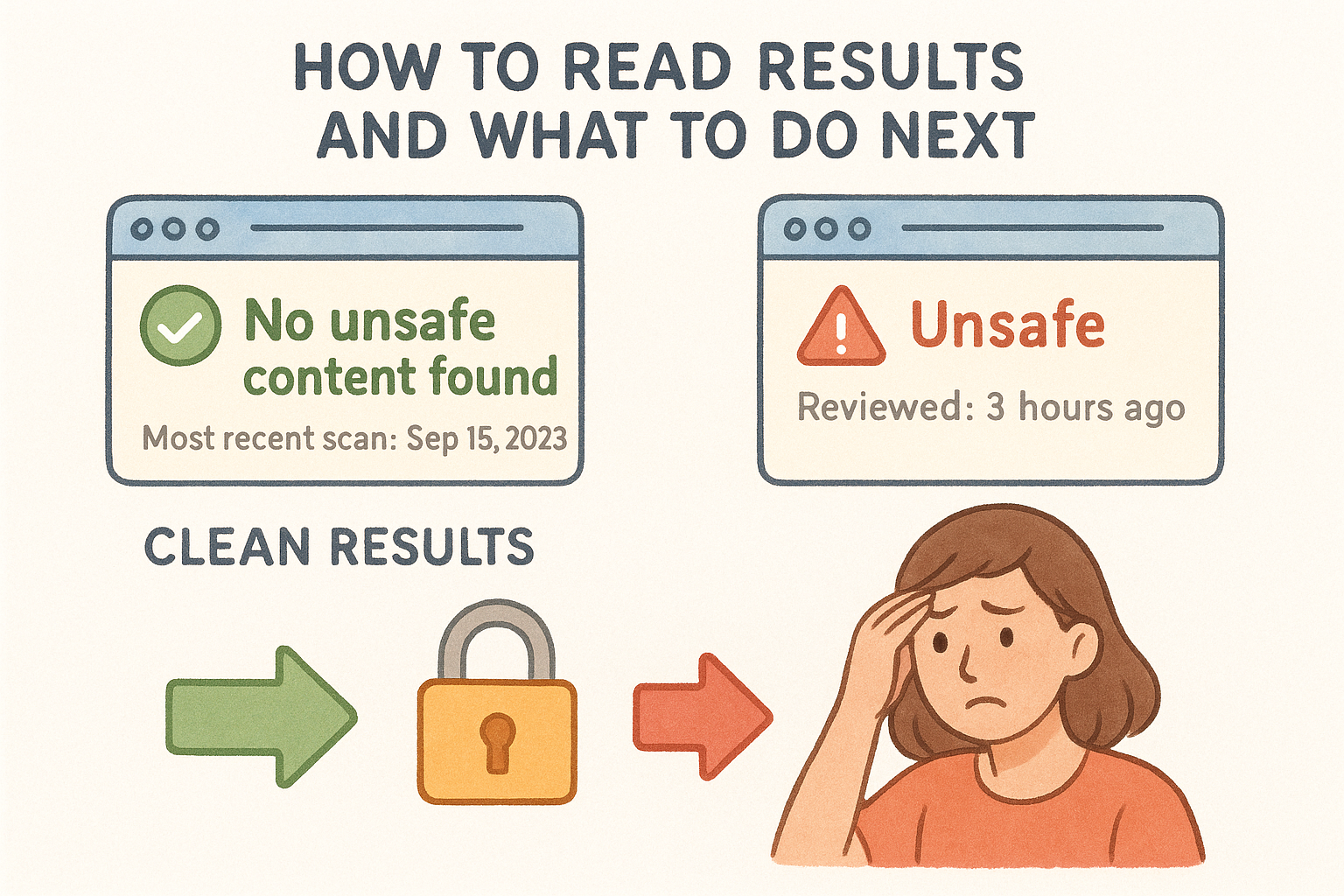
The google transparency report safe browsing tool displays results in a straightforward format that requires minimal interpretation. A clean result shows "No unsafe content found" with the most recent scan date, indicating Google detected no threats during its automated review process. Flagged results appear with specific warning categories that identify the type of threat detected, along with timestamps showing when Google last verified the danger.
Clean results and next steps
Clean results mean the site passed Google's automated checks, but this doesn't eliminate all risks. You should still examine the URL structure for typos or suspicious variations that mimic legitimate domains. Verify the site uses HTTPS encryption by checking for the padlock icon in your browser's address bar, and confirm you reached the page through official channels rather than clicking links in unsolicited messages.
A clean Safe Browsing status combined with proper URL verification gives you reasonable confidence to proceed, but never enter seed phrases or private keys on any web-based interface.
Flagged sites and immediate actions
Red warning messages indicate Google detected active threats on the site. Exit immediately without entering any information or downloading files. Report the suspicious link to relevant parties if it claimed to represent a legitimate service, and scan your device with updated security software if you already interacted with the page.
Limits, false positives, and extra checks
The google transparency report safe browsing tool relies on automated detection systems that cannot catch every threat immediately. Newly created phishing sites or domains launched within the past few hours may not appear in Google's database yet, creating a window where dangerous sites show clean results. The system also struggles with dynamic content that changes behavior based on visitor location or device type, potentially hiding malicious elements from Google's scanners while targeting real users.
False positives and legitimate sites
Google occasionally flags legitimate websites that share hosting infrastructure with compromised domains or display security warnings triggered by outdated configurations. You might encounter false positives on smaller businesses or personal sites that lack robust security measures but pose no actual threat. Cross-reference flagged results with other verification tools and check when Google last scanned the site, as older scan dates may not reflect recent fixes.
False positives typically resolve within days once site owners address the security issues that triggered the warning, but you should still exercise caution during that period.
Supplementary verification steps
Run additional checks through your browser's built-in warnings and verify domains match official sources through multiple channels before entering sensitive information. Check site certificates, examine recent user reviews on trusted platforms, and contact companies directly through verified phone numbers if you suspect a phishing attempt targeting their brand.
Quick recap
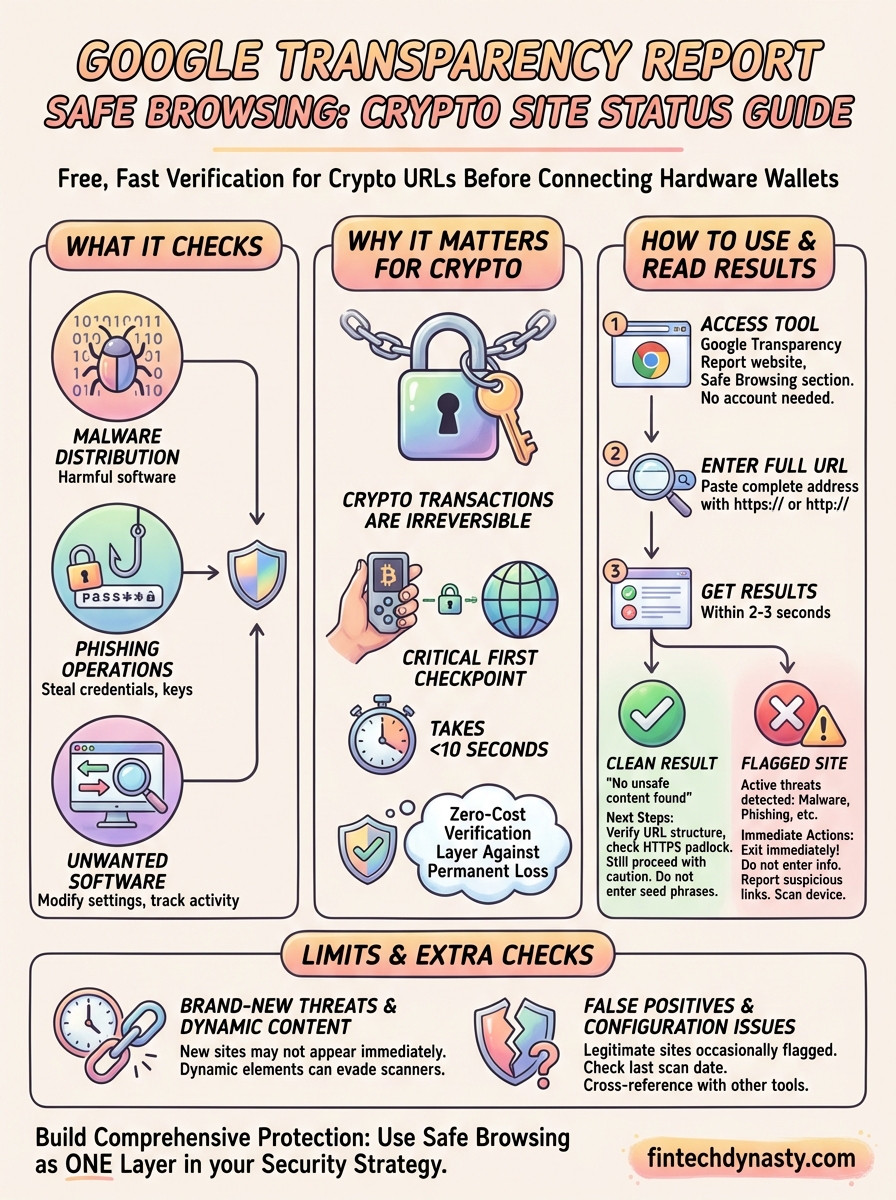
The google transparency report safe browsing tool gives you a free, fast verification method to check whether a website has been flagged for malware, phishing, or unwanted software before you interact with it. You access the tool directly through Google's Transparency Report without creating an account, enter the complete URL you want to check, and receive results within seconds based on Google's continuously updated threat database.
Clean results indicate no current threats but don't eliminate all risks, so you still need to verify URLs carefully and check for HTTPS encryption. Flagged sites require immediate action: exit without entering information and report suspicious links claiming to represent legitimate services. The system has limitations including delayed detection of brand-new threats and occasional false positives on legitimate sites with security configuration issues.
Protecting your crypto assets requires multiple verification layers beyond automated scanning. Running site checks before every connection represents just one component of a complete security strategy. FinTech Dynasty provides additional security guidance and hardware wallet comparisons to help you build comprehensive protection for your digital holdings.