

Electrum Export Private Key: Step-By-Step Guide With Warnings
Knowing how to electrum export private key is one of those skills you hope you never urgently need, but absolutely should have before that moment arrives. Whether you're migrating funds to a hardware wallet, claiming coins from a fork, or simply creating a deeper backup beyond your seed phrase, exporting a private key from Electrum puts full control of that specific address in your hands. That's powerful. It's also risky if done carelessly.
Electrum is one of the longest-running Bitcoin wallets for a reason: it's lightweight, open-source, and gives advanced users direct access to their keys. But that access is a double-edged sword. A single exposed private key can drain an address permanently, and there's no support ticket or recovery process that will bring those funds back. The steps themselves are straightforward, the consequences of mishandling them are not.
This guide walks you through the exact process of exporting your private key from Electrum, screen by screen, with clear warnings at every stage where things can go wrong. At FinTech Dynasty, our focus is crypto security and self-custody education, helping you understand not just how to do something, but whether you should, and what precautions to take if you do. If you're ready to export, read every section before you touch your wallet.
Before you export: what a private key really is
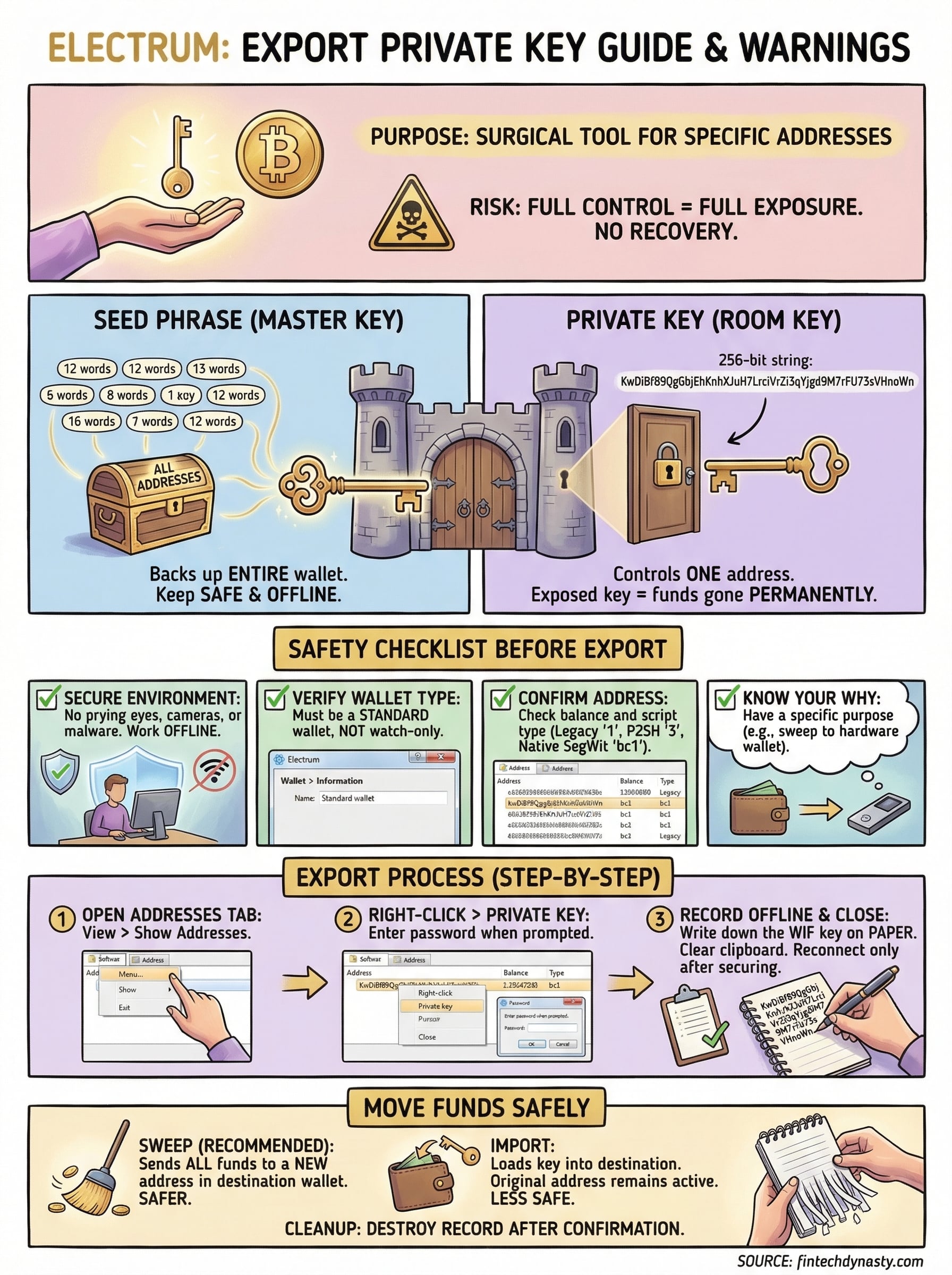
Most people treat the seed phrase and the private key as the same thing. They are not. Your seed phrase (typically 12 or 24 words) is a master backup that can regenerate your entire wallet, including every address and every private key inside it. A private key is one level below that: it controls a single address and the funds held at that address. When you run an electrum export private key operation, you are pulling out one of those address-level keys, not the whole wallet.
The difference between a seed phrase and a private key
Your Electrum wallet uses a hierarchical deterministic (HD) structure, which means it derives hundreds of addresses from a single seed. Each of those addresses has its own private key, generated mathematically from the master seed. Think of the seed as a master key that unlocks an entire building, while each private key opens one specific room inside that building. Exposing one room key does not expose the whole building, but it does permanently expose everything stored in that room.
This distinction matters because most common mistakes happen when people confuse the scope of what they are exporting. If you want to back up your entire wallet, your seed phrase already does that job. Private key exports serve a narrower purpose: moving specific funds into another application, sweeping into a hardware wallet, or claiming forked coins that require you to prove ownership of a particular address.
What a private key looks like
A Bitcoin private key is a 256-bit number, and Electrum can display it in a few different formats depending on the script type attached to the address. The most common format you will see is WIF (Wallet Import Format), which is a Base58-encoded string that starts with the letter "K," "L," or "5" for legacy addresses. Here is an example of what a WIF private key looks like in practice:
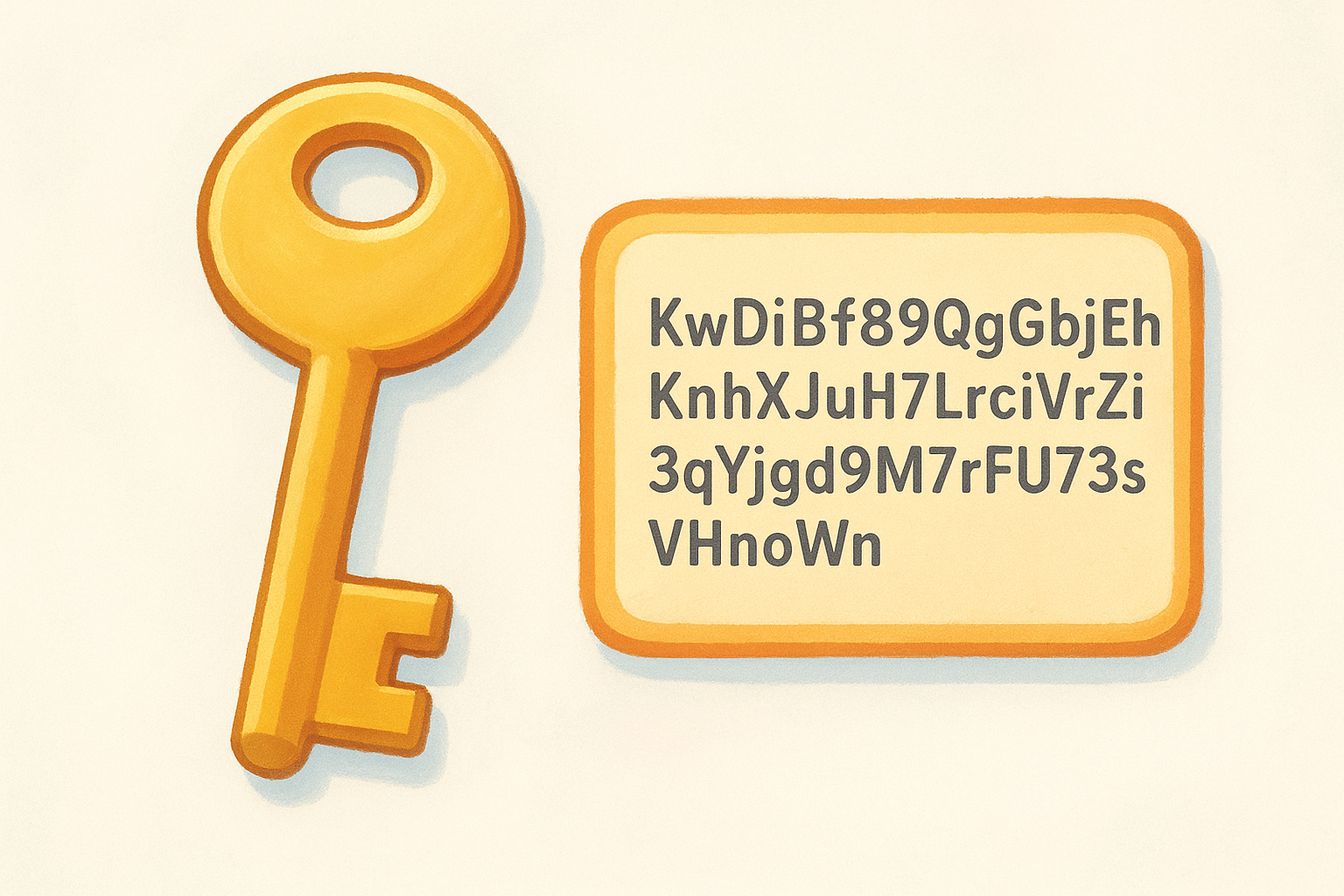
KwDiBf89QgGbjEhKnhXJuH7LrciVrZi3qYjgd9M7rFU73sVHnoWn
The string above is not a real key tied to any funds; it is a demonstration of the format only. In Electrum, when you right-click on an address and select "Private key," you will see a string in exactly this style. It is case-sensitive, every character matters, and anyone who obtains it can immediately move the funds from that address with no password required.
Never screenshot, photograph, or paste a private key into any application, cloud storage, or messaging tool. Once it touches a networked device, treat that address as compromised.
Why exporting one key is not the same as backing up your wallet
This point catches people off guard regularly. You might export a private key from Electrum, sweep the funds into another wallet, and feel like you have completed a backup. But if your Electrum wallet contains multiple addresses, as almost every HD wallet does, you have only moved the funds from one address. Coins sent to any of your other Electrum addresses in the future remain under the old wallet's control.
Your seed phrase remains the primary backup for the entire wallet. Exporting a private key is a surgical tool for a specific job, not a replacement for writing down and securing your seed. Before you touch the export feature, confirm you have your seed phrase stored offline in at least two physical locations. If you have not done that yet, stop here and complete that step first. No private key export is worth your time until your seed backup is solid.
Electrum also generates change addresses automatically when you send a transaction. Those addresses hold leftover funds and carry their own private keys. Exporting only your visible receiving addresses will leave change address balances behind if you are attempting a full migration. Any complete move of funds needs to account for every address that holds a balance, not just the ones you recognize by name.
Safety checklist before you reveal any keys
Before you run an electrum export private key operation, you need to confirm several conditions are in place. Skipping this checklist is how people lose funds that took years to accumulate. None of these steps are optional, and working through them takes less than five minutes.
Check your environment first
Your physical environment matters as much as your software setup. Anyone who can see your screen while you expose a private key can copy it down, photograph it with a phone, or screenshot it without your knowledge. Close the door, turn your monitor away from windows, and confirm no cameras or other people have a line of sight to your display. This includes smart TVs with cameras, webcams, and security cameras pointed at your desk.
If you are in any shared space, a café, an office, or even a room with other people in it, wait until you have genuine physical privacy before proceeding.
Your device also needs to be clean. Run a quick scan with your existing antivirus tool before opening Electrum. Keyloggers and clipboard-hijacking malware are the two most common threats at this stage. A keylogger records what you type, but clipboard hijackers are more dangerous because they silently swap copied wallet addresses or intercept copied keys before you even see them. On Windows, you can check running processes in Task Manager. On macOS, use Activity Monitor. If anything looks unfamiliar, stop and clean the device first.
Verify your network and software state
Work offline if your task allows it. Exporting and recording a private key does not require an internet connection. Disconnect your Wi-Fi or ethernet cable before you open the key display window in Electrum, and only reconnect once the key is secured and the window is closed. This limits the window during which malware could transmit your key to a remote server.
Use the following checklist before continuing:
- Electrum is downloaded from electrum.org and the signature has been verified
- Your Electrum version is current (check Help > About)
- Your seed phrase is already backed up offline in at least two locations
- No screen-sharing or remote desktop software is active (Zoom, Teams, AnyDesk, etc.)
- Your clipboard is cleared (copy and paste something harmless to overwrite it)
- You know exactly which address you need the key for and why
Confirm what you plan to do with the key
Have a clear, specific reason for exporting the key before you proceed. Are you sweeping funds into a hardware wallet? Claiming a fork? Moving a specific UTXO to a new wallet? Vague intentions lead to sloppy handling, and sloppy handling means exposure risk. Write down your purpose in a physical notebook before you start. Once you reveal the key, complete your task in a single focused session, then close and clear everything immediately.
Step 1. Confirm you have the right Electrum wallet
Before you open any menus or attempt an electrum export private key operation, you need to confirm that the wallet you have open is the correct one. Electrum lets you load multiple wallet files, and opening the wrong file is more common than you might expect, especially if you have ever created a test wallet, a watch-only wallet, or a second wallet for a different purpose. Spend two minutes on this verification step and you avoid a lot of frustration later.
Check your wallet type: standard vs. watch-only
Electrum supports several wallet types, and only a standard wallet with full signing capability will let you export private keys. A watch-only wallet is a read-only copy that tracks addresses and balances but holds no keys. If you created a watch-only wallet to monitor a cold storage device, that wallet cannot produce a private key because the keys were never stored there in the first place.
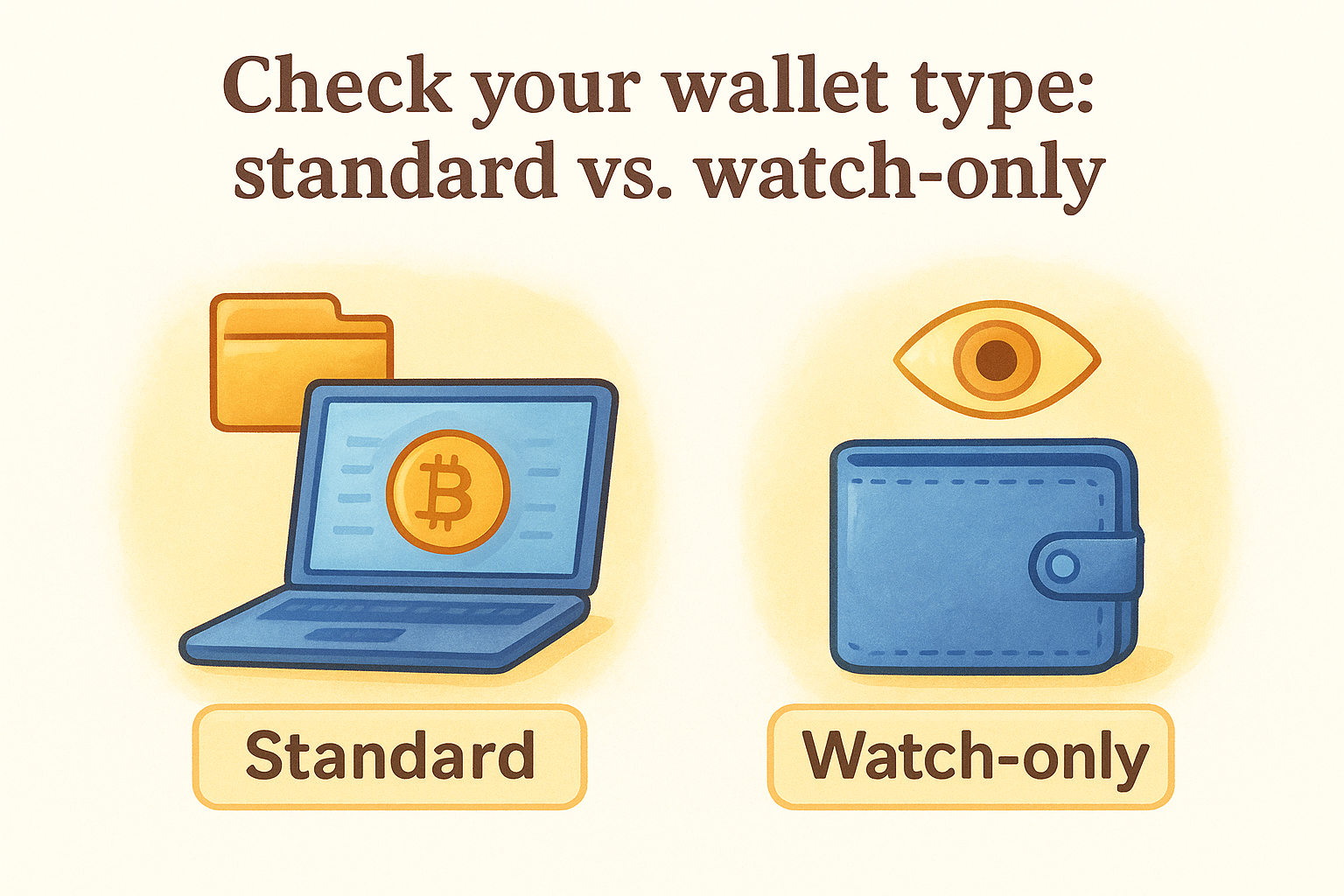
To confirm your wallet type, go to Wallet > Information in the Electrum menu bar. A dialog box will open showing the wallet type. Look for the label "Standard wallet" or "Imported addresses." If you see "Watching only," you are in the wrong file. Close it and open the wallet file that contains your actual keys.
If you are not sure which wallet file holds your keys, check your seed phrase. Open a new Electrum instance, choose "I already have a seed," enter your seed phrase, and let Electrum regenerate the wallet. That regenerated file will have full key access.
Verify the correct address holds funds
Once you confirm you are in a standard wallet, identify the specific address you need to export the key for. Open the Addresses tab by going to View > Show Addresses if it is not already visible. Electrum displays each address alongside its current balance and the number of transactions associated with it.
Scan the list and find the address you intend to work with. Confirm three things before moving forward:
- The address shows the correct balance you expect to move or access
- The address type matches your need (legacy starting with "1," P2SH-SegWit starting with "3," or native SegWit starting with "bc1")
- The address sits under the Receiving tab, not the Change tab, unless you specifically need a change address key
Checking these details takes under a minute and prevents you from exporting a key for an empty address or the wrong script type. Script type matters significantly when you plan to import the key into another application, because not every wallet supports all three formats. Confirm that the receiving application accepts the address type you are working with before you expose anything.
Step 2. Export private keys in Electrum desktop
With your environment secure and your wallet verified, you are ready to perform the actual electrum export private key operation. Electrum handles this through a right-click context menu inside the Addresses tab. The process takes under two minutes, but you should move deliberately, not quickly. Close every application you do not need before you begin, and keep your physical notepad ready to record the key the moment it appears on screen.
Open the Addresses tab and select your target address
The Addresses tab is your starting point. If it is not already visible in the main Electrum window, go to View > Show Addresses in the top menu to enable it. The tab shows three columns that matter most: the address string, the label you may have assigned, and the current confirmed balance.
Find the address you verified in Step 1. Single-click it to highlight the row so you are certain which address you are acting on. If your list contains many addresses, use the search bar at the bottom of the window by pressing Ctrl+F (Windows/Linux) or Cmd+F (macOS) and pasting the address string. Confirming you have the right row selected prevents you from exporting a key for an empty or incorrect address.
Use the right-click menu to reveal the key
Right-click directly on the highlighted address row. A small context menu will appear with several options. Click "Private key" from that list. Electrum will prompt you for your wallet password before displaying anything. Enter your decryption password and click OK.
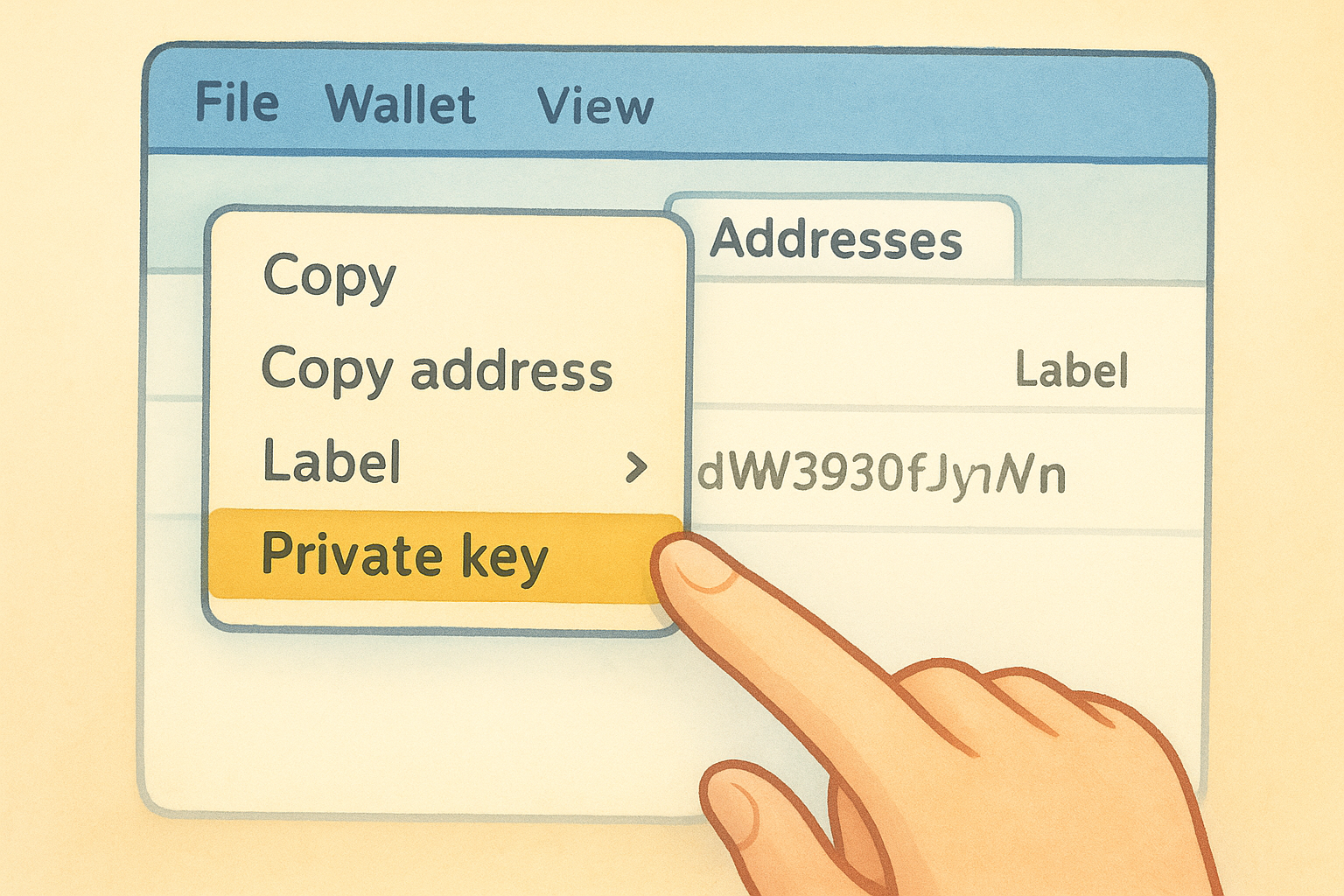
Once you enter your password and the key appears on screen, treat the next 60 seconds as a high-risk window. Complete your recording task immediately and close the dialog.
After you authenticate, Electrum displays a dialog box containing the private key string. The key appears in WIF (Wallet Import Format), which looks like this:
KwDiBf89QgGbjEhKnhXJuH7LrciVrZi3qYjgd9M7rFU73sVHnoWn
This is a demonstration string only; your actual key will be unique to your address. Record the key by hand-writing it onto paper, character by character, including correct capitalization. Do not type it into any text editor, do not copy it to your clipboard, and do not photograph the screen. Once you have written it down, read it back against the screen letter by letter to confirm accuracy.
Close and clear everything immediately after recording
After you verify your hand-written copy, click Close on the key dialog right away. Do not leave it open while you move to another task. Then clear your clipboard by copying any neutral piece of text, such as a word from a webpage or document. On Windows, you can also open the Clipboard History panel with Win + V and manually delete any entries. Reconnect to the internet only after the dialog is closed and the key is secured offline in your physical record.
Step 3. Understand key formats and script types
When you perform an electrum export private key operation, the key Electrum gives you is tied directly to the script type of the address it came from. Not every wallet or tool accepts all key formats, and importing the wrong type into an incompatible application will either throw an error or derive a completely different address, showing a zero balance even though your funds are untouched. Understanding the format before you import prevents a confusing troubleshooting session later.
WIF and the three address formats
Electrum supports three address formats, and each produces a private key with a distinct WIF prefix. That prefix signals to any receiving application what kind of address is attached to the key. Here is a reference table covering all three types:
| Address Type | Address Starts With | WIF Key Starts With | Script Label |
|---|---|---|---|
| Legacy | 1 | K, L (compressed) or 5 (uncompressed) | P2PKH |
| P2SH-SegWit | 3 | K or L | P2SH-P2WPKH |
| Native SegWit | bc1 | K or L | P2WPKH (Bech32) |
Legacy addresses starting with "1" are the oldest format and carry the widest compatibility across wallets, exchanges, and older tools. P2SH-SegWit addresses starting with "3" support SegWit fee savings while staying backward-compatible. Native SegWit addresses starting with "bc1" deliver the lowest transaction fees but are not accepted by every application that handles private key imports, so always verify support before you proceed.
If you import a native SegWit key into a wallet that only recognizes legacy addresses, the application will derive the wrong address from that key and display a zero balance, even though your funds are completely safe.
How script type affects import compatibility
Before you import your exported key, confirm that the receiving wallet explicitly supports the same script type as your source address. Most modern wallets handle all three formats during a sweep, but older wallets and some fork-claiming tools only accept legacy P2PKH keys. Check the documentation for the receiving application directly before starting the import. If you are sweeping into a hardware wallet through its companion software, both Ledger Live and Trezor Suite support all three formats, but you must select the matching account type during import to derive the same address that held your funds.
If the receiving application asks you to specify the script type manually, use this as your guide:
- Address starts with "1": select Legacy or P2PKH
- Address starts with "3": select P2SH-SegWit or P2SH-P2WPKH
- Address starts with "bc1": select Native SegWit or P2WPKH (Bech32)
Choosing the wrong script type during import is the most frequent reason a sweep displays a zero balance when the key itself is valid. The wallet simply derives a different address from the same key when the script setting does not match. If this happens, do not repeat the export process. Re-import the same written key and select the correct script type from the options, and the correct balance will appear.
Step 4. Move funds safely after exporting
You have your private key written down and verified. Now you need to move the funds to their destination without exposing the key any further than necessary. The method you use to transfer your funds matters as much as the export step itself. Moving funds carelessly after an electrum export private key operation is the stage where most value is permanently lost, not during the export itself.
Sweep vs. import: choose the right method
These two terms describe different ways to bring a private key into a new wallet, and they carry very different security implications. A sweep sends all funds from the exported address to a fresh address in the receiving wallet in a single on-chain transaction. An import loads the key directly into the new wallet and keeps the original address active in that wallet. Sweeping is almost always the safer choice because it moves your coins to a new address that the old exposed key cannot access.
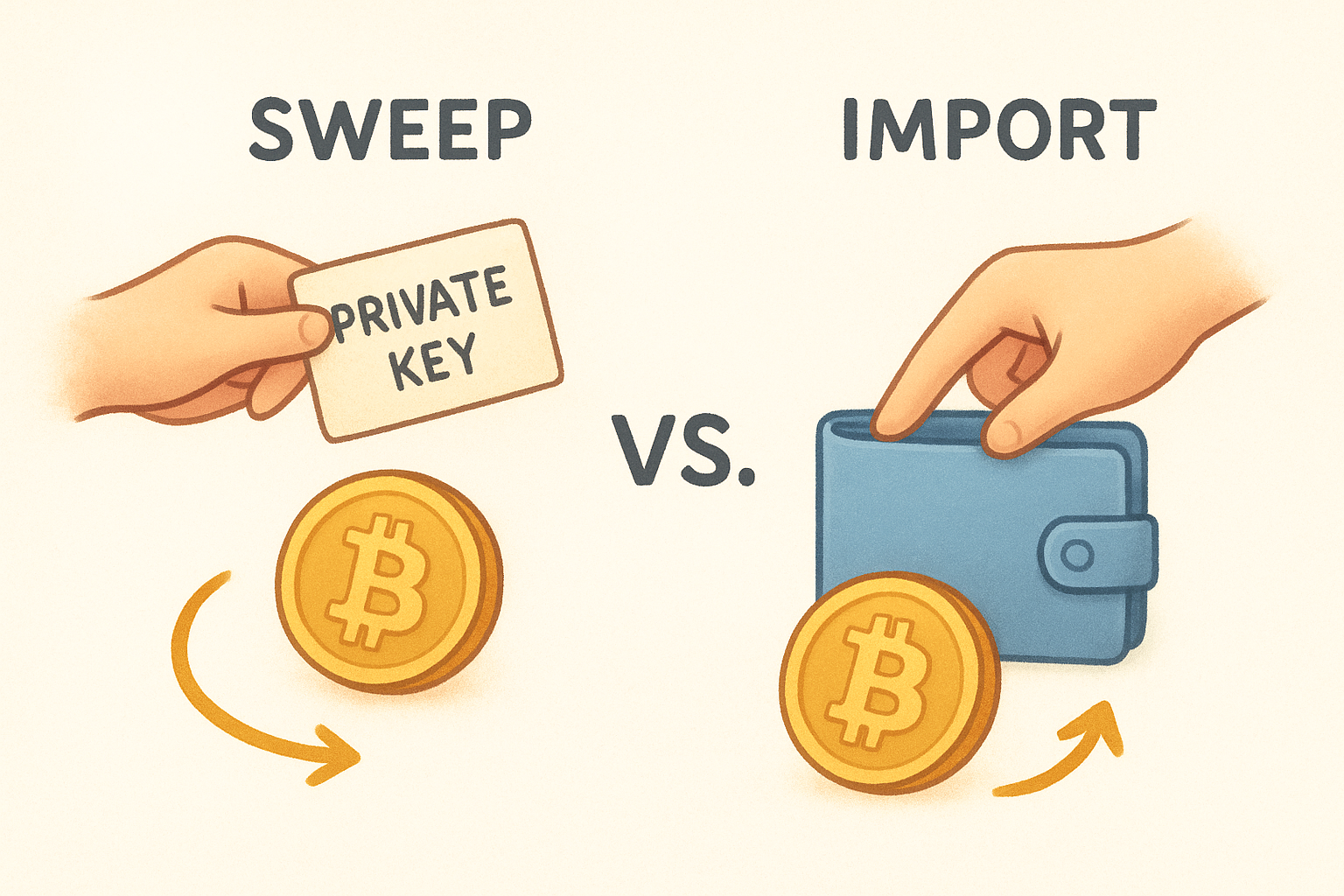
Use a sweep whenever the receiving application supports it. In Electrum itself, you can sweep a key through Wallet > Private Keys > Sweep. Paste or type your hand-written key into the input field, let Electrum fetch the balance, then broadcast the sweep transaction to send the full balance to your current wallet's fresh receiving address. In Trezor Suite or Ledger Live, look for a "Move funds" or "Sweep" option under the account settings. Importing the key directly into a new wallet should only happen when sweeping is not available and you have no alternative, and even then you should treat that address as temporary and sweep out of it as soon as possible.
Never import a private key into an online wallet or a browser extension wallet. If the key must be entered into any software, use only offline or air-gapped tools until the sweep transaction is broadcast.
Confirm the receiving address before you broadcast
Before you hit "Send" or "Broadcast" on any sweep transaction, verify the destination address visually against what you expect. Clipboard malware can swap a copied address in under a millisecond, so do not rely on copy-paste alone when confirming the destination. Type at least the first six and last six characters of the receiving address manually into a text editor and compare them against what appears in the transaction preview inside your wallet software.
Set your transaction fee at an appropriate level for current network conditions. A sweep transaction that sits in the mempool for hours stays unconfirmed, which means your funds are in a temporary state during that window. Use a fee estimator built into your wallet to select a confirmation target of one to three blocks if you want certainty within the hour. Once the transaction broadcasts and receives at least one confirmation, the sweep is complete and the exported private key controls nothing further. Destroy your hand-written record of the key at that point by shredding or burning it.
Fix common export and sweep problems
Even when you follow every step correctly, an electrum export private key operation can produce unexpected results. Most problems fall into a handful of repeatable categories, and each one has a specific fix. Work through the relevant section below rather than repeating the export from scratch, since re-exposing the key increases your risk without solving the underlying issue.
The key dialog shows no "Private key" option
When you right-click an address and the "Private key" option is missing or grayed out, your wallet is running in watch-only mode. Electrum intentionally hides that option when no actual key is stored in the open file. This happens most often when you set up a watch-only wallet to monitor a cold storage device and then accidentally opened that file instead of your full signing wallet.
To fix this, close the current wallet and open the correct wallet file through File > Open Wallet. If you are not sure which file is which, go to Wallet > Information on each file until you see "Standard wallet" rather than "Watching only." Once you confirm the correct file is open and you enter your password successfully, the right-click context menu will display the Private key option.
The sweep shows a zero balance
A zero balance after a sweep almost always means a script type mismatch between the key and the import settings. When the receiving wallet derives the wrong address from a valid key, it finds nothing at that address and reports zero. Your funds are not gone; the wallet is simply looking in the wrong place.
Re-importing the same key with the correct script type selected will resolve this in nearly every case without requiring another export.
Use this quick reference to match the address type to the correct import setting:
| Your address starts with | Script type to select |
|---|---|
| 1 | Legacy (P2PKH) |
| 3 | P2SH-SegWit (P2SH-P2WPKH) |
| bc1 | Native SegWit (P2WPKH / Bech32) |
Re-run the import in the receiving application, select the matching script type from the table above, and the correct balance should appear immediately without broadcasting any transaction.
The sweep transaction is stuck unconfirmed
A broadcast transaction that sits unconfirmed for more than a few hours means the fee you set was too low for current mempool conditions. The transaction is valid and your funds are safe, but miners have not prioritized it yet. You have two options depending on whether the receiving wallet supports fee bumping.
If your wallet supports Replace-By-Fee (RBF), open the transaction in your transaction history, right-click it, and select "Increase fee" or "Bump fee." Electrum supports RBF natively for outgoing transactions. Set the new fee to match the current one-block confirmation estimate shown in the fee slider. If RBF is not available, you can use Child-Pays-For-Parent (CPFP) by sending a second small transaction from the destination address with a high fee, which incentivizes miners to confirm both transactions together.
A safe way to finish and clean up
Every electrum export private key session should end the same way: deliberately and completely. Once your sweep transaction confirms on-chain, shred or burn your hand-written key record immediately. It has served its purpose, and keeping it around only extends your exposure window. Clear your clipboard one final time, close Electrum, and delete any temporary files you created during the process. If you disconnected from the internet during the export, reconnect only after everything is closed and cleared.
Protecting your Bitcoin long-term goes beyond a single export session. The strongest security posture combines a solid seed phrase backup with hardware-based cold storage, so no single step in your workflow becomes a weak point. If you want a structured path to better self-custody, including wallet comparisons and practical security guides, explore the full resource library at FinTech Dynasty and build a setup that holds up over the long run.