

Phantom Wallet Export Private Key: Step-by-Step Guide
Your private key is the single piece of data that proves ownership of your crypto. If you need to phantom wallet export private key for a backup or to migrate your funds to another wallet, knowing the exact steps, and the risks involved, matters more than anything else. One wrong move, like pasting it into a phishing site or storing it in a screenshot on your phone, and your assets are gone permanently.
At FinTech Dynasty, we focus on practical crypto security and self-custody education, no price speculation, no hype. Exporting a private key is one of those tasks that sounds simple but carries real consequences if handled carelessly. That's exactly why we built this guide: to walk you through the process clearly while making sure you understand what you're exposing and how to protect it.
Below, you'll find the exact steps to export your private key from Phantom's interface, along with critical safety precautions to follow before, during, and after. Whether you're moving to a hardware wallet or simply creating a secure backup, this guide covers everything you need to do it right.
Before you export a Phantom private key
Exporting your private key from Phantom gives you direct access to your funds outside the wallet interface. Unlike a seed phrase, which recovers all accounts tied to a single wallet, a private key is account-specific. That distinction matters because it changes how you back it up and how you use it to restore a single account rather than your entire wallet at once.
What a private key actually is
A private key in Phantom is a 64-character string of letters and numbers that cryptographically controls one Solana account. Anyone who holds this string can move every token and NFT in that account with no password required. When you phantom wallet export private key, you are producing a raw credential, not a password hint or a recovery shortcut.
Never share your private key with any person, app, or website, regardless of the reason given.
Risks you must understand first
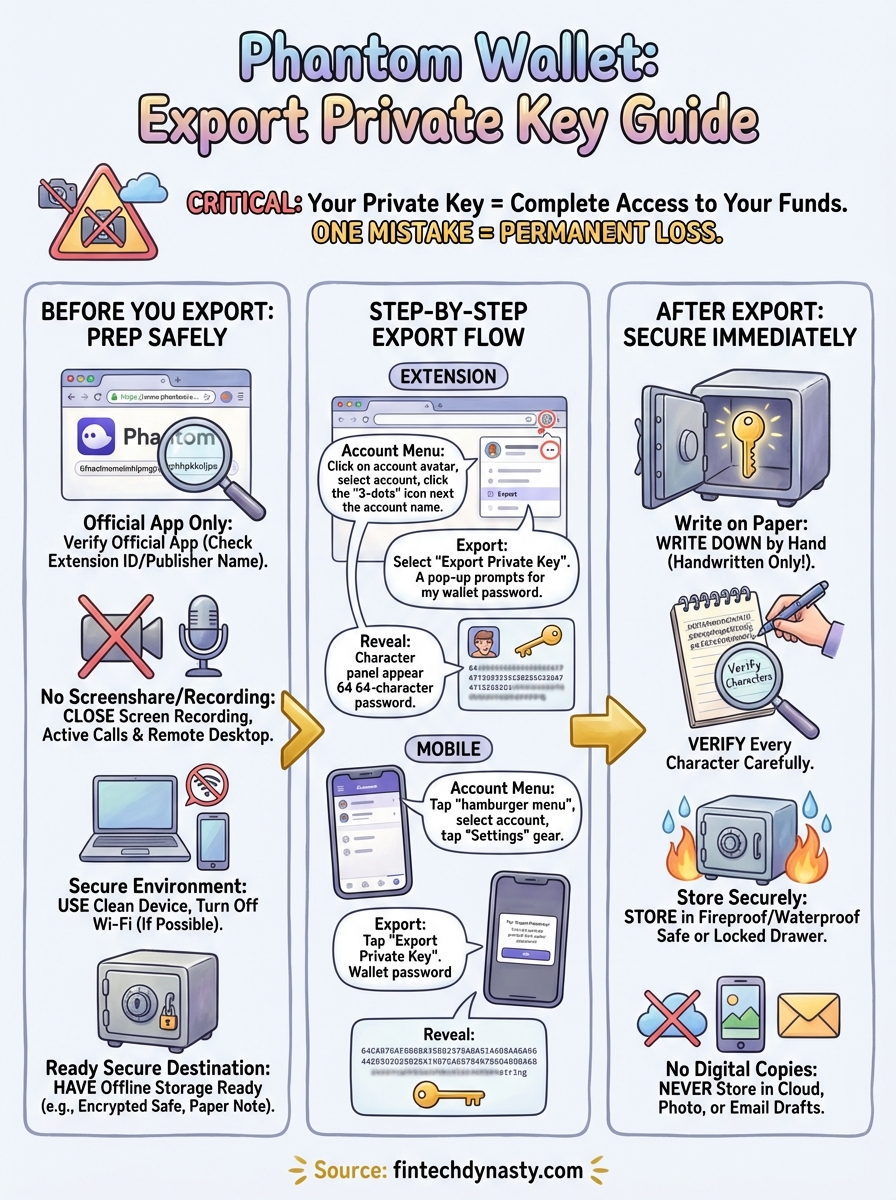
Before you open Phantom to begin the export, run through this checklist. Each item addresses a real attack vector that has resulted in stolen funds for other users.
- No screen recording or screenshots: Images sync to cloud backups on most phones and computers, which means your key could upload to a server you don't control.
- No active screen share: Close any video calls or remote desktop sessions before you start.
- Use a clean device: Avoid devices with browser extensions you don't recognize, since malicious extensions can read clipboard content.
- Turn off Wi-Fi if possible: Exporting on an offline machine removes one network attack vector entirely.
- Have a secure destination ready: Know exactly where the key is going before you export it, whether that is an encrypted password manager or a handwritten note stored in a physical safe.
Rushing this step is where most people make costly, irreversible mistakes. Give yourself a few minutes of uninterrupted, private time to complete the export and store the key securely before you move to the next step. No migration is urgent enough to skip these precautions.
Step 1. Confirm you're in the official Phantom app
Before you complete a phantom wallet export private key, verify that you are using the genuine Phantom application. Fake Phantom extensions and cloned apps exist specifically to steal private keys the moment you expose them. Taking 60 seconds to confirm legitimacy here protects everything you own.
Verify the browser extension
Open your browser's extension manager and check the extension ID. The official Phantom extension ID on Chrome is bfnaelmomeimhlpmgjnjophhpkkoljpa. You can cross-reference this directly in the Chrome Web Store. If the ID does not match, remove the extension immediately and reinstall the correct version.

Never click links in emails or social media posts to install or reinstall Phantom.
- Confirm the extension ID matches exactly
- Check that the developer is listed as Phantom Technologies Inc.
- Verify the extension has a review count consistent with a widely used product
Verify the mobile app
On mobile, check the publisher name in the App Store or Google Play before opening the app. The correct publisher is Phantom Technologies Inc., and the app should show a significant download count. If you installed the app from a third-party link rather than the official store, delete it and reinstall directly from the official store before proceeding.
Step 2. Export a private key in Phantom extension
Once you've confirmed you're in the official Phantom extension, you're ready to complete the phantom wallet export private key process. The extension interface keeps this option nested inside account-level settings, so it takes a few clicks to reach.
Navigate to account settings
Open the Phantom extension in your browser and click your account avatar in the top-left corner of the wallet screen. This opens the account switcher. Locate the specific account you want to export, then click the three-dot menu icon to the right of that account name.
Make sure you select the correct account before proceeding, since each account has a unique private key.
From the dropdown, select "Export Private Key". Phantom will then ask you to enter your wallet password to confirm your identity before it reveals the key.
Copy and record the key
After you enter your password, Phantom displays a 64-character alphanumeric string on screen. At this point, do not copy it to your clipboard unless you are pasting it directly into an encrypted password manager. Write it down by hand on paper and store it in a secure physical location immediately.
- Confirm all 64 characters are recorded accurately
- Close the export screen as soon as you finish
- Do not leave the key visible on your screen
Step 3. Export a private key in Phantom mobile
The mobile process for phantom wallet export private key follows a similar path to the extension but uses a different interface layout. Before you open the app, disable any screen recording that may be running in the background and make sure no one else can view your screen.
Open account settings on mobile
Tap the hamburger menu icon in the top-left corner of the Phantom mobile app to open the side panel. From there, tap on the account name you want to export to reveal your account options.

Select the exact account you intend to export before tapping further, since each account holds a separate private key.
Follow these steps in order:
- Tap the settings gear icon next to your account name
- Select "Export Private Key" from the account settings list
- Enter your wallet password when prompted
- Confirm the action on the screen that follows
Read the key from the mobile screen
Phantom displays your 64-character private key on a single screen after you authenticate. Do not take a screenshot or allow the screen to time out and re-display the key multiple times. Write the key down by hand immediately, verify each character carefully against what appears on screen, and close the export screen as soon as you finish recording it.
Step 4. Store it safely or move to a new wallet
Now that you've completed the phantom wallet export private key process, what you do in the next few minutes determines whether your funds stay protected. Your private key is active the moment it leaves Phantom's interface, meaning any exposure window between export and storage is a real vulnerability.
Treat your private key like physical cash: once someone else touches it, you cannot take back what they access.
Store it offline as a physical backup
Paper storage remains the most reliable cold option for most individual users. Write the key on paper using a permanent pen, verify every character, and store it in a fireproof, waterproof safe or a locked drawer that only you can access. Avoid lamination if it can trap moisture over time.
- Write two copies and store them in separate physical locations
- Never store the key in any digital file, note app, or email draft
- Label the storage container clearly so you can locate it without needing to re-export
Import the key into a new wallet
If your goal is migrating to a different wallet, open the destination app and select the import-by-private-key option. Paste the key directly from your clipboard in one step and then clear your clipboard immediately after. Confirm the correct account balance appears before you close Phantom and delete any temporary copies of the key.
Next steps
You've now completed every stage of the phantom wallet export private key process, from verifying the official app to recording and storing your key securely. The most important habit to build from here is treating that key like the most sensitive credential you own, because it is.
If you plan to migrate your funds to a hardware wallet, now is the right time to act. Moving your assets off a software wallet significantly reduces your exposure to browser-based attacks, and cold storage devices eliminate the online attack surface that software wallets cannot fully close.
For deeper guidance on choosing the right hardware wallet and building a complete self-custody setup, visit FinTech Dynasty. The platform covers device comparisons, seed phrase storage best practices, and everything else you need to protect your crypto for the long term.