
FINTECH DYNASTY • WALLET GUIDE
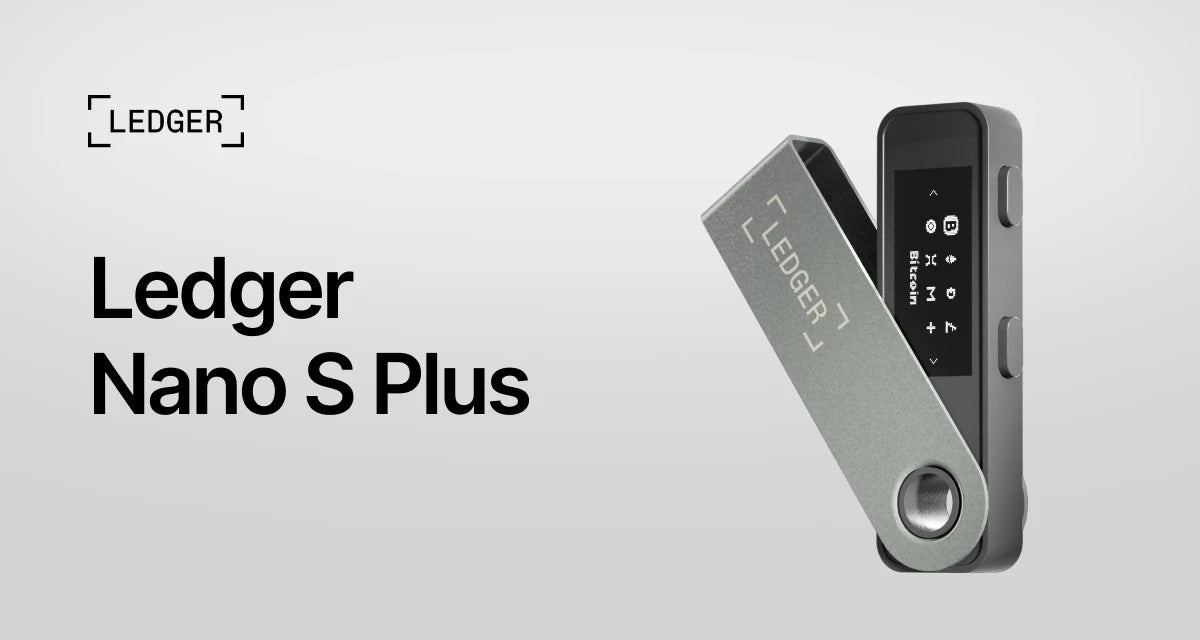
Ledger Nano S Plus
A compact, USB-C hardware wallet for managing crypto with physical-button transaction approvals.
This guide explains the device, recovery choices and practical limitations. It is based on manufacturer documentation, rather than a hands-on product test.
Check Price at Ledger ↗Opens Ledger’s store. Select Nano S Plus to check current pricing, stock, delivery and bundle contents.
Affiliate disclosure: FinTech Dynasty may earn a commission from qualifying purchases through our Ledger shopping links, at no additional cost to you.
Information checked: October 10, 2026. Features and compatibility can change; confirm your requirements with Ledger before buying.
What does it do?
A hardware wallet protects the keys used to authorize transactions. Your assets remain on their blockchain; they are not stored inside the device. You use a companion app to view accounts and prepare transfers, then check and approve signing requests on the wallet.
Nano S Plus uses a small OLED screen and two physical buttons rather than a touchscreen. It connects through USB-C to compatible computers and Android devices. It has no Bluetooth or built-in battery, and Ledger lists it as incompatible with iOS.
Key specifications
| Display | 1.1-inch monochrome OLED screen; 128 × 64 pixels; non-touch |
|---|---|
| Connections | USB-C wired connection only; no Bluetooth or NFC |
| Controls | Two physical buttons |
| Security chip | ST33K1M5 Secure Element; chip certification CC EAL6+ |
| Operating system | Ledger OS |
| Dimensions / weight | 62.4 × 17.4 × 8.2 mm / 21 g |
| Construction | Brushed stainless steel and plastic |
| Power | No internal battery; powered by the USB connection |
The chip’s certification is not a guarantee that every transaction, app or user action is safe.
Security features and trade-offs
Useful protections
- On-device checks: verify transaction details on the wallet’s own screen before approving.
- Physical confirmation: use the device buttons to review and approve signing requests.
- Secure Element: Ledger OS and the dedicated chip are designed to keep signing keys protected during normal use.
- PIN protection: repeated incorrect PIN attempts can reset the device; restoring access requires a valid backup.
Limits to understand
- The small display may require scrolling through details; some signing requests may not be fully human-readable.
- Nano S Plus does not offer Ledger’s newer Transaction Check feature available on selected touchscreen models.
- A hardware wallet can still approve a harmful transfer or token permission.
- Ledger’s software stack is not entirely open source. Some Secure Element and operating-system components remain proprietary.
- USB-only operation limits convenience with phones; the model is not compatible with iOS.
A wired connection does not make a request automatically safe. Always inspect the device screen and verify the destination, network and permissions before approving a transaction.
Supported assets and phone compatibility
Check Ledger’s supported-assets directory for each exact coin, token and network. Device support and direct support inside Ledger Wallet are different. A third-party interface may be needed, and token names alone do not establish network compatibility.
Ledger lists Android 10+ and supported 64-bit Windows, macOS and Ubuntu computers for Nano S Plus. It does not support iOS or Chromebooks. Verify current operating-system requirements, USB compatibility and your computer architecture before purchasing.
For XRP holders: XRP appears on Ledger’s supported-assets list. Confirm your receiving account requirements, current reserve and any destination tag required by an exchange before transferring.
Understand the three recovery options
1. Your recovery phrase
The recovery phrase is a secret backup for your wallet. Record it accurately during setup and keep it offline, away from your device. Never photograph it, put it in cloud storage, paste it into an AI chat or enter it into a website. A PIN does not replace this backup.
2. Ledger Recovery Key
Ledger Recovery Key is an NFC-based backup accessory intended for compatible touchscreen Ledger models. Nano S Plus has no NFC, so it cannot use this accessory directly. Do not assume that a recovery accessory supplied with another Ledger model will restore a Nano S Plus without checking official compatibility.
3. Ledger Recover
Ledger Recover is a separate, optional paid service with identity verification, subject to device and firmware eligibility. It backs up encrypted recovery information through service providers. You do not need to subscribe to use Nano S Plus. Verify current eligibility, privacy requirements, fees and terms directly with Ledger before considering it.
What is included?
Ledger currently lists the Nano S Plus, a USB-C to USB-A cable, three recovery sheets, a keychain strap and a safety/regulatory leaflet. Contents may differ by bundle or region; verify the selected offer at checkout.
A careful first setup
- Buy through a verified source. Use Ledger or a reseller listed by Ledger.
- Download official software. Navigate to Ledger’s setup page yourself and follow the Nano S Plus instructions.
- Complete authenticity and update checks. Follow the official setup flow; packaging alone does not establish authenticity.
- Create a new wallet and PIN. Reject a device with prewritten recovery words or a supplied PIN.
- Record and verify your backup. Enter recovery words only on the Ledger device when its official process requires them.
- Add the right account. Confirm the asset and network, then verify the receiving address on the wallet.
- Test before transferring more. Allow for fees and receiving minimums. Confirm a small transfer arrived correctly, then recheck every subsequent transfer.
If your existing software-wallet phrase has been exposed, importing it onto hardware does not make it secret again. Create a fresh backup and transfer assets to the new wallet instead.
Who might consider it?
Our assessment: Nano S Plus may suit someone who prefers a straightforward, USB-only hardware wallet for desktop or Android use. It is less convenient for iPhone users or anyone who wants wireless connections, a larger touchscreen or the newer Transaction Check feature. Compare it with Nano X, Nano Gen5, Flex and Stax before deciding which interface fits your needs.
Common questions
Does Nano S Plus have Bluetooth?
No. Nano S Plus is a wired-only model and requires a compatible USB connection. It has no battery or Bluetooth radio.
Can I use it with an iPhone?
No. Ledger lists Nano S Plus as incompatible with iOS. It supports compatible Android devices and desktop computers over USB.
What happens if it breaks or is lost?
A damaged device does not erase assets from the blockchain. You can restore access using a valid recovery method. If someone may have accessed your secrets, move remaining assets to a fresh wallet using a trusted device and official instructions.
Does the PIN recover my wallet?
No. The PIN protects access to that device. Recovery requires the correct backup, plus the passphrase if your accounts use one.
Does the device stop every scam?
No. Hardware confirmation can help, but you must understand the destination and permissions. Stop if the device cannot display enough information for you to verify the request.
Compare before you choose
Check the current Nano S Plus offer and supported assets at Ledger. The purchase button opens its general store.
Check Price at Ledger ↗Back to Hardware Wallet StoreOfficial references
- Nano S Plus product specifications
- Ledger Nano models compared
- Ledger hardware wallet comparison
- Ledger’s open-source explanation
- Ledger Recover
- Passphrase guidance
Educational information, not financial advice. Manufacturer claims are not independent guarantees. No wallet eliminates every risk.