

Outlook Report Phishing Button: Find It, Use It, Fix Issues
Phishing emails remain one of the most common ways attackers compromise cryptocurrency wallets and exchange accounts. A single convincing fake email can lead to stolen seed phrases, drained balances, or compromised two-factor authentication. If you use Microsoft Outlook, the Outlook Report Phishing button is your first line of defense, but many users either can't find it or discover it's missing entirely.
At FinTech Dynasty, we focus on practical security measures that protect your digital assets. Email security sits right alongside hardware wallets and seed phrase management as a critical layer of defense. Knowing how to quickly flag suspicious messages helps Microsoft improve its filters and keeps dangerous emails out of everyone's inbox.
This guide walks you through exactly where to find the Report Phishing button, how to use it correctly, and what to do when it's greyed out or not showing up. Whether you're on the desktop app, web version, or mobile, you'll have clear steps to follow.
What the Report Phishing button does
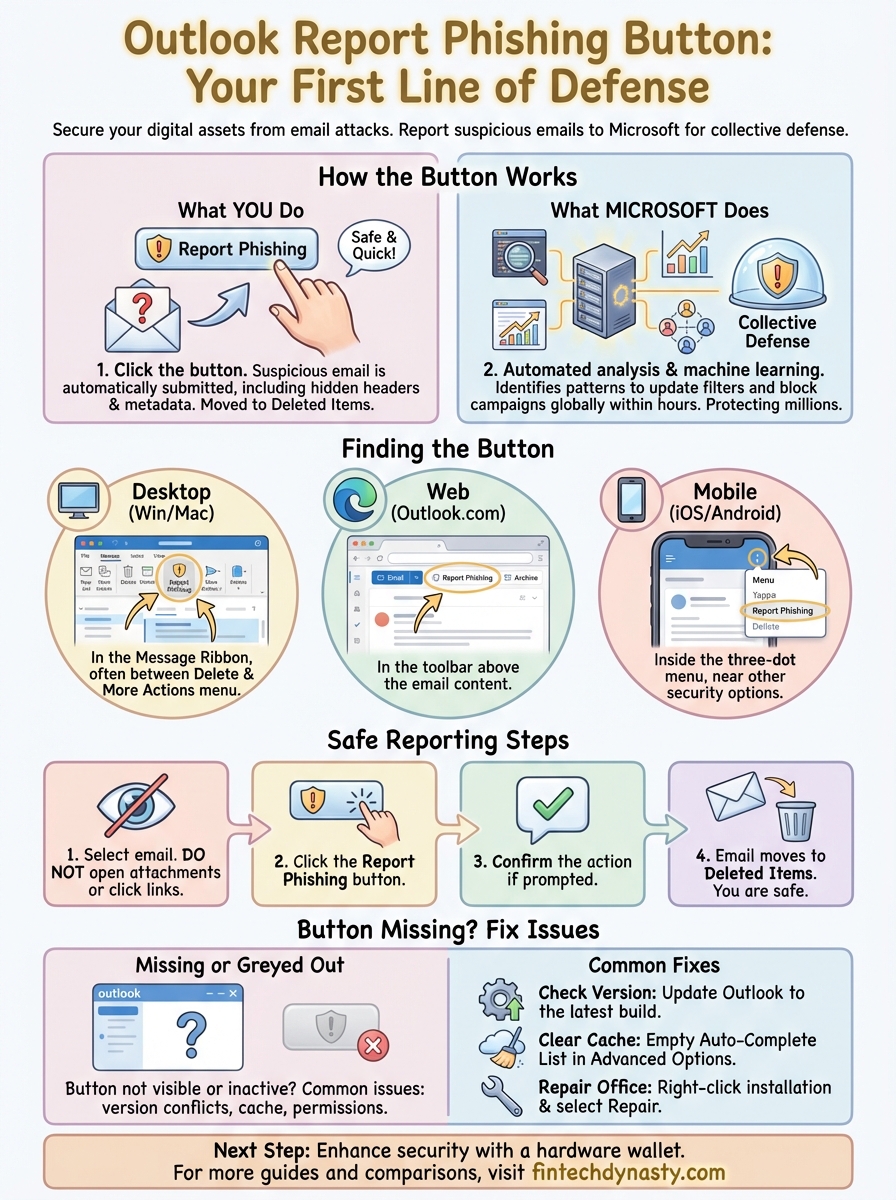
When you click the Report Phishing button, you immediately send the suspicious email to Microsoft's security team for analysis. The system automatically forwards the entire message, including all hidden headers and metadata, which contain critical information about where the email really came from and how it reached your inbox.
What happens when you click it
Your report triggers an automated submission process that removes the email from your inbox and places it in your Deleted Items folder. Microsoft receives a copy of the complete message structure, not just the visible content you see. This includes the sender's actual IP address, routing information, and any embedded links or attachments that might contain malware.
The outlook report phishing button works differently than marking something as junk. Junk mail simply moves unwanted messages to your spam folder, while phishing reports go directly to Microsoft's threat intelligence team for investigation.
Reporting phishing helps Microsoft update its filters to protect millions of users from the same attack.
How Microsoft uses your reports
Microsoft's security algorithms analyze patterns across all submitted phishing reports to identify new attack campaigns in real time. When thousands of users report similar emails, the system can block those messages globally within hours. Your single report contributes to a collective defense that stops attackers before they reach more victims.
The data you submit helps train machine learning models that detect subtle characteristics of phishing emails, such as spoofed domains, suspicious link structures, and common social engineering tactics. These improvements appear automatically in future Outlook updates without requiring any action from you.
Where to find it in Outlook apps
The outlook report phishing button appears in different locations depending on which version of Outlook you're using. Microsoft has standardized its placement across most platforms, but you need to know exactly where to look in the desktop app, web interface, and mobile versions. The button typically sits alongside other message actions like Reply, Forward, and Delete.
Desktop app (Windows and Mac)
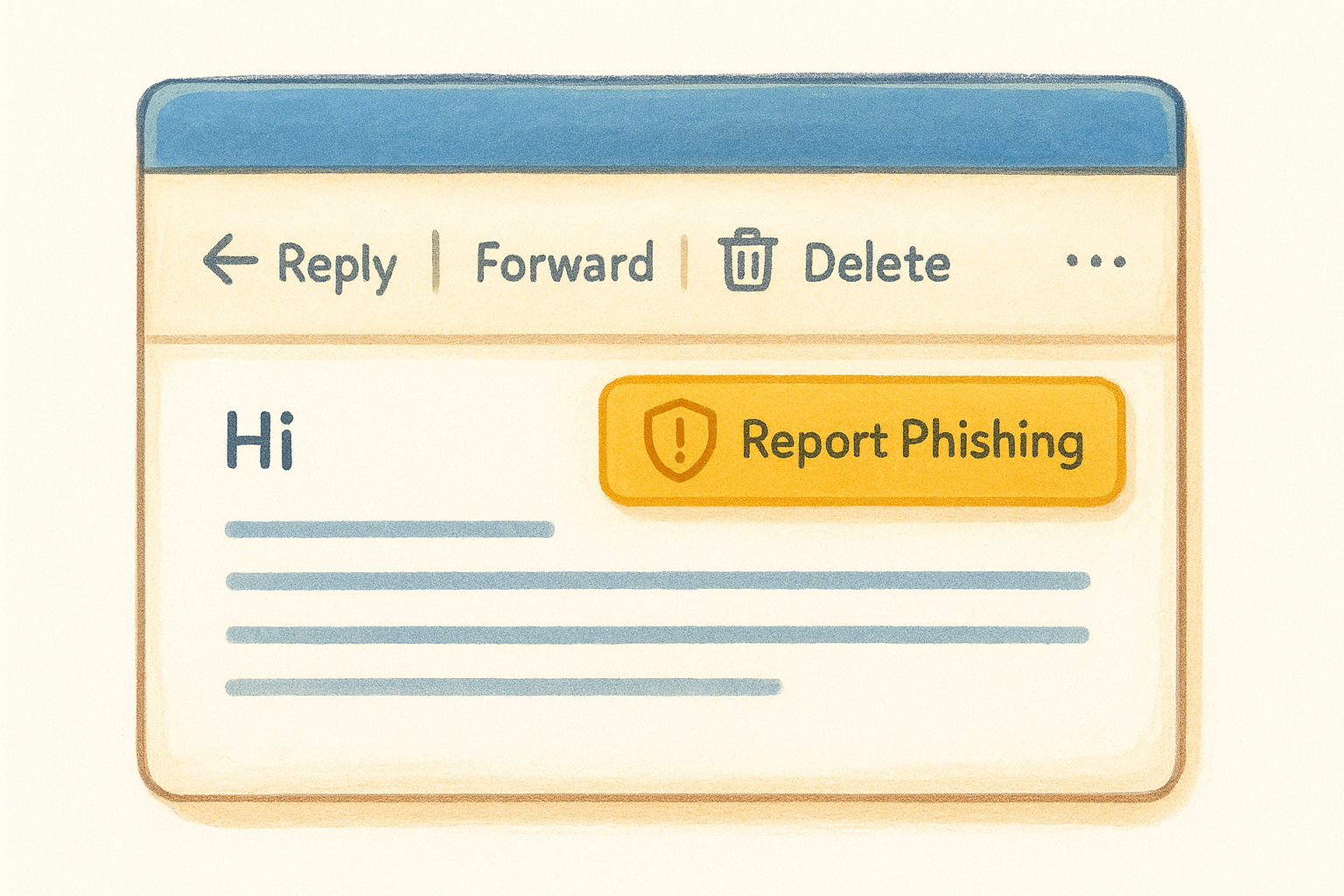
Open any email in your inbox and look at the message ribbon at the top of the email window. You'll find the Report Phishing button grouped with other security options, usually between the Delete button and the More Actions menu. The icon shows a shield with an exclamation mark. If you don't see it immediately, check under the three-dot menu labeled "More Actions" where additional message commands appear.
Web version (Outlook.com)
Click on any email to open it in reading view. The Report Phishing button appears in the horizontal toolbar directly above the email content, positioned next to the Archive and Sweep buttons. You can also right-click on any message in your inbox list to access a context menu where "Report Phishing" appears as one of the available actions.
The web version makes reporting easier with a single click from your inbox view.
Mobile apps (iOS and Android)
Tap any email to open it, then look for the three-dot menu in the top-right corner. Scroll through the action list until you find "Report Phishing" near other security-related options like Block Sender.
How to report a phishing email safely
Reporting a phishing email correctly ensures Microsoft receives all the information needed to analyze the threat without putting your system at risk. The outlook report phishing button automates most of this process, but you still need to follow specific steps to avoid accidentally clicking dangerous links or downloading malicious attachments.
Step-by-step reporting process
Click on the suspicious email to select it, but do not open any attachments or click any links inside the message. Your goal is to flag the email without interacting with its potentially harmful content. Look for the Report Phishing button in your toolbar and click it once.
Follow these actions in order:
- Select the email from your inbox list without opening attachments
- Click the Report Phishing button (shield icon with exclamation mark)
- Confirm the action when Outlook asks if you want to report the message
- Wait for confirmation that Microsoft received your report
- Check your Deleted Items folder to verify the email moved automatically
Never forward phishing emails manually, as this can strip away critical tracking data that Microsoft needs.
The system handles the technical submission process automatically. You receive a brief confirmation message, and the suspicious email disappears from your inbox within seconds.
How to enable the button and add-ins
The outlook report phishing button doesn't appear automatically for all users. Your IT administrator must first enable the feature through Microsoft 365 admin center, or you need to install the reporting add-in manually if you have permission to manage your own extensions. Most enterprise accounts require administrator approval before security add-ins become available.
Enable through Microsoft 365 admin center
Your organization's admin controls whether reporting buttons appear across all user accounts. Administrators access the feature through the Microsoft 365 Defender portal under Email & collaboration settings. They need to toggle on the "Report Message" add-in, which activates the phishing button for everyone in your domain.
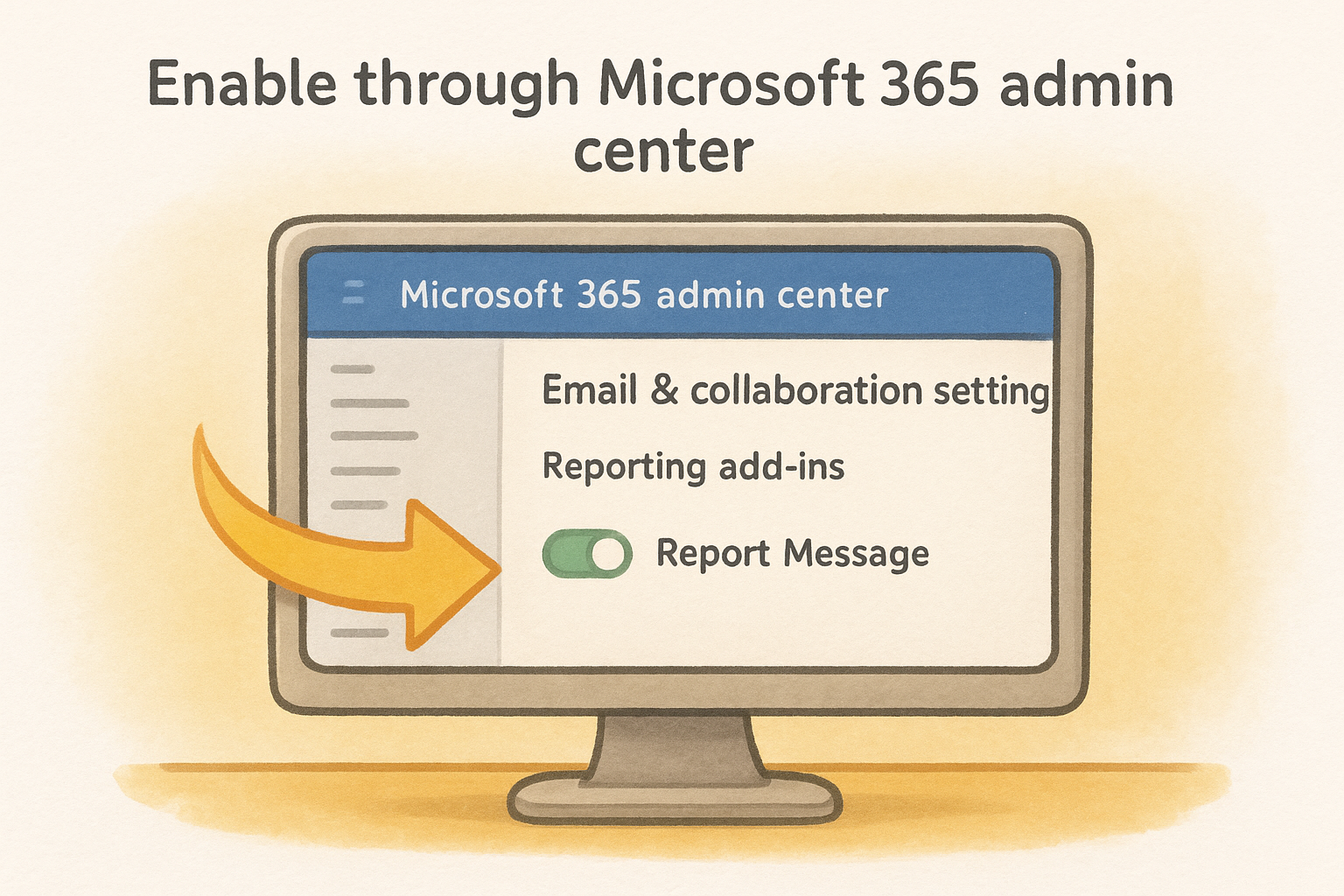
Administrators can customize which reporting options appear, including phishing, junk, and not junk categories.
Contact your IT department directly if you don't see the button and suspect it's disabled at the organizational level. They can enable it within minutes through the admin dashboard.
Install the add-in yourself
Individual users with permission can install the Microsoft Report Message add-in directly from the Office Store. Navigate to Get Add-ins in your Outlook settings, search for "Report Message," and click Add. The button appears in your toolbar immediately after installation completes without requiring a restart.
Fix missing or greyed out button issues
Several common problems prevent the outlook report phishing button from working properly, even after you've enabled it through admin settings or installed the add-in yourself. The button might appear greyed out and unclickable, or it might disappear entirely from your toolbar despite appearing on other devices. Most issues stem from version conflicts, cached data, or permissions settings that you can resolve without IT support.
Check your Outlook version requirements
Your Outlook installation must meet minimum version requirements to support the reporting add-in. Older versions lack the necessary framework to load modern security extensions, which causes the button to either fail or never appear at all. Open File > Office Account and check your version number under "Product Information."
Update to the latest version if your build number shows anything older than version 2016. Microsoft releases monthly updates that fix compatibility bugs and add security features.
Outdated Outlook versions cannot display modern security add-ins correctly.
Clear cache and repair Office installation
Cache corruption blocks add-ins from loading properly, which makes your reporting button disappear or stop responding to clicks. Close Outlook completely, then navigate to File > Options > Advanced and click Empty Auto-Complete List. After clearing the cache, right-click your Office installation in Windows Settings and select "Repair" to restore corrupted program files.
Next steps for safer email
Using the outlook report phishing button represents just one layer of your overall digital security strategy. You now understand how to find the button, enable it when missing, and fix common issues that prevent it from working properly. This knowledge keeps suspicious emails out of your inbox and helps Microsoft protect the wider community from ongoing threats.
Your next priority should focus on protecting the assets attackers are trying to steal through these phishing campaigns. Hardware wallets provide the strongest defense against email-based attacks targeting cryptocurrency holders, because your private keys never touch an internet-connected device. Even if you accidentally click a malicious link, your funds remain secure in cold storage that operates independently from your compromised computer.
Start building your complete security framework by exploring our hardware wallet comparisons and seed phrase protection guides at FinTech Dynasty. Email filtering stops threats before they arrive, but proper asset storage protects you if one slips through.