

Ledger Live App: Official Sources And Safe Setup Guide
Your Ledger hardware wallet needs companion software to function. The Ledger Live download gives you the interface to manage crypto assets, check balances, and execute transactions. Without it, your device is essentially a secure paperweight, capable of storing private keys but unable to interact with blockchain networks.
Here's the problem: scammers know this. Fake download links, phishing sites disguised as official pages, and malicious software masquerading as Ledger Live flood the internet. One wrong click can compromise your entire portfolio before you realize something's off. Downloading from the wrong source isn't just inconvenient, it can be devastating.
At FinTech Dynasty, we focus on practical crypto security without the speculation or hype. This guide covers the official sources for downloading Ledger Live (now rebranded as Ledger Wallet) across Windows, macOS, Linux, iOS, and Android. You'll learn exactly where to go, what to verify, and how to complete setup safely, so your self-custody journey starts on solid ground.
What Ledger Live is now and why it matters
Ledger rebranded its companion app from Ledger Live to Ledger Wallet in late 2025. The name changed, but the core functionality remained identical. You still use it to manage multiple crypto assets, view balances across accounts, install blockchain apps on your hardware device, and sign transactions securely. The interface connects your Ledger Nano or Stax to blockchain networks without exposing your private keys to the internet.
The rebrand you need to know about
The company shifted terminology to simplify onboarding for new users. Ledger Live download pages now redirect to Ledger Wallet installers, but both names refer to the same software. Your existing installation updates automatically if you already have Ledger Live installed. Nothing about your seed phrase, accounts, or security model changes during this transition.
Ledger kept the application's architecture unchanged. Your hardware wallet still stores private keys in a secure chip, while the desktop or mobile app acts as a read-only interface. This separation means even if your computer gets compromised, attackers can't access funds without physical possession of your device and knowledge of your PIN.
Why you can't skip this software
Your Ledger hardware wallet cannot communicate with blockchains on its own. Ledger Wallet provides the bridge between your secure device and the networks where your assets live. Without it, you can't check balances, receive payments, or broadcast signed transactions to miners and validators.
The app also manages firmware updates for your hardware device. Skipping these updates leaves you vulnerable to known exploits that Ledger patches regularly. You need Ledger Wallet installed to apply security improvements and add support for new cryptocurrencies as they launch.
Your hardware wallet is only as secure as the software you use to interact with it.
Use only official download sources
The only safe ledger live download comes from ledger.com, the company's official domain. Scammers register look-alike domains with subtle misspellings (ledgerr.com, ledqer.com, ledger-wallet.io) and clone the real site's design perfectly. Your browser won't warn you. Search engine ads sometimes promote fake versions above legitimate results. One wrong click costs you everything you store on the device.
The only legitimate URL
Navigate directly to ledger.com/ledger-live by typing it into your browser's address bar. Never click links from emails, social media posts, or forum recommendations claiming to offer the download. Bookmark the official page after your first visit so you can return safely for updates.
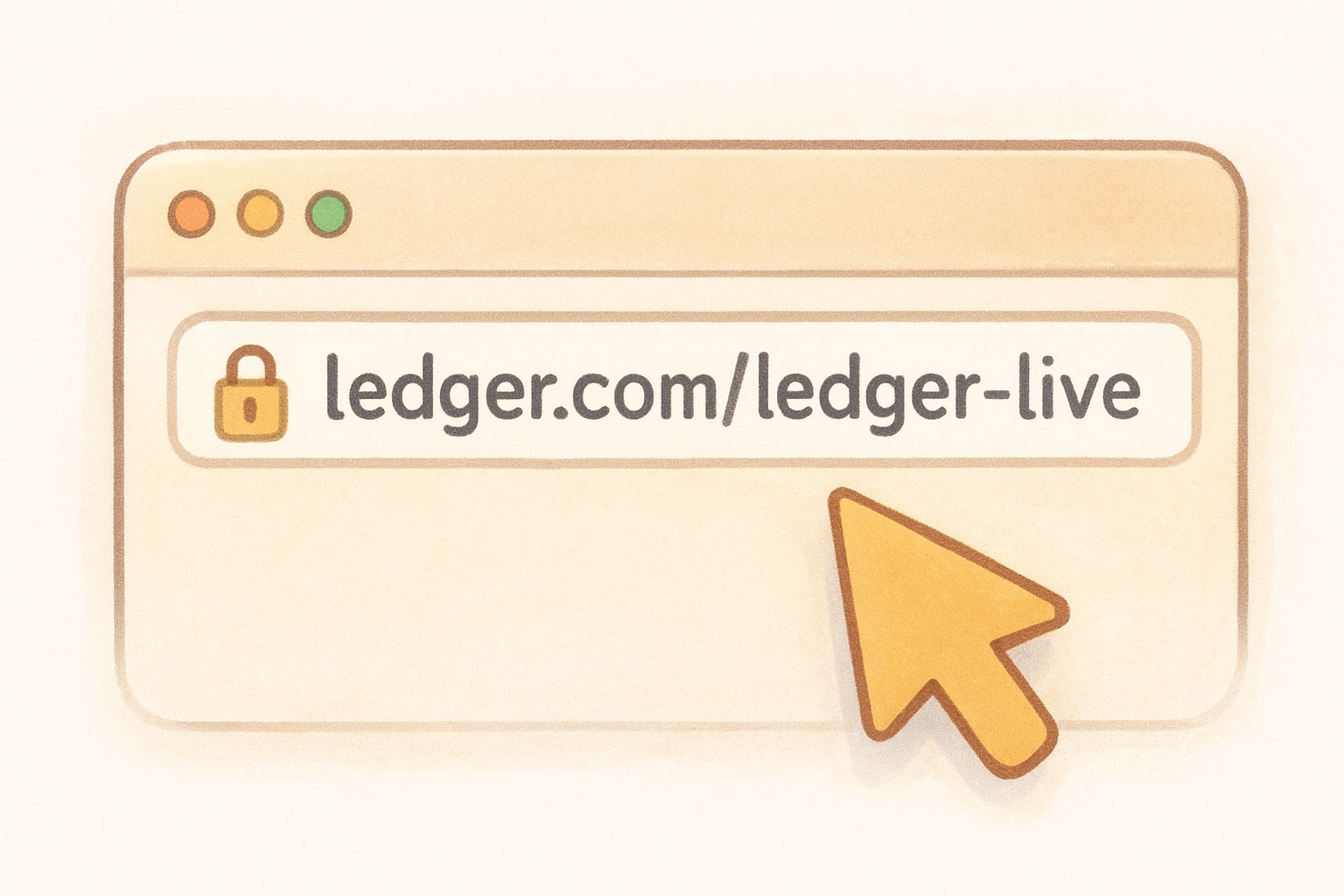
Typing the URL yourself is the only method that guarantees you reach the real site.
Platform-specific links you can trust
Ledger distributes mobile apps exclusively through official stores. For iOS, download from Apple's App Store by searching "Ledger Wallet" and verifying the developer name shows "Ledger SAS". Android users find the identical app on Google Play Store with the same developer verification. Desktop installers for Windows, macOS, and Linux come only from the ledger.com download page. No third-party mirrors exist for legitimate Ledger software.
Verify the installer before you run it
Malware disguised as legitimate software looks identical until it's too late. After completing your ledger live download from the official site, you need to verify the file's cryptographic hash before opening it. This step confirms no one tampered with the installer during transit or compromised Ledger's servers between the time they signed the file and when you downloaded it.
Check the SHA-256 hash
Ledger publishes SHA-256 checksums for every installer version on their download page. You compare this published value against the hash your computer calculates from the downloaded file. A single altered byte produces a completely different hash, making this method foolproof for detecting tampering.
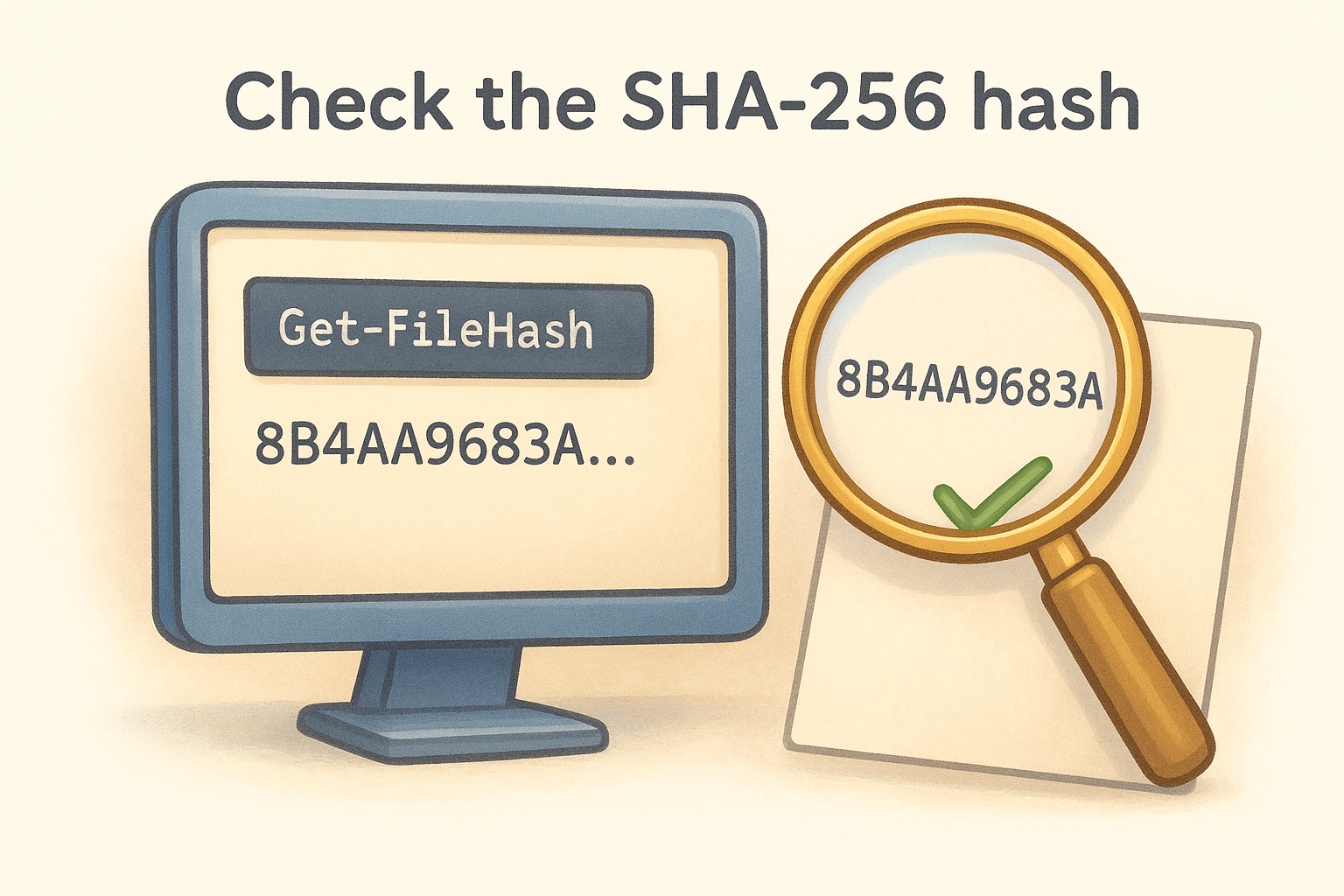
Windows users open PowerShell and run this command, replacing the path with your actual download location:
Get-FileHash "C:\Users\YourName\Downloads\ledger-wallet-desktop-2.85.0-win-x64.exe" -Algorithm SHA256
macOS and Linux users open Terminal and use this command:
shasum -a 256 ~/Downloads/ledger-wallet-desktop-2.85.0-mac.dmg
The output string must match the checksum on Ledger's download page character for character. Any difference means you need to delete the file immediately and download again from the official source.
A matching hash guarantees the file hasn't been modified since Ledger signed it.
Install and set up on desktop and mobile
Your verified installer sits in your downloads folder. Now you need to complete the installation process and connect your hardware wallet for the first time. The steps differ slightly between desktop and mobile platforms, but both require your Ledger device and PIN to complete initial pairing.
Desktop installation steps
Double-click the verified installer file to launch the setup wizard. The process takes under two minutes on most systems and doesn't require administrative privileges on Windows or macOS. Accept the license agreement, choose your installation directory, and let the installer complete. Launch Ledger Wallet immediately after installation finishes.
Connect your Ledger device via USB cable when prompted. Enter your PIN on the hardware wallet itself (never in the app). The software scans for your device automatically and guides you through adding your first account. You'll install blockchain apps directly from the interface by navigating to the Manager section.
Mobile setup process
Download the verified app from your device's official store. Open it after installation completes and grant the required permissions for Bluetooth connectivity on iOS or Android. Your Ledger Nano X supports wireless pairing, while older models require USB-OTG adapters for mobile connections.
Mobile setup requires Bluetooth enabled on both your phone and hardware wallet.
Wake your Ledger device and unlock it with your PIN. The app detects your hardware wallet within 15 seconds and pairs automatically when you confirm the connection code matches on both screens.
Fix common issues and avoid costly mistakes
The most dangerous problems occur after your ledger live download completes. Users lose funds through preventable mistakes like ignoring firmware compatibility warnings, typing seed phrases into browser forms, or clicking phishing links disguised as support requests. These errors happen during routine use, not just initial setup.
Connection failures and how to fix them
Your device won't connect if firmware versions mismatch between hardware and software. Check the Manager section for pending updates and install them in order. Restart Ledger Wallet after each firmware installation completes. Windows users need to install the Universal Serial Bus driver from Ledger's support page if the device shows as "unrecognized" in Device Manager. Bluetooth connections on mobile require location services enabled on Android, even though the app doesn't use GPS data.
Recognize phishing attempts instantly
Ledger never asks for your 24-word recovery phrase through support tickets, emails, or chat windows. Any request for seed words is a scam, regardless of how official the communication appears. Support teams cannot recover wallets, reset PINs remotely, or "verify" accounts through phrase submission. Legitimate troubleshooting involves device logs, app version numbers, and error screenshots, nothing more.
Real Ledger support never needs your seed phrase to solve technical problems.
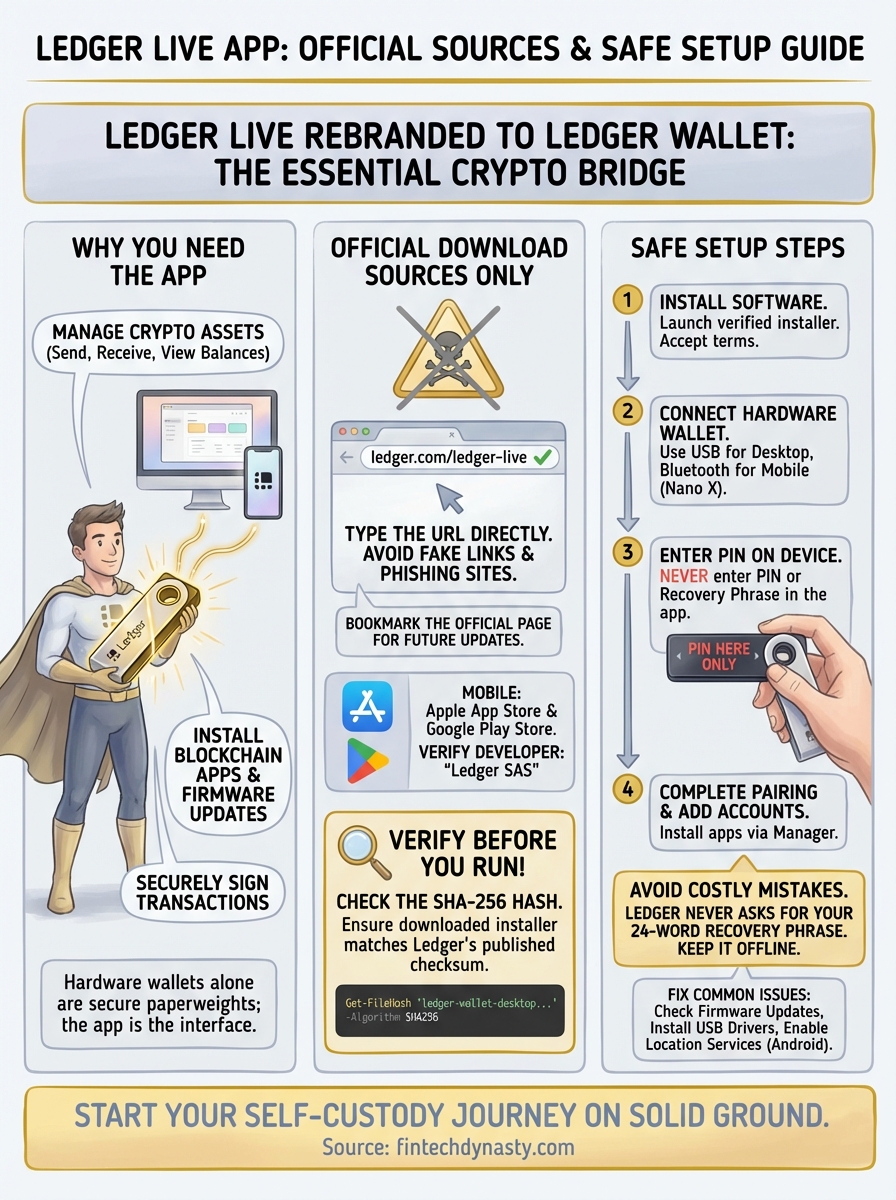
Quick wrap-up and next step
Your ledger live download journey starts and ends with the official ledger.com domain. Scammers create convincing clones that steal credentials and drain wallets within minutes. Verify every installer using SHA-256 checksums before running it. Skip this step and you risk installing malware that captures your device PIN or worse.
Connect your hardware wallet only after confirming the software matches published hashes. Install firmware updates through the Manager section to patch known vulnerabilities. Never share your 24-word recovery phrase with anyone claiming to represent Ledger support, regardless of how urgent they make the request sound.
Hardware wallet security extends beyond the device itself. You need proper storage practices and awareness of common attack vectors targeting self-custody users. FinTech Dynasty provides independent comparisons of hardware wallets, detailed security checklists, and practical guides that help you protect digital assets without the market hype.