

Chrome Safe Browsing Settings: Set Standard Or Enhanced
Your browser is the gateway to your crypto wallets, exchange accounts, and DeFi platforms, making it a prime target for phishing attacks and malicious sites. Configuring your Chrome safe browsing settings properly adds a critical layer of defense before you even connect your hardware wallet or sign a transaction. At FinTech Dynasty, we focus on every aspect of protecting your digital assets, and browser security is where that protection starts.
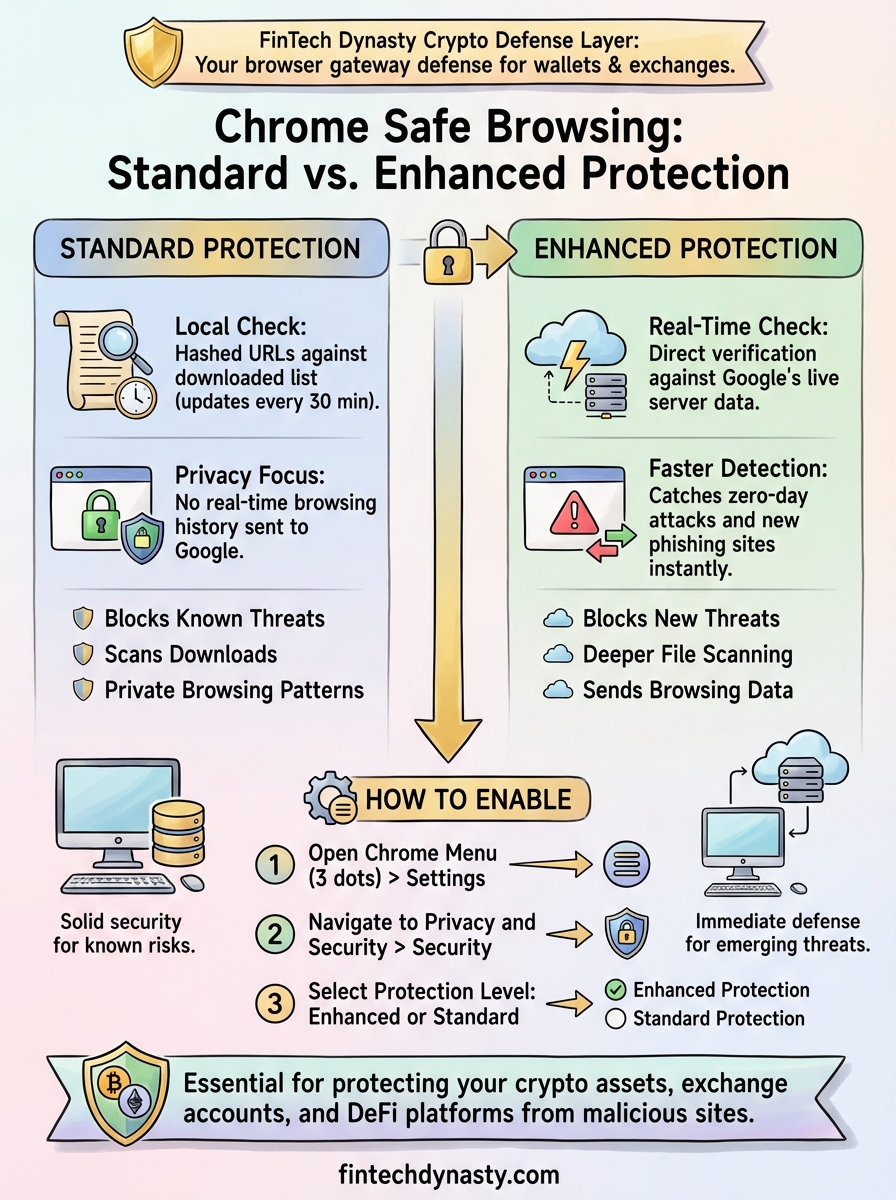
Chrome offers two main protection levels: Standard and Enhanced. Each handles threats differently, and choosing the right one depends on your browsing habits and privacy preferences. Standard protection checks sites against a locally stored list of known threats, while Enhanced protection uses real-time data from Google's servers for faster detection.
This guide walks you through finding these settings on both desktop and mobile, explains what each option actually does, and helps you decide which level fits your security needs.
What Safe Browsing does in Chrome
Safe Browsing scans every link you click and every page you visit against Google's constantly updated database of malicious sites and downloads. When Chrome detects a threat, it displays a full-page warning before the site loads, giving you a chance to back out before any damage occurs. This happens automatically in the background without slowing down your browsing or requiring manual updates.
How it blocks dangerous sites
Chrome checks each URL against lists of phishing pages, malware distributors, and unwanted software hosts. The browser performs this check either locally (using lists downloaded to your device) or in real-time through Google's servers, depending on your protection level. When you attempt to visit a flagged site, Chrome intercepts the request and shows a red warning screen with details about why the site was blocked.
Safe Browsing catches threats before they reach your device, not after.
Your chrome safe browsing settings also extend to downloads, scanning files before they finish saving to your computer. Chrome flags executables, archives, and documents that match known malware signatures or come from domains associated with previous attacks. You can override these warnings, but the browser makes it intentionally difficult to proceed to a blocked site or download.
What threats it catches
The system identifies several attack types that target crypto users specifically. Fake wallet sites that clone legitimate interfaces appear on the block list within hours of being reported. Chrome also stops clipboard hijackers that replace crypto addresses during copy-paste operations and browser extensions that inject malicious JavaScript into exchange pages. Social engineering attacks, including sites that impersonate hardware wallet manufacturers or offer fake airdrops, trigger warnings before you enter any credentials.
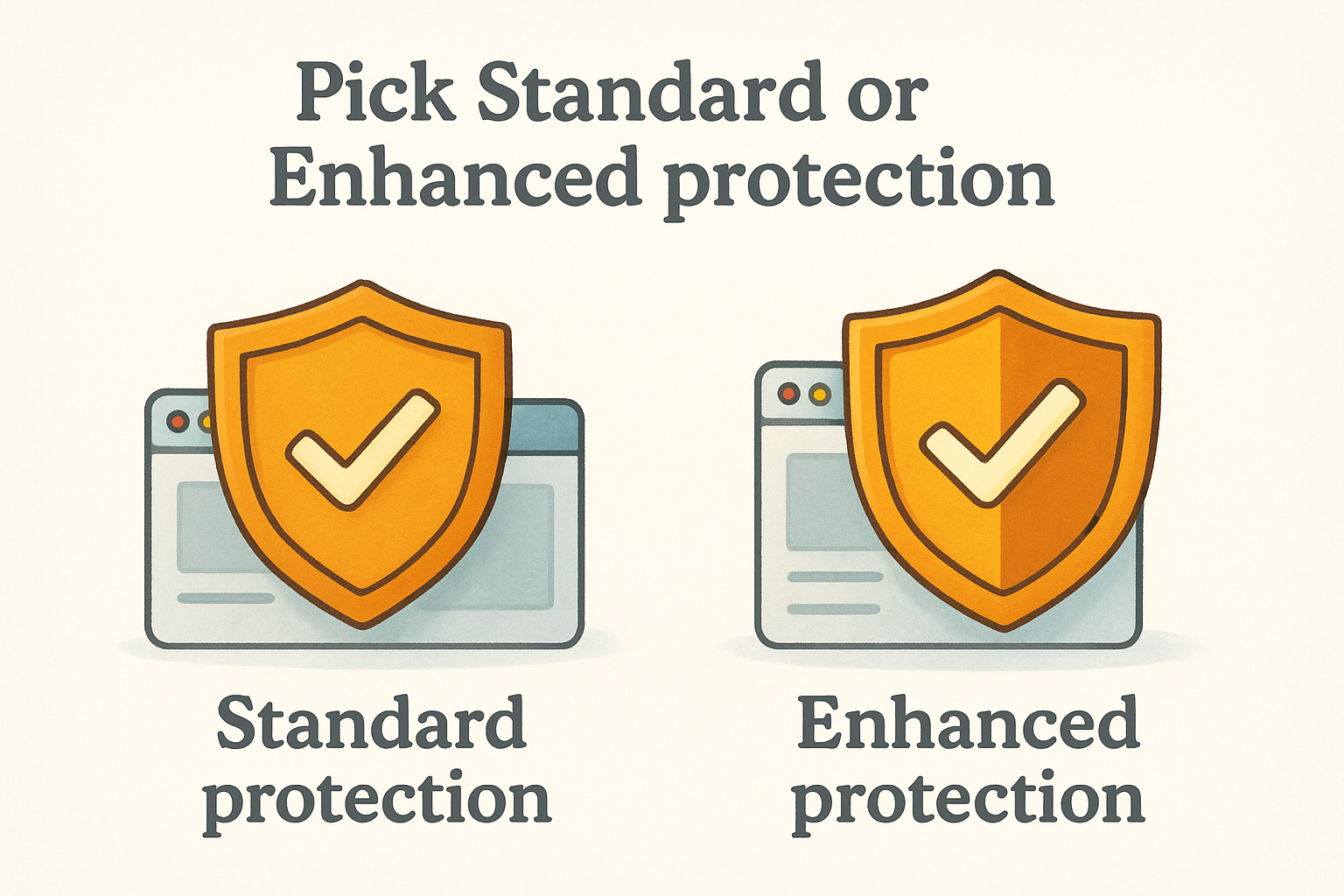
Pick Standard or Enhanced protection
Your chrome safe browsing settings offer two protection levels that balance security against privacy. Standard protection downloads threat lists to your device and checks URLs locally, while Enhanced protection sends browsing data to Google in real time for immediate threat detection. Both block dangerous sites, but they handle your browsing information differently.
Standard protection features
Standard protection checks URLs against locally stored threat lists that update every 30 minutes. Chrome hashes the URL you visit and compares it against the downloaded database without sending your full browsing history to Google. This approach protects you from known threats while keeping your browsing patterns private. The system also scans downloads before they complete and warns you about uncommon files that might contain malware.
Standard protection gives you solid security without sharing real-time browsing data.
Enhanced protection features
Enhanced protection sends URL checks directly to Google's servers for instant verification against the most current threat data. This level catches zero-day attacks and newly created phishing sites that have not yet appeared in the local lists. Google collects temporary logs of your browsing activity to improve detection algorithms, though these logs disconnect from your account after a set period. You get warnings about password reuse and deeper file scanning for suspicious downloads.
Set Safe Browsing on desktop Chrome
Accessing your chrome safe browsing settings on desktop takes less than a minute through Chrome's Privacy and Security menu. The settings panel gives you three protection options: Enhanced, Standard, or No Protection, each displayed with a clear explanation of what data Chrome shares and what threats it blocks.
Access the settings menu
Follow these steps to configure Safe Browsing on your desktop browser:
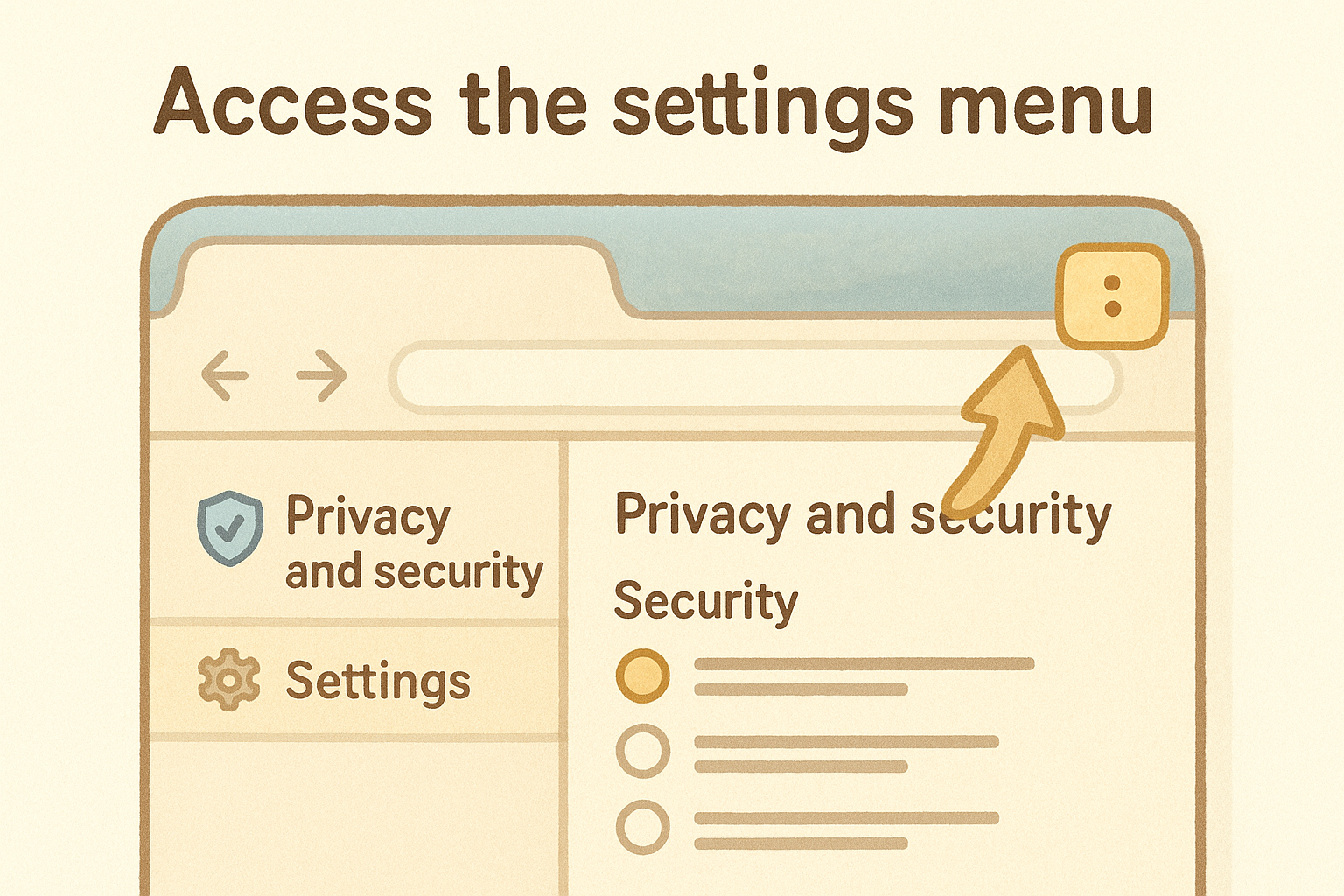
- Click the three-dot menu in the top-right corner of Chrome
- Select Settings from the dropdown menu
- Click Privacy and Security in the left sidebar
- Select Security from the main panel
- Choose your protection level under the Safe Browsing section
Chrome displays each option with a radio button and description underneath. Enhanced Protection appears first, followed by Standard Protection and No Protection at the bottom. Click the radio button next to your preferred level to activate it immediately without restarting the browser.
Your settings apply across all tabs instantly, with no confirmation dialog or restart required.
The Security page also shows additional settings below Safe Browsing, including options to always use secure connections and manage site-specific permissions. Scroll down to review these related security features after setting your Safe Browsing level.
Set Safe Browsing on Android and iPhone
Mobile Chrome uses the same chrome safe browsing settings as the desktop version, but the menu structure differs slightly between Android and iOS. Both platforms let you switch between Standard and Enhanced protection through the Privacy and Security section, with changes taking effect immediately across all open tabs.
Configure Safe Browsing on Android
Chrome for Android places security settings within the main app menu rather than a separate settings page. Open Chrome and tap the three-dot menu in the top-right corner, then select Settings from the list. Scroll down to Privacy and Security and tap it to reveal the security options.
Tap Safe Browsing to see your protection choices. Select your preferred level by tapping the radio button next to Enhanced Protection or Standard Protection. Android Chrome applies your selection without requiring a restart.
Configure Safe Browsing on iPhone
iPhone users follow a nearly identical path through Chrome's settings interface. Tap the three-dot menu icon and select Settings from the dropdown. Navigate to the Privacy and Security section by scrolling down the settings list.
Mobile settings sync across devices when you sign into Chrome with your Google account.
Tap Safe Browsing to view your options and select either Enhanced or Standard protection by tapping your choice.
Confirm settings and fix common issues
Your chrome safe browsing settings take effect immediately after you select a protection level, but verifying the change helps catch configuration problems before you visit sensitive sites. Chrome displays your active protection level at the top of the Security page with a green checkmark next to your selected option. Return to the Security menu after making changes to confirm you see the checkmark beside your choice.
Verify your protection level is active
Chrome shows your current protection status in multiple locations within the browser. Navigate back to Settings > Privacy and Security > Security to see which radio button appears selected. Your chosen protection level displays with descriptive text explaining what data Chrome shares and what threats it blocks.
Test your protection by visiting Google's Safe Browsing test page at testsafebrowsing.appspot.com. This page contains links that trigger warning screens if Safe Browsing is working correctly. Click the phishing test link to see a red warning page appear instantly.
Testing with Google's official page confirms your browser catches threats in real time.
Fix missing or delayed warnings
Sometimes Chrome fails to display warnings even with Safe Browsing enabled. Clear your browsing cache through Settings > Privacy and Security > Clear Browsing Data if warnings stop appearing. Select "Cached images and files" and click Clear Data to force Chrome to download fresh threat lists.
Update Chrome to the latest version if warnings still do not appear. Type chrome://settings/help in the address bar to check for updates and install them automatically.
Next steps
Setting your chrome safe browsing settings to Standard or Enhanced protection blocks threats before they reach your wallet interfaces or exchange dashboards. This configuration takes less than two minutes but prevents phishing attacks that target crypto holders specifically. Review your settings every few months to ensure they remain active after browser updates or profile changes.
Browser security forms one layer of a complete protection strategy for digital assets. Hardware wallets store your private keys offline, while properly configured browsers prevent malicious sites from intercepting your transactions or credentials. Combining both approaches gives you defense at multiple points of attack rather than relying on a single security measure.
Continue building your security knowledge with our guides on wallet protection and self-custody best practices. We cover everything from seed phrase storage to hardware wallet comparisons, helping you understand each security layer without the hype or speculation that dominates most crypto resources.